
Free to start · Photoreal with Guava
AI Photo Generator
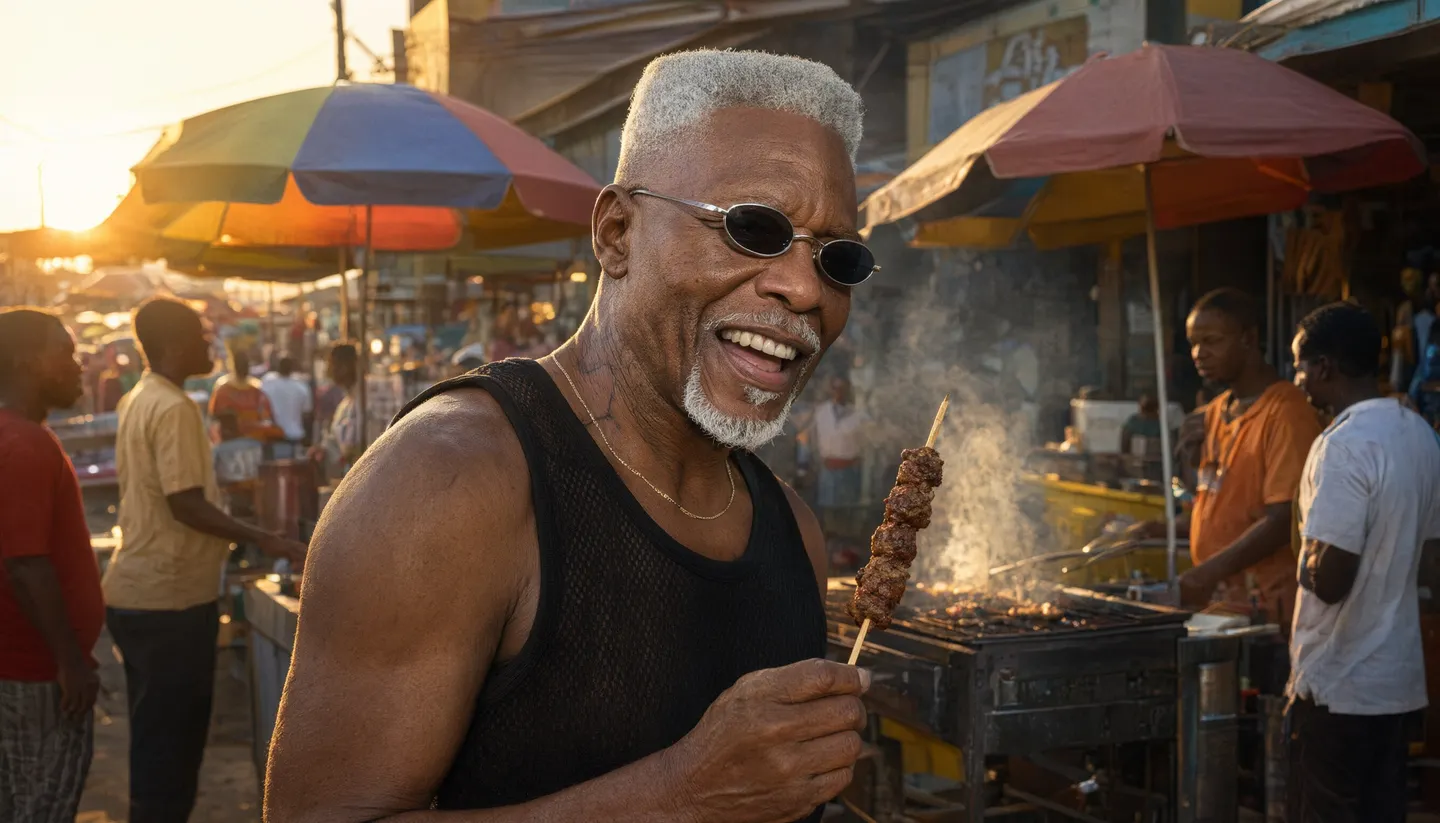
Make pictures that pass for photographs. Describe the shot, the lens and the light, and Mage's photoreal models render skin, fabric and glass the way a camera would.
No installation. No credit card. Private by default.
- 2KGuava 2 Pro output
- 3Reference images on Guava
- Up to 6KWith the Image Enhancer
- ZeroWatermarks
The basics
What is an AI photo generator?
An AI photo generator creates realistic photographs from a written description. The goal is not a picture that looks like art but one that looks shot: believable light, real skin texture, fabric that folds, reflections that behave. It is how people make product shots without a studio, portraits without a photographer, and scenes in places they cannot get to.
Mage's photorealism family is Guava. Guava 2 Pro is built for portraits, fashion and editorial images and for close-up texture in skin, fabric and hair, and it takes up to three reference images. Guava 2 is its faster sibling for iterating. Mango 3 handles photoreal scenes that need exact instructions or several references, and Z-Image is the fastest photoreal text to image model on Mage.
The most important habit for photoreal results is describing the camera: the lens, the light and the time of day. A vague prompt gets a generic studio look. A specific one gets a photograph.
A little more possibility
Why make realistic photos on Mage
Real texture
Guava 2 Pro renders pores, stray hairs and fabric weave instead of airbrushed plastic.
Reference images
Add up to three references on Guava to keep a product, an outfit or a face accurate.
Saved characters
Every Guava model accepts saved characters, so the same person can appear across a whole set of photos.
Camera language
Lens, aperture, film stock and lighting setups shape the result instead of being ignored.
Fix and finish
Relight a shot, change the camera angle or restore skin texture with the Mage apps, without regenerating.
Unlimited on Pro
Guava is unlimited from Pro at $30 a month, alongside Mango.
From idea to creation
How do you generate a realistic photo?
It takes three steps, and it is free to start.
Open Guava
Use the button on this page, then choose Guava 2 Pro in the model menu.
Brief it like a photographer
Subject, setting, lens, light and time of day. Add reference images when accuracy matters.
Generate and compare
Run a few variations and keep the most natural one.
Retouch and enlarge
Fix the light with Relight, polish skin with Skin Enhancer, and upscale with the Image Enhancer.
Tips and techniques
How to prompt for photorealism
Write the prompt the way you would brief a photographer. "A woman reading in a cafe" is a stock photo. "A woman in her sixties reading a paperback at a window table, late afternoon sun through the glass, 50mm lens at f/2, film grain, warm tones" is a photograph. Guava 2 Pro in particular rewards specifics: name the lighting and the lens, or it falls back to a clean, generic studio look.
Imperfection sells realism. Mention the things a real camera catches: a slight motion blur on a moving hand, flyaway hair in backlight, condensation on a glass, a crease in a shirt. Ask for natural skin texture rather than flawless skin. Real photos are rarely perfectly centered, so describe the framing as well.
- Name a lens: 35mm for scenes, 85mm for portraits, macro for details.
- Give the light a direction and a source.
- Say the time of day and the weather.
- Ask for natural skin texture.
- Add a film stock or "phone photo" for a specific look.
Tips and techniques
Photos of real products and people
When the photo has to show something real, give the model a picture of it. Guava takes up to three reference images and Mango 3 up to 10, so you can supply a product from several angles, or a garment, and describe the new scene around it. The references keep the details right while the prompt sets the stage.
For a recurring person, save them once as a character and write their @handle in the prompt; the face stays the same from shot to shot. Use this only for yourself, people who have given permission, or invented characters: Mage forbids non-consensual imagery of real people. For dedicated jobs, see the AI headshot generator and the AI product photo generator.
Tips and techniques
Finishing a photo without regenerating
Small problems do not need a new generation. Relight changes the direction, intensity and color of the light, Angles re-renders the scene from a new camera angle, and Skin Enhancer restores realistic skin texture. When the photo is final, the AI image upscaler takes it to 4K or 6K.
The right model for the job
The best models for realistic AI photos
Guava leads for people and products; the others cover speed and complex scenes.
Guava 2 Pro
Photoreal portraits, fashion and editorial images with close-up skin, fabric and hair texture. Up to three references and 2K. Name the lighting and the lens.
Mango 3
Photoreal scenes that need exact instructions, several people, or up to 10 references combined into one picture.
Z-Image
The fastest image model on Mage: photoreal text to image with solid anatomy and lettering, at 1K or 2K.
Nano Banana 2.1
Google's model for realistic edits from up to 14 references at up to 4K. Google's safety filter applies.
Try these prompts
Photoreal prompts to try
Each one names a lens and a light. Keep those and change the subject.
A street portrait
An elderly fisherman mending a net on a harbor wall, overcast light, 85mm lens at f/1.8, natural skin texture, muted film colors
A product on location
A stainless steel water bottle on a granite boulder by a mountain stream, morning sun, droplets on the metal, 50mm, shallow depth of field
An interior
A sunlit kitchen with terracotta tiles, a bowl of lemons on the counter, linen curtains moving, wide 24mm shot, soft natural light
Food
A bowl of ramen with steam rising, chopsticks lifting noodles, dark wooden counter, side light, 100mm macro
Room to experiment
AI photos vs a photo shoot
A shoot gives you the real thing, at the cost of a crew, a location and a day. An AI photo generator is the fast way to mock up, test and fill gaps, and with the right model the results are hard to tell from camera work.
A traditional shoot
- Booking, travel and a crew
- One location per day
- Reshoots when something is off
- Weeks from brief to images
AI photos on Mage
- A prompt and a few minutes
- Any location you can describe
- Rerun or retouch in place
- Private by default, with no watermark
Follow your imagination
What are AI photos used for?
Product listings
Show a product in a styled setting from reference photos, without booking a studio.
Ad and campaign mockups
Test concepts with realistic images before committing to a shoot.
Blog and editorial images
Illustrate an article with a photo of exactly the scene it describes.
Portraits and profile photos
Create polished portraits of yourself from a saved character.
Start small. Dream big.
How much does the AI photo generator cost?
Free to start with 300 bonus Gems. Guava becomes unlimited on Pro.
Free
$0
One-time 300 Gems for new members. No watermark.
Pro
$30/mo
Unlimited Guava and Mango, Enhance at 2K, unlimited character creation, 1,500 monthly Gems.
Pro Plus
$60/mo
Adds Mango at 3K and 4K, Enhance at 4K, Skin Enhancer at 4K and 3,500 monthly Gems.
A little more clarity
Frequently asked questions
What is the most realistic AI photo generator?
Can I make AI photos of myself?
Why do my AI photos look fake?
What resolution are AI photos?
Can I use AI photos commercially?
Are my photos private?

Ready to make a photo without a camera?
Free to start, private by design. Have fun creating!
Open GuavaRelated generators & guides
Mage is for adults, 18+ only. Nothing illegal is allowed; any content involving minors or non-consensual depictions of real people is strictly prohibited.