
Free to start · Up to three performers
AI Music Video Generator
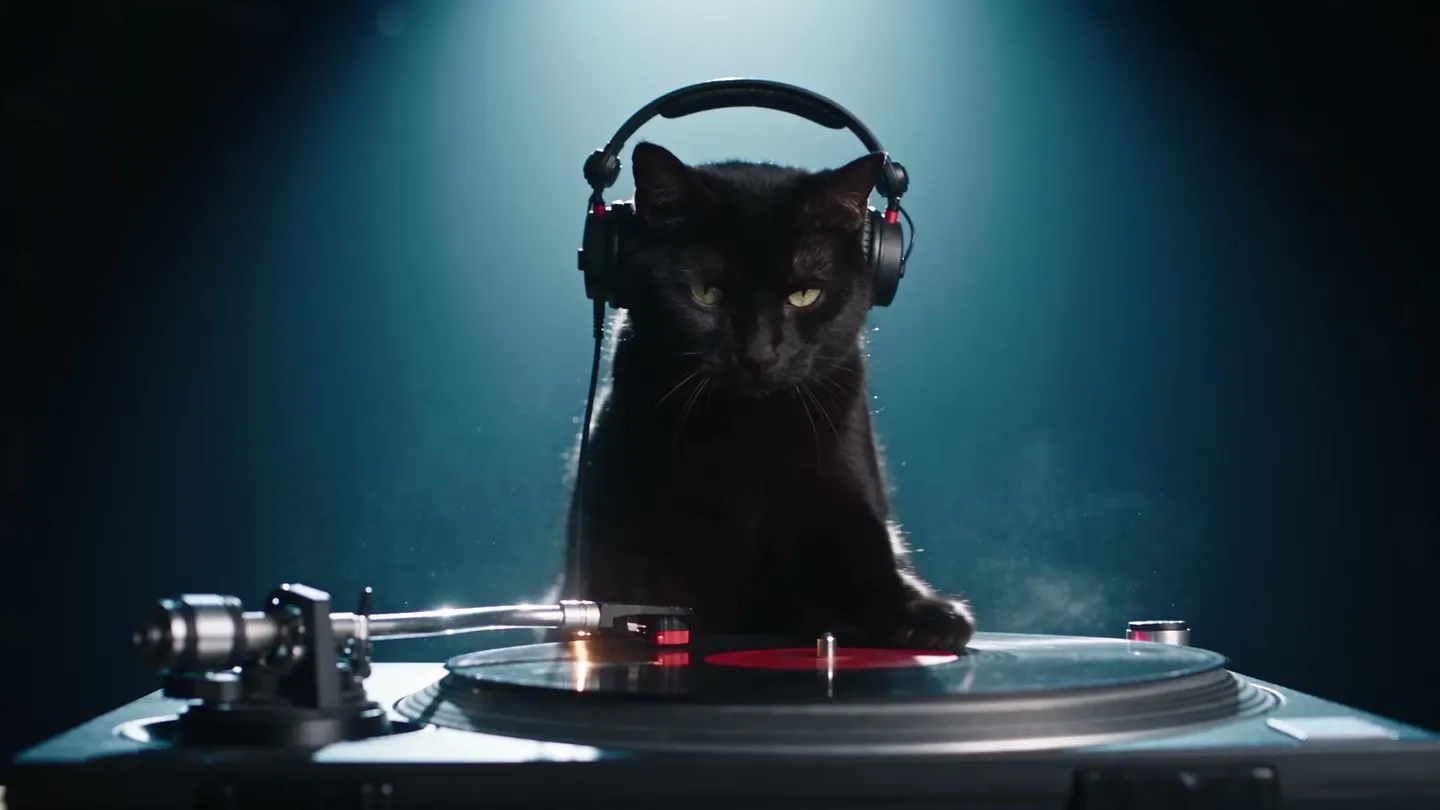
Give Mage a track and up to three of your characters, and it films them performing it: singing in sync, dancing, and moving through camera work that follows the music.
No installation. No credit card. Private by default.
- 3Performers per clip
- 15 sAudio per clip
- 7Video models in the app
- $0Free to start
The basics
What is an AI music video generator?
An AI music video generator turns a piece of music into footage of someone performing it. Instead of animating a single face, it stages a performance: the singer's lips follow the vocal, the bodies move with the rhythm, and the camera cuts and travels the way a music video's would.
Mage's Music Video app is built around characters. Choose one to three performers from your saved characters, add audio of up to 15 seconds, and optionally add up to three reference images for the stage, the wardrobe or the props. Mage films the performers singing and dancing in sync with cinematic camera work, on Plum by default, or on Plum Max, Lemon or one of the four Cherry models.
Because the performers are saved characters, the same faces appear in every clip, which is what makes a run of short clips feel like one video. Make the chorus, then a verse, then the bridge, and put them in order in Storyboard.
A little more possibility
Why musicians and creators choose Mage
Your characters, on stage
Performers are saved characters, so their faces stay the same from clip to clip.
Up to three performers
A solo artist, a duo or a three-piece band in one shot.
References for the set
Add up to three images for the stage, the outfits or the props.
Camera work included
Clips are filmed with music-video camera moves, not a static frame.
Seven video models
Plum by default, plus Plum Max, Lemon and four Cherry models.
Private until release
Nothing is public until you post it, so you can work on a video before it drops.
From idea to creation
How do you make an AI music video?
It takes three steps, and it is free to start.
Save your performers
Create characters from one clear portrait each, or reuse ones you already have.
Add the track
Upload audio or pick a clip from your creations or saved audio, up to 15 seconds.
Set the scene
Add up to three reference images and a prompt for the stage, the mood and the moves.
Generate, then sequence
Make each section of the song as its own clip, then join the clips in Storyboard.
Tips and techniques
Planning a music video in 15-second sections
Each clip takes up to 15 seconds of audio, so plan the song the way an editor would: intro, verse, chorus, bridge, final chorus. Cut the audio at the start of each section, generate a clip per section with the same performers, and vary the prompt so each section has its own setting or shot. A chorus on a rooftop and a verse in a diner reads as a real edit.
When the sections are done, Storyboard lines up to six saved clips in order and exports one MP4 with their sound, in 9:16 or 16:9. Six clips of 15 seconds cover a minute and a half, enough for a short-form cut of most songs.
- Cut the audio at section boundaries, never mid-word
- Keep the same performers in every section
- Change the location or the lighting per section
- Use reference images so the wardrobe stays consistent
- Choose 9:16 for short-form feeds, 16:9 for a widescreen cut
Tips and techniques
Getting performers who look the part
Performers are saved characters, so their look is set before you open the app. Build each one from a clear, front-facing portrait; if you are designing them from scratch, the AI character generator walks through making one and saving it. The Character Sheet app turns one image into front, side and back views, which is a quick way to check a design before it goes on stage.
For a band, keep the styling in one family: the same palette, the same era, the same wardrobe rules. Add the outfit or the stage as a reference image rather than describing it at length, and the clips will agree with each other.
Tips and techniques
Vocals, dancing, or both
When the vocal matters most, a close shot of one performer gives the cleanest sync. For dancing, a wider shot with room around the bodies works better, and you can name the style of movement in the prompt. A duo trading lines works best when the prompt says who sings when.
For choreography copied from a real dance clip, use Motion Control instead, which takes the movement from a reference video. The AI dance video generator guide explains both routes, and the AI music generator shows how to make a track from a prompt if you do not have one yet.
The right model for the job
Which model should film your music video?
All of these run inside the Music Video app. Draft on a fast model, then make the final sections on a sharper one.
Plum Max
The faster Plum, at 480P or 768P, for drafting sections quickly. Plum, the app default, renders up to 2K.
Lemon
A balance of quality and price from 480p to 1080p, a good everyday choice for performances.
Cherry 2 Pro
Mage's flagship video model, for the final cut at up to 1080p. It costs the most per clip, so draft elsewhere first.
Cherry Mini
The cheapest Cherry, at 480p or 720p, for trying an idea before you commit to it.
Try these prompts
Scene prompts for a music video
Add one of these to set the stage; your performers and track do the rest.
Rooftop chorus
A night rooftop over a neon city, wind in their hair, the camera circling the singer on the chorus.
Diner verse
A 1950s diner booth, the singer taps the table to the beat while the camera slowly pushes in.
Festival finale
A festival main stage at sunset, confetti cannons firing, the band jumps on the last beat.
Living room session
A cozy living room with string lights, a relaxed acoustic performance, gentle handheld camera.
Room to experiment
How Mage compares for AI music videos
Plenty of music video tools are visualizers: abstract shapes that pulse to the sound. Mage films performers, characters you saved, singing and dancing to your track with the same faces in every section.
Audio visualizers
- Abstract visuals that react to the beat
- No performer, or a new face in every clip
- One look for every song
Mage Music Video
- Real performances with lips in sync
- Saved characters keep their faces across sections
- Seven video models in one app
- Sections joined in Storyboard as one MP4
Follow your imagination
Who makes AI music videos?
Independent musicians
A video for a single without booking a crew or a location.
Short-form creators
A hook or a chorus as a vertical clip for a feed.
Virtual bands
A recurring group of characters with their own look and sound.
Cover and lyric channels
Performances for covers and original songs you have the rights to.
Start small. Dream big.
Is the AI music video generator free?
Mage is free to start with 300 Gems, and every Music Video model runs on Gems on any plan. Unlimited clips depend on the model, length and resolution, and saving characters is unlimited from Pro.
Free
$0
One-time 300 Gems for new members. No watermark.
Pro
$30/mo
Unlimited character creation for your performers, and unlimited video on models such as Lemon at 3 s and 480p. 1,500 monthly Gems.
Pro Plus
$60/mo
Premium video models unlimited at their listed settings, including Plum Max at 5 s and Lemon at 7 s, both at 480p. 3,500 monthly Gems.
A little more clarity
Frequently asked questions
How does the AI music video generator work?
Can I make a full-length music video?
Do the performers have to be saved characters?
Which song can I use?
Which model is best?
Is it free?
Can I sell the video?

Ready to put your characters on stage?
Free to start, private by design. Have fun creating!
Open Music VideoRelated generators & guides
Mage is for adults, 18+ only. Nothing illegal is allowed; any content involving minors or non-consensual depictions of real people is strictly prohibited.