
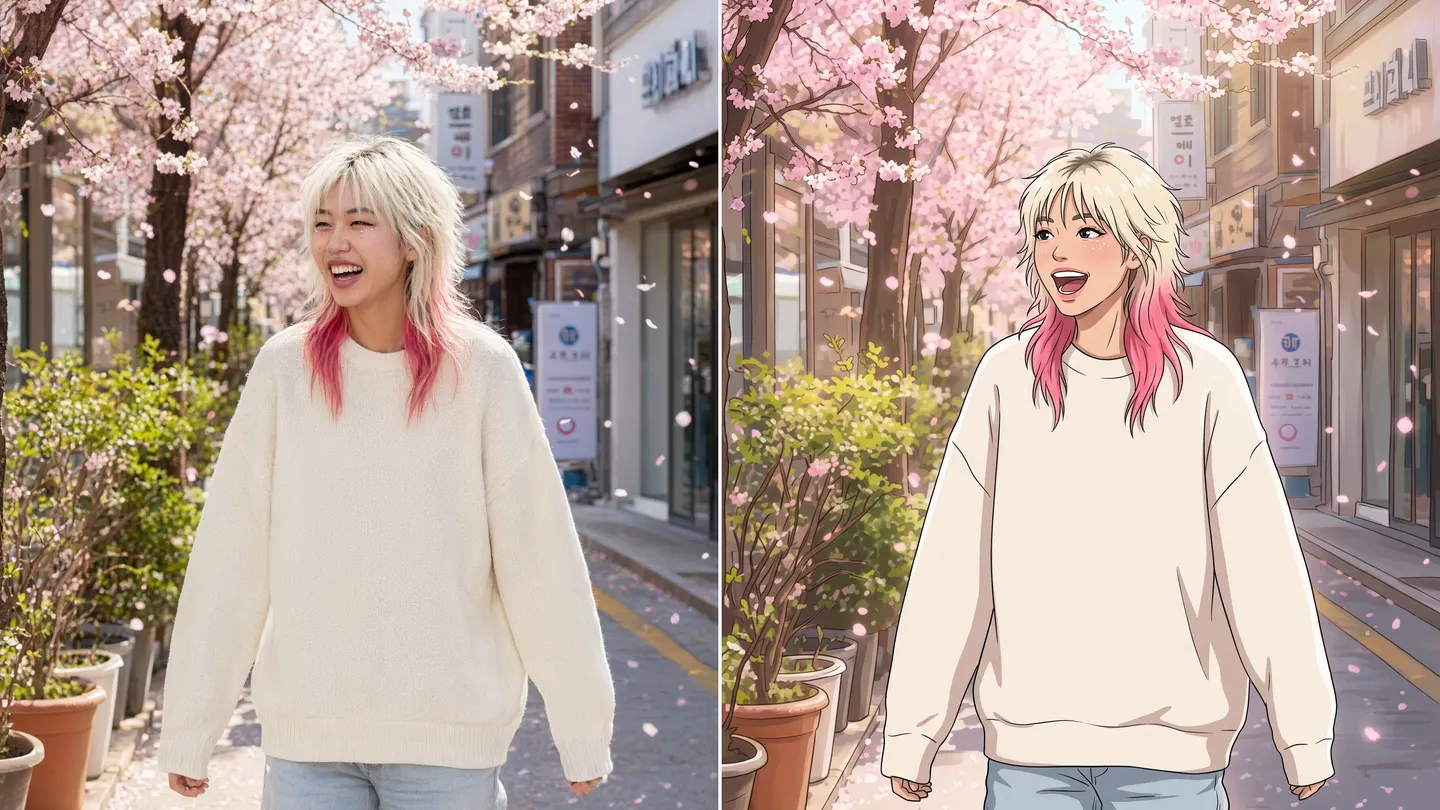
Free to start · Your photo, drawn as anime
Photo to Anime
Upload a photo of yourself, a friend who said yes, a pet or a street, and get it back as anime art: same pose, same outfit, same place, redrawn with clean lines and anime color.
No installation. No credit card. Private by default.
- 10Input images on Mango 3
- 14On Nano Banana 2.1
- 4KTop resolution
- $0Free to start
The basics
What is a photo to anime converter?
A photo to anime converter redraws a real photograph in an anime style. The person, the pose, the clothes and the setting carry over, and the rendering changes: faces get anime proportions, shading becomes cel-style, and the colors take on the look of an animated series or a manga cover.
On Mage this is an edit, not a filter. You attach your photo to an image model that takes input images, such as Mango 3, Nano Banana 2.1 or GPT Image 2.5 Flare, and describe the anime style you want. The model redraws the picture and keeps what you tell it to keep, so you choose how far the result moves from the original.
Anima, the dedicated anime model on Mage, works differently: it draws from a prompt and takes no input images. It is the right tool for anime that starts from words, and the edit models are the right tool for anime that starts from a photo.
A little more possibility
Why turn photos into anime on Mage
A real edit, not a filter
The model redraws the whole image in anime style and keeps the pose, outfit and scene you ask it to keep.
Choose the anime style
Name the look: clean cel shading, a soft watercolor film still, 90s broadcast anime or black-and-white manga.
Several edit models
Mango 3, Nano Banana 2.1 and GPT Image 2.5 Flare each redraw differently. Run the same photo on two and compare.
Keep the anime version
Save the anime result as a character and use its @handle in new scenes, still or moving.
Then make it move
Send the anime still to a video model to animate it, or use Melon, Mage’s anime video model.
Private by default
Your photos and results stay in your account unless you choose to share them.
From idea to creation
How do you turn a photo into anime?
It takes three steps, and it is free to start.
Open the generator
Use the button on this page to open Mango, then pick Mango 3 in the model menu.
Attach your photo
Add the photo as an input image. Use a clear, well-lit shot where the subject fills a good part of the frame.
Describe the anime style
Ask it to redraw the photo as anime, name the style, and say what to keep: the pose, the outfit, the background.
Compare and keep
Run it again or on Nano Banana 2.1 for a different take, then download or save the result as a character.
Tips and techniques
Write the edit instruction, not just the style
Edit models do best with a clear instruction that names what changes and what stays. "Redraw this photo as a 90s anime cel, clean black line art, flat cel shading, keep the same pose, outfit and street background, keep her hair color" tells the model exactly where the line is. "Make it anime" leaves it to guess, and it may change the composition or the clothes.
Name a period or a finish rather than a studio or a living artist. Clean modern TV anime, a soft hand-painted film still, a 90s broadcast look with grain, a shoujo manga cover with sparkles, or black-and-white manga with screentone each give a distinct result.
- Say "redraw this photo as anime" at the start
- List what to keep: pose, outfit, background, hair color
- Name the finish: cel shading, watercolor, screentone
- Use a photo where the face is clear and well lit
- Crop out other people unless they agreed to be included
Tips and techniques
Which model to use for photo to anime
Mango 3 is the default pick: it follows exact instructions and keeps the rest of the image in place while it restyles, at 1K or 2K. Nano Banana 2.1 is a good second opinion, reaching 4K and taking up to 14 input images, with Google’s safety filter applied. GPT Image 2.5 Flare follows detailed prompts closely and handles text, which helps for a manga panel with a speech bubble, with OpenAI’s safety filter applied.
When the anime image does not need to start from a photo, Anima draws it from a prompt with clean lines and flat color. The anime image generator covers Anima and the rest of the anime models, and the AI manga generator covers black-and-white pages.
Tips and techniques
From an anime still to an anime clip
An anime version of a photo is often the first frame of something bigger. Save it as a character and it keeps its face in new scenes. Send it to a video model to animate it, as the anime video generator explains, where Melon, Mage’s anime video model, renders with optional audio.
Only convert photos of yourself or of people who agreed. Mage does not allow non-consensual imagery of real people, in any style.
The right model for the job
The best AI models for photo to anime
Photo to anime needs a model that takes an input image. These do, and Anima covers anime from text.
Mango 3
Mage's flagship: precise edits that keep the rest of the image in place, up to ten input images, 1K or 2K.
Nano Banana 2.1
Google's model: up to 14 input images and up to 4K, a useful second take on the same photo. Google's safety filter applies.
GPT Image 2.5 Flare
OpenAI's model: close prompt adherence and text in the image, good for a manga panel with lettering. OpenAI's safety filter applies.
Anima
An anime and illustration model with clean lines and flat color. It takes no input image, so it is for anime drawn from a prompt.
Try these prompts
Photo to anime instructions to start from
Attach your photo, paste one of these, and adjust what it keeps.
Modern TV anime
Redraw this photo as a modern TV anime frame, clean black line art, flat cel shading, bright colors, keep the same pose, outfit and background
90s cel look
Turn this photo into a 1990s anime cel with soft film grain and muted colors, keep the composition and the hairstyle
Hand-painted film still
Redraw this street photo as a hand-painted anime film still, watercolor sky, warm afternoon light, keep the buildings and the person
Manga panel
Convert this photo into a black-and-white manga panel with screentone shading and speed lines, keep the pose
Room to experiment
An edit model compared with an anime filter
A filter applies the same effect to every photo. An edit model reads your instruction, redraws the whole image and keeps what you name, so you can push the result toward the exact anime look you have in mind.
An anime filter
- One effect for every photo
- Little say over what changes
- One look, one model
An edit model on Mage
- Redraws to the style you describe
- Keeps the pose, outfit or scene you name
- Mango 3, Nano Banana 2.1 and GPT Image 2.5 Flare
- Save the result as a character for new scenes
Follow your imagination
What people make with photo to anime
Profile pictures
An anime version of yourself for a profile, a stream or a gaming handle.
Pets as anime characters
Your cat or dog redrawn as the lead of their own series.
Places and trips
Travel and street photos turned into anime backgrounds and film stills.
Comics and fan stories
A cast drawn from reference photos, then reused across panels and clips.
Start small. Dream big.
Is photo to anime free?
Mage is free to start, and every model runs on Gems on any plan. Unlimited Mango edits begin on Pro.
Free
$0
One-time 300 Gems for new members. No watermark.
Pro
$30/mo
Unlimited Mango at 1K and 2K and unlimited Anima, unlimited character creation, 1,500 monthly Gems.
Pro Plus
$60/mo
Everything in Pro, unlimited Nano Banana 2.1 at 1K, and premium video models for animating, 3,500 monthly Gems.
A little more clarity
Frequently asked questions
How do I turn a photo into anime?
Can Anima turn my photo into anime?
Will it keep my pose and outfit?
Is photo to anime free?
Can I turn the anime picture into a video?
Whose photos can I convert?

Ready to see your photo as anime?
Free to start, private by design. Have fun creating!
Open the Mango generatorRelated generators & guides
Mage is for adults, 18+ only. Nothing illegal is allowed; any content involving minors or non-consensual depictions of real people is strictly prohibited.