
Free to start · Your face, your headline
AI Thumbnail Generator
Describe the video, add your saved character, and get a 16:9 thumbnail with the headline spelled right. Make a dozen versions and keep the one that pops. Free to start, in your browser.
No installation. No credit card. Private by default.
- 16:9The standard video shape
- 15Reference images on GPT Image 2.5 Flare
- 1Portrait to save your face
- $0Free to start
The basics
What is an AI thumbnail generator?
An AI thumbnail generator makes the small image that sells a video: usually a face with a strong expression, one object or scene, and three to five words of text. It is a design job with a tight brief, which is exactly where a model that follows instructions and renders text does well.
On Mage you make thumbnails with GPT Image 2.5 Flare or Nano Banana 2.1, the two models that spell words reliably, and you put yourself in them with the Characters system. Save your face once from a single portrait, mention it by @handle, and every thumbnail has the same recognizable host, in any expression or setting you describe.
Volume matters more here than almost anywhere. The thumbnail that wins is usually the eighth try, not the first. GPT Image 2 and 2.5 at Low quality are unlimited from Basic, so you can make every variation you want to test without counting.
A little more possibility
Why creators make thumbnails on Mage
You, in every thumbnail
Save your face once as a character and call it by @handle: shocked, laughing or pointing, the same person each time.
Headlines that read
GPT Image 2.5 Flare and Nano Banana 2.1 set short, bold text you can read at phone size.
Variations without a meter
GPT Image 2 and 2.5 at Low quality are unlimited from Basic at $10 a month.
Pull in the props
Attach a product, a screenshot or a location as reference images and describe how they sit around you.
Match the light
Relight changes the lighting direction and color of a finished image, so you and the background look like one shot.
Private until upload
Thumbnails for videos you have not announced stay private in your account.
From idea to creation
How do you make a thumbnail with AI?
It takes three steps, and it is free to start.
Save your face
Create a character from one clear portrait in Characters, or skip this step for thumbnails without a host.
Open GPT Image
Use the button on this page, pick GPT Image 2.5 Flare in the model menu, and set the aspect ratio to 16:9.
Describe the thumbnail
Name the expression, the object, the background and the headline in quotes. Mention yourself by @handle.
Make versions and pick
Change one element per run, compare a few side by side, and download the strongest. Relight or Inpaint the keeper if it needs it.
Tips and techniques
What makes a thumbnail work
A thumbnail is read in under a second, at the size of a fingernail. That rules out most of what looks good full size. One face with a clear emotion, one object that explains the video, and a few words of text is the shape that holds up when it is small. Everything else is noise.
Contrast does the rest. Ask for a bright subject against a darker or simpler background, saturated colors, and a thick outline or glow around the text. Then look at the result shrunk down on your phone before you decide.
- Three to five words of headline, in quotes, in bold block letters.
- One emotion per thumbnail: shocked, laughing, worried or triumphant.
- Leave the lower-right corner clear, where players show the video length.
- Use the same colors and text style across a series so viewers recognize it.
- Try the idea with and without text; sometimes the face is enough.
Tips and techniques
Putting yourself in the thumbnail
The Characters system is what makes AI thumbnails usable for a real channel. Upload one clear portrait to create your character, then mention it in any prompt. The model keeps your face and changes everything else: expression, outfit, pose and scene. GPT Image 2.5 Flare, Nano Banana 2.1 and Mango 3 all read characters. The AI character generator page explains how it works in detail.
Only use faces you have the right to use: your own, a co-host who agreed, or an original character you invented. Non-consensual imagery of real people is not allowed on Mage.
Tips and techniques
Testing thumbnail variations
Make variations on purpose. Keep the prompt the same and change one thing per run: the expression, the object, the headline, the background color. That way you learn which element moved the result instead of rolling dice.
Once you have a winner, finish it. Relight sets the light direction so you match the scene, Inpaint fixes a stray hand or letter, and Image Enhancer sharpens it to 2K or more if the output looks soft.
The right model for the job
Best models for thumbnails
Text and faces decide this job. These handle both.
GPT Image 2.5 Flare
Precise with a detailed brief and reliable with short headlines; reads saved characters and up to 15 reference images. Low quality is unlimited from Basic. OpenAI's safety filter applies.
Nano Banana 2.1
Bold graphic text and up to 14 references, for thumbnails built from several props or screenshots. Google's safety filter applies.
Mango 3 Turbo
Fast and low-cost, with characters, references, strong layouts and text: good for a quick sweep of ideas before you finish the best one.
Mango 3
Mage's flagship for holding the same face across a set, when the headline is very short or will be added later.
Try these prompts
Thumbnail prompts to try
Use your own @handle in place of the example character.
Challenge video
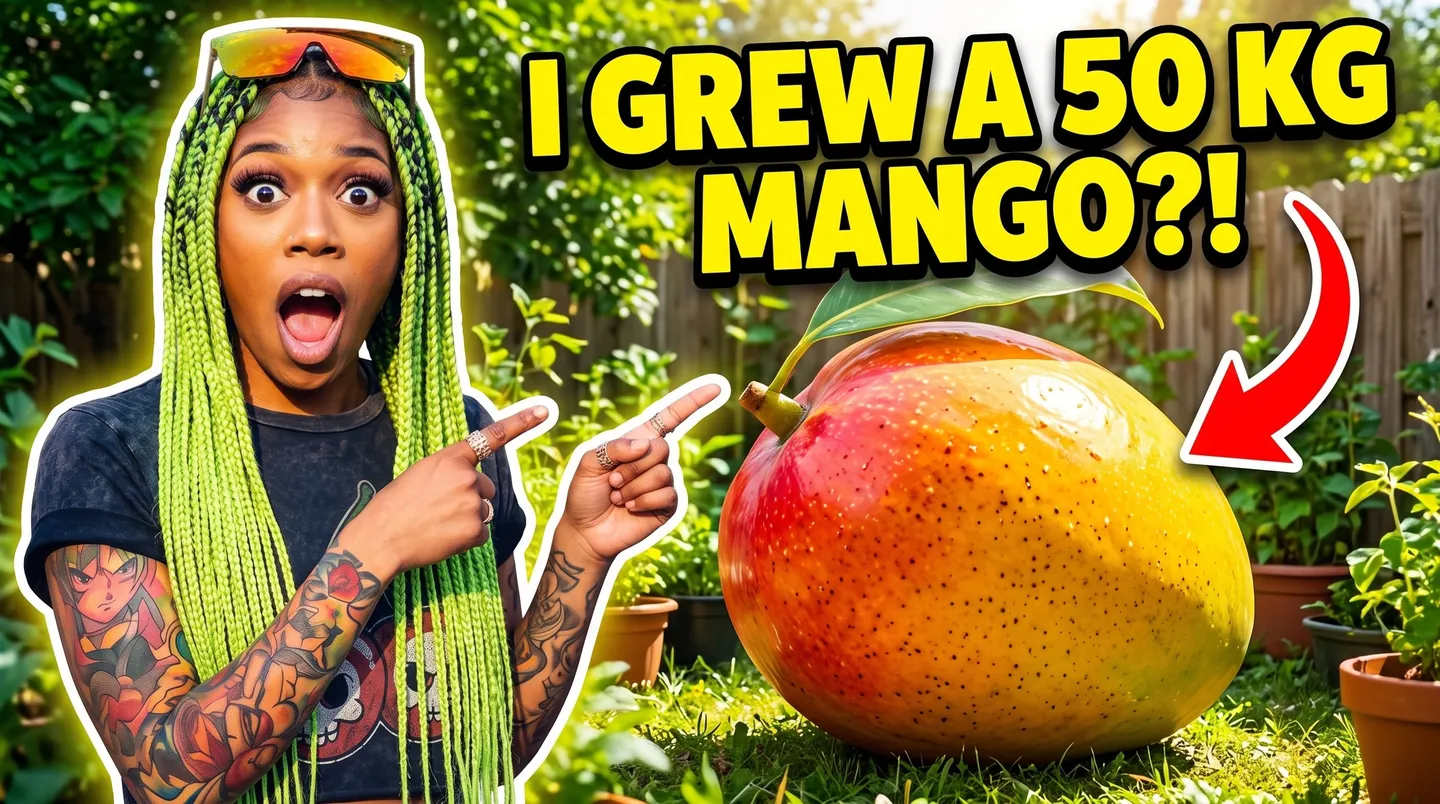
@yourhandle with a shocked face pointing at a giant mango on a kitchen table, bright yellow background, bold white text with a black outline reading "I GREW A 50 KG MANGO?!", 16:9.
Gadget review
@yourhandle holding an unbranded silver phone up to the camera with a skeptical raised eyebrow, dark blue gradient background, large text "WORTH IT?" on the right, 16:9.
Travel vlog
@yourhandle laughing on a cliff edge above a turquoise bay with arms wide open, sunset light, short text "I QUIT MY JOB" in chunky yellow letters at the top left, 16:9.
Before and after
A split thumbnail: a messy desk on the left, the same desk spotless on the right, a big arrow between them, the text "10 MINUTES" in bold red, 16:9.
Room to experiment
How Mage compares for thumbnails
Thumbnail tools usually give you templates to drop a photo into, and general image generators struggle with text and with keeping your face. Mage puts two text models and the Characters system in one place.
Mainstream tools
- Cut out your photo and drop it on a template
- A different face every time you generate
- Text added in a separate editor
- Credits spent on every variation
Mage
- Your saved character in any pose and expression
- The same face across every thumbnail
- The headline rendered with the image
- Unlimited GPT Image at Low quality from Basic
Follow your imagination
Who uses an AI thumbnail generator?
Video creators
Thumbnails for every upload, with the host recognizably the same.
Podcasts
Episode art in 16:9 for the video version and 1:1 for the feed.
Course and tutorial makers
Before-and-after and how-to thumbnails with clear numbers and labels.
Streamers and social teams
Cover images for streams, long-form posts and announcements.
Start small. Dream big.
Is the AI thumbnail generator free?
Mage is free to start with 300 one-time Gems and no watermark. Thumbnails are a volume job, so most creators move to Basic, where GPT Image 2 and 2.5 at Low quality are unlimited, or to Pro for unlimited character creation and Mango.
Free
$0
One-time 300 Gems for new members. No watermark.
Basic
$10/mo
Unlimited GPT Image 2 and 2.5 at Low quality, Inpaint and Refine, 500 monthly Gems.
Pro
$30/mo
Unlimited Mango at 1K and 2K, unlimited character creation, Enhance to 2K, 1,500 monthly Gems.
A little more clarity
Frequently asked questions
How do I put my face in an AI thumbnail?
What size should a thumbnail be?
Can AI write the text on the thumbnail?
Is the thumbnail generator free?
Can I use someone else's face?
Do thumbnails have a watermark?
Are my thumbnails private?

Ready to make your next thumbnail?
Free to start, private by design. Have fun creating!
Open GPT ImageRelated generators & guides
Mage is for adults, 18+ only. Nothing illegal is allowed; any content involving minors or non-consensual depictions of real people is strictly prohibited.