
Free to start · Photoreal, painted or anime
AI Portrait Generator
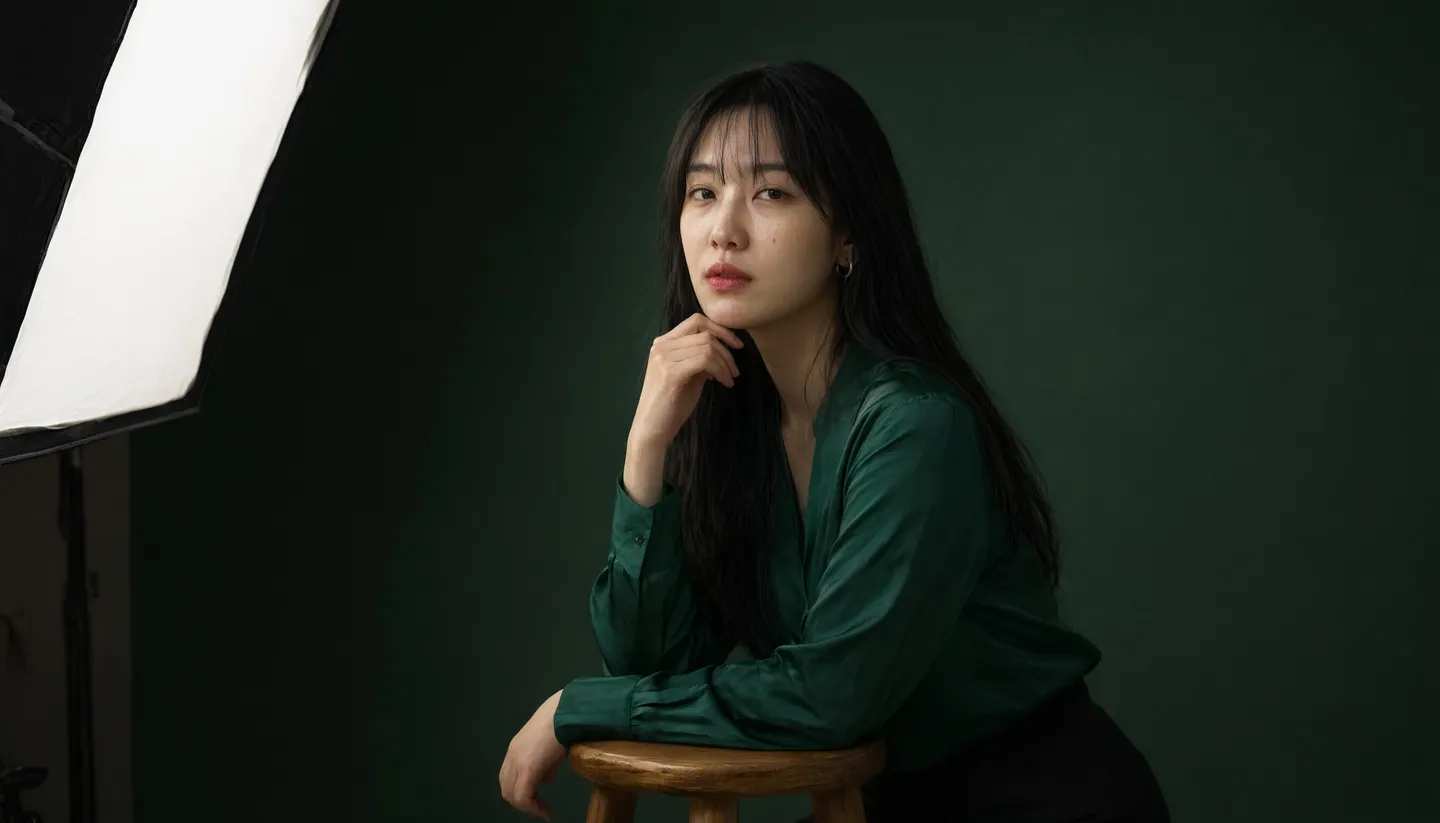
Describe a face, a light and a mood, and get a portrait that looks lit by a photographer or painted by hand. Start from words or from a reference photo, and keep the same person across a whole series.
No installation. No credit card. Private by default.
- 160+AI models
- 4KTop resolution
- 10Reference images on Mango 3
- $0Free to start
The basics
What is an AI portrait generator?
An AI portrait generator turns a written description into a picture of a person: their face, their expression, the light falling on them and the world behind them. A good one gives you control over the things a portrait photographer or a painter controls, such as the lens, the angle, the key light and the palette, so the result reads as a deliberate portrait rather than a random face.
Mage puts several portrait models behind one prompt box. Mango 3 is the all-rounder for stylized and character work, Guava 2 Pro is built for photoreal skin, fabric and hair texture, Nano Banana 2.1 reaches 4K, and Anima draws clean anime portraits from a prompt. You pick the model that suits the look, and switch whenever a portrait needs a different hand.
A portrait can start from text alone or from a reference photo. Attach images and the model follows them, or save a person once as a character and call them back by @handle, so a series of portraits keeps the same face from the first frame to the last.
A little more possibility
Why creators make portraits on Mage
Photoreal when you need it
Guava 2 Pro is built for photoreal portraits, with close-up skin, fabric and hair texture that holds up when you crop in.
Any style, one prompt box
Studio photography, oil paint, watercolor, comic ink or anime. Change the style by changing the words or the model.
The same face across a series
Save a person as a character from one clear portrait and mention them by @handle in every prompt that follows.
Every portrait format
Pick 4:5 for a feed, 2:3 for a print, 1:1 for a profile or 9:16 for a phone screen before you generate.
Private by default
Your portraits stay in your account. Nothing is posted anywhere unless you choose to share it.
No watermark
Download the original file with no watermark, on the free plan and on every paid plan.
From idea to creation
How do you generate an AI portrait?
It takes three steps, and it is free to start.
Open the generator
Use the button on this page to open Mage in your browser, then pick Mango 3 or Guava 2 Pro in the model menu.
Describe the person and the light
Write who they are, how they look, what they wear and how they are lit. Name a lens and a backdrop for a photographic look.
Choose a format and generate
Set the aspect ratio and resolution, then generate. Run the prompt again or change one detail until the portrait lands.
Finish and keep it
Relight it, enhance the skin, upscale for print, or save the person as a character for the next portrait.
Tips and techniques
Write a portrait prompt like a photographer
Portrait prompts work best when they read like a shot list. Start with the subject in one clause: age, look, expression. Then the wardrobe, then the light, then the camera, then the backdrop. "A 70-year-old fisherman with a silver beard, laughing, yellow raincoat, soft window light from the left, 85mm lens, misty harbor behind him" gives a model far more to work with than "portrait of an old man".
Light decides the mood. Rembrandt lighting, a single hard key light, golden hour backlight, overcast daylight and neon rim light each tell a different story, and naming one is the fastest way to move a portrait from generic to intentional. Guava 2 Pro in particular falls back to a plain studio look when the prompt is vague, so give it the lighting and the lens every time.
- Name one light source and where it comes from
- Give a focal length: 50mm for environment, 85mm for a classic head-and-shoulders
- Describe the expression with a verb, such as laughing, squinting or mid-sentence
- Keep the backdrop simple when the face is the point
- Add skin texture, freckles or pores for realism; leave them out for a painted look
Tips and techniques
Painted, illustrated and anime portraits
For a painted portrait, name the medium and the era rather than a living artist: oil on linen with visible brushwork, loose watercolor on cold-press paper, charcoal on toned paper, or a gouache poster style. Mango 3 follows these directions closely and keeps faces coherent at 1K and 2K.
For anime portraits, Anima is a dedicated anime and illustration model with clean lines and flat color that reads Danbooru-style tags. It works from a prompt only, so to turn a real photo into anime, use an edit model instead, as the photo to anime guide explains. The anime image generator covers the rest of the anime toolkit.
Tips and techniques
Keep the same person across many portraits
A single portrait is easy. A series of the same person in different outfits, places and moods is where most generators drift. On Mage you save the person once as a character from one clear portrait, then mention them by @handle in any prompt on Mango, Guava, Nano Banana or GPT Image. The AI character generator walks through it, and Character Sheet turns one image into front, side and back views.
Only build a character from a photo of yourself or of someone who has agreed to it. Mage does not allow non-consensual imagery of real people, on portraits or anywhere else.
The right model for the job
The best AI models for portraits
Each model has a different hand. Start with the one that matches the look, and switch freely: they all live in the same prompt box.
Guava 2 Pro
Photoreal portraits, editorial and fashion shots, with close-up skin, fabric and hair texture. It takes up to three reference images and stops at 2K. Name the light and the lens, or it defaults to a generic studio look.
Mango 3
Mage's flagship. Follows exact instructions, keeps the same character across a set, and combines up to ten references. The best pick for stylized, painted and character portraits, at 1K or 2K.
Nano Banana 2.1
Google's model, for portraits up to 4K and edits guided by up to 14 reference images. Google's safety filter applies to everything it makes.
Anima
An anime and illustration model with clean lines and flat color, prompted with Danbooru-style tags. It takes no input images, so it draws anime portraits from text alone.
Try these prompts
Portrait prompts to start from
Copy one into the prompt box, then change the person, the light or the place.
Photoreal environmental portrait
A street-food cook in her sixties laughing behind a steaming wok, string lights, golden hour backlight, 50mm lens, shallow depth of field, natural skin texture
Classic studio head-and-shoulders
A young architect with cropped grey hair, calm expression, black turtleneck, Rembrandt lighting, deep green backdrop, 85mm lens
Oil painting
Portrait of a sea captain in a navy wool coat, oil on linen, visible brushwork, warm candlelight, dark umber background
Anime character portrait
1girl, silver bob haircut, red scarf, snowy rooftop at dusk, soft rim light, upper body, looking at viewer
Room to experiment
Mage compared with single-model portrait apps
Many portrait apps run one model and one look. That is fine until the portrait you need is painted instead of photographed, or needs the same face as last week. Mage keeps several portrait models, saved characters and finishing tools in one account.
Mainstream tools
- One model, one house style
- A new face every time you prompt
- Finishing happens in another app
- Your gallery may be public by default
Mage
- Guava, Mango, Nano Banana and Anima side by side
- Saved characters keep one face across a series
- Relight, Skin Enhancer and upscaling in the same place
- Private by default, sharing is opt-in
Follow your imagination
What people make with an AI portrait generator
Characters for stories and games
Design a cast, then keep each face consistent across scenes, sheets and promotional art.
Profile pictures and avatars
Square portraits for social profiles, forums and gaming accounts, in whatever style fits.
Art prints and gifts
Painted portraits in a medium and palette you choose, upscaled for printing.
Mood boards and casting references
Explore looks, wardrobes and lighting setups before a real shoot.
Start small. Dream big.
Is the AI portrait generator free?
Mage is free to start, and every model runs on Gems on any plan. Unlimited Mango and Guava portraits begin on Pro.
Free
$0
One-time 300 Gems for new members. No watermark.
Pro
$30/mo
Unlimited Mango at 1K and 2K and unlimited Guava, unlimited character creation, 1,500 monthly Gems.
Pro Plus
$60/mo
Everything in Pro, unlimited Mango at 3K and 4K, and unlimited Nano Banana 2.1 at 1K, 3,500 monthly Gems.
A little more clarity
Frequently asked questions
What is the best AI portrait generator?
Can I make an AI portrait from my own photo?
Is the AI portrait generator free?
What resolution are AI portraits?
How do I keep the same face in several portraits?
Are my portraits private, and can I use them commercially?

Ready to make your first portrait?
Free to start, private by design. Have fun creating!
Open the Mango generatorRelated generators & guides
Mage is for adults, 18+ only. Nothing illegal is allowed; any content involving minors or non-consensual depictions of real people is strictly prohibited.