
Free to start · Clips up to 30 seconds
AI Text to Video Generator
Describe a scene in plain words and get a moving clip back: the action, the camera, the light and the sound. No footage, no editing timeline, no install. Mage runs it in your browser, free to start.
No installation. No credit card. Private by default.
- 30 sLongest Cherry 2 Pro clip
- 1080pTop Cherry 2 Pro resolution
- 3Aspect ratios on Cherry
- $0Free to start
The basics
What is an AI text to video generator?
An AI text to video generator makes a video clip from a written prompt alone. You describe who is in the shot, what happens, where it happens and how the camera moves, and the model renders every frame of it. There is no source footage and no starting image: the words are the whole brief.
That makes text to video the fastest way to get from an idea to a moving shot. It is also the hardest kind of prompt to write well, because a still image only needs a subject and a look, while a clip needs a beginning, an action and an end. A good text-to-video prompt reads like a line from a shooting script, not a caption.
Mage puts several text-to-video models behind one prompt bar. Cherry 2 Pro, Mage’s flagship, renders clips of up to 30 seconds at up to 1080p with sound. Lemon is the all-round model at a friendlier price, Kiwi handles everyday clips with nothing to set up, and Melon is built for anime. If you would rather start from a picture, the image to video generator is the sister page to this one.
A little more possibility
Why creators write their videos on Mage
Clips up to 30 seconds
Cherry 2 Pro renders 4 to 30 seconds per clip, long enough for a full beat of action instead of a two-second loop.
Several video models, one prompt bar
Switch between Cherry, Lemon, Kiwi, Melon, Plum and more without leaving the page, and keep the clip you like best.
Your characters, by name
Write @handle in the prompt to cast a saved character, so the same face appears in every clip you write.
Widescreen, vertical or square
Cherry renders 16:9, 9:16 and 1:1, so one prompt can become a trailer shot, a vertical reel or a feed post.
Private by default
Every clip stays in your account. Nothing reaches a public feed unless you post it yourself.
Unlimited video plans
Video becomes unlimited on Pro at $30 a month, on the models and settings each plan covers. Everything else runs on Gems.
From idea to creation
How do you turn text into a video?
It takes three steps, and it is free to start.
Open the generator
Open the Cherry generator from this page and pick Cherry 2 Pro in the model menu, or switch to Lemon or Kiwi for a cheaper draft.
Write the shot
Describe the subject, the action, the setting and the camera move. Add @handle to cast one of your saved characters.
Set the frame
Choose the aspect ratio, the resolution and the duration. Short drafts at 480p are the quickest way to test a prompt.
Generate and refine
Watch the clip, change one thing in the prompt, and run it again. Download the keeper as an MP4.
Tips and techniques
How to write a text-to-video prompt that moves
Start with the action, not the scenery. Models give the most attention to what you describe first, so a prompt that opens with three lines of setting often returns a beautiful, nearly frozen shot. Put the verb up front: a woman sprints across a rooftop, a dragon dives through cloud, a cat knocks a glass off a table.
Then direct the camera. Words such as tracking shot, slow push-in, low-angle, aerial, handheld, whip pan and crash zoom change the clip more than adjectives do. If you want several shots in one clip, write them in order with rough timings, for example a wide shot for the first two seconds, then a close-up on the face, then a reveal of what she is looking at.
Finish with light, lens and sound: golden hour, neon rain, 35mm film, distant thunder, crowd noise. Cherry generates audio with the picture, so a line about sound is part of the prompt, not an afterthought. When you already have a frame you love, the image to video generator keeps it exactly and animates it, which is more predictable than describing it again in words.
- Lead with one clear action and one subject.
- Name the camera move: push-in, tracking, aerial, handheld.
- For multi-shot clips, list the shots in order with timings.
- Describe the sound you want; Cherry renders audio with the clip.
- Draft short and low-resolution, then render the keeper long and sharp.
Tips and techniques
Choosing length, resolution and aspect ratio
Length and resolution are the two settings that change the price of a clip the most, so treat them as the last decision, not the first. Find the prompt at 480p and a short duration, then render the final version at 720p or 1080p and the length the scene needs. Cherry 2 Pro takes durations from 4 to 30 seconds; Lemon takes anything from 2 to 30 seconds, one second at a time.
Aspect ratio is about where the clip will live. 16:9 suits trailers, YouTube and anything shown on a screen; 9:16 fills a phone for Reels, Shorts and TikTok; 1:1 sits well in a feed. Cherry renders all three, and Lemon adds 4:3 and 3:4.
A longer story is usually better as several clips than one. Write each shot as its own prompt, keep the same @character in each, and join them in Storyboard, which combines up to six clips into one MP4. For a story that writes itself, see the AI movie generator.
The right model for the job
The best text-to-video models on Mage
Every model here starts from a prompt alone. Pick by the job: final quality, price, style, or sound.
Cherry 2 Pro
Mage’s flagship video model: cinematic motion and audio, clips up to 30 seconds at up to 1080p, and characters with their voices. The most expensive video model, and it takes no first or last frame.
Lemon
The all-round model at a friendlier price, with generated audio and clips from 2 to 30 seconds. A good place to draft before a final Cherry render.
Kiwi
Everyday video from text with nothing else to set up, at 5 or 10 seconds and up to 1080p.
Melon
Mage’s anime video model, with optional audio. Use it when the prompt describes an anime scene rather than live action.
Try these prompts
Text-to-video prompts to start from
Each one leads with the action and names the camera. Swap in your own subject or an @character.
Action chase
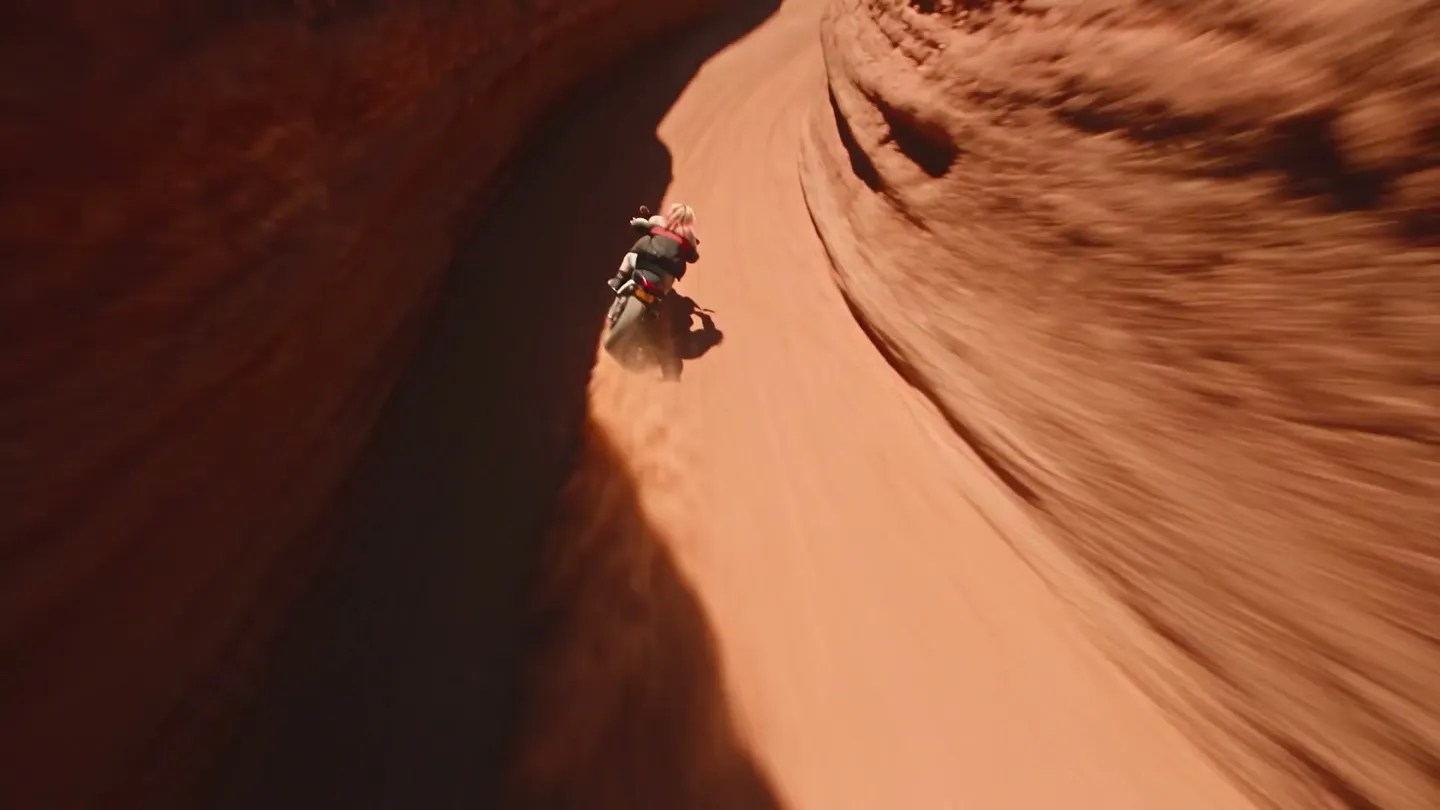
A motorbike rider races through a red desert canyon at golden hour. FPV chase shot low over the sand, whip pan as she banks, crash zoom to her grin. Engine roar and wind.
Product reveal
A matte black wristwatch rises out of still water in slow motion, droplets falling away. Slow orbit around it, hard rim light, dark studio, a single low synth note.
Quiet drama
An old man feeds pigeons on a park bench in the rain. Static wide shot for two seconds, then a slow push-in to his face as he smiles at something off screen. Soft rain on leaves.
Vertical reel
9:16. A street dancer spins on a wet neon sidewalk at night, handheld camera circling her, reflections streaking, bass-heavy beat.
Room to experiment
Writing video on Mage vs one-model tools
A text-to-video tool built around a single model gives you one interpretation of every prompt. When that interpretation misses, all you can do is reroll. On Mage you can take the same prompt to another model in the same prompt bar.
Mainstream tools
- One model, one style of motion
- Short clips only
- Every retry spends another credit
- Your clips can land in a public gallery
Mage
- Cherry, Lemon, Kiwi, Melon and more behind one prompt bar
- Clips up to 30 seconds on Cherry 2 Pro
- Unlimited video on paid plans, within each plan’s list
- Private by default, no watermark
Follow your imagination
What people make with text to video
Short-form social video
Vertical clips for Reels, Shorts and TikTok, written from an idea instead of shot on a phone.
Trailers and teasers
Pitch a film, a game or a book with a few cinematic shots before anything is produced.
Ads and product spots
Draft a product moment, a mood or a reveal, then render the version the client picks.
Stories with recurring characters
Cast saved @characters across a series of clips so the same people appear in every episode.
Start small. Dream big.
Is the AI text to video generator free?
Mage is free to start: new members get 300 Gems, and every video model can run on Gems. Unlimited video begins on Pro, and each plan above it adds models, length and resolution.
Free
$0
One-time 300 Gems for new members. No watermark.
Pro
$30/mo
Unlimited video on Wan, LTX, Melon, Lemon (3 s at 480p) and MiniMax-H3 Turbo, plus 1,500 monthly Gems.
Max
$200/mo
Adds unlimited Cherry 2 Pro at 4 s and 480p, longer Lemon and Plum clips, and 15,000 monthly Gems.
A little more clarity
Frequently asked questions
What is the best AI text to video generator?
Can I make a video from text for free?
How long can a text-to-video clip be?
Does the video have sound?
Can I keep the same character across clips?
What is the difference between text to video and image to video?
Are my videos private, and can I use them commercially?

Ready to write your first clip?
Free to start, private by design. Have fun creating!
Open the Cherry generatorRelated generators & guides
Mage is for adults, 18+ only. Nothing illegal is allowed; any content involving minors or non-consensual depictions of real people is strictly prohibited.