
Free to start · Private by default
AI Photo Restoration
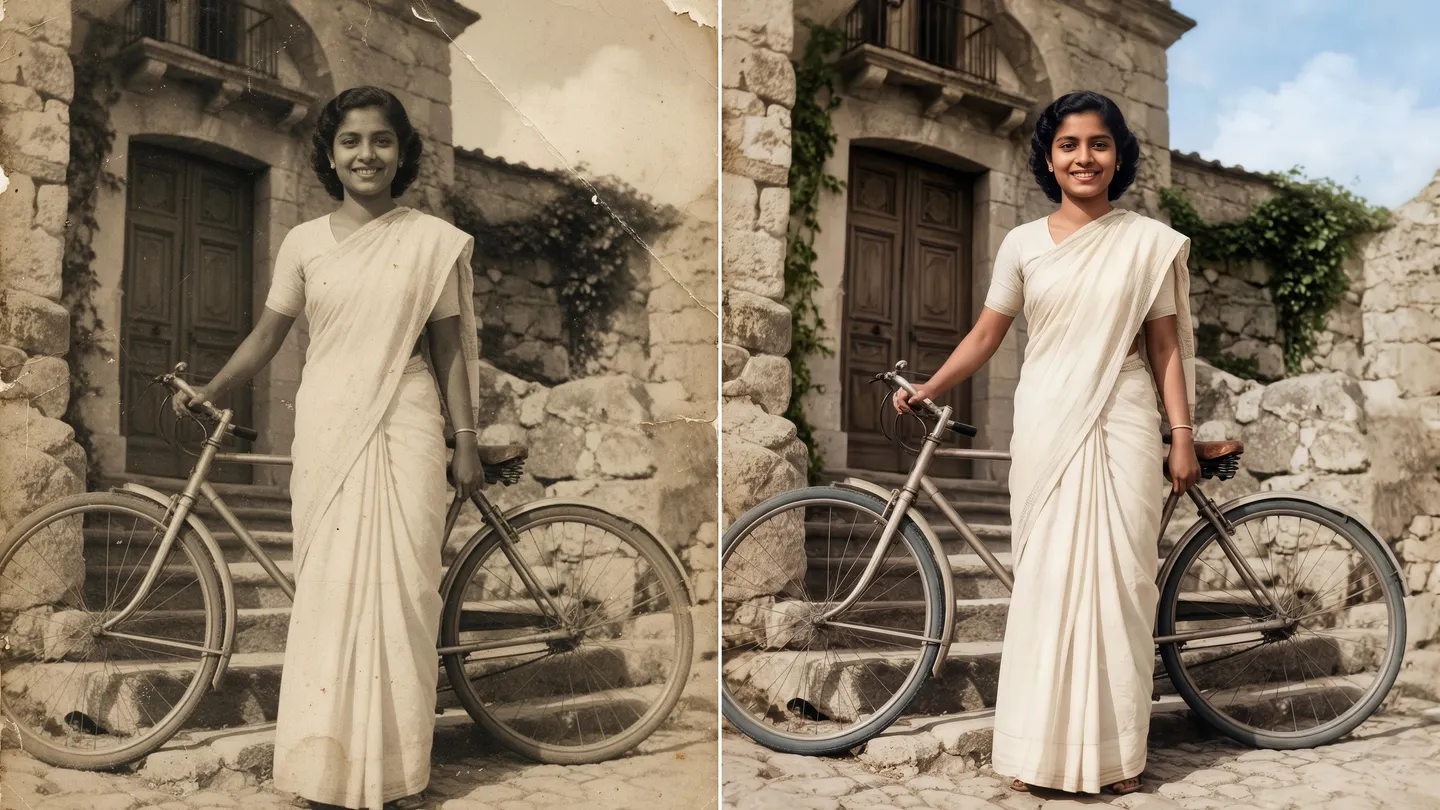
Bring an old family photo back. Scan it, then sharpen it, repair the cracks, fix the faces and, if you like, add color, with Mage's enhancers and edit models, all in your browser.
No installation. No credit card. Private by default.
- 6KFinished resolution
- 3Refine presets for faces and detail
- 30MBScan upload limit
- $0Free to start
The basics
What is AI photo restoration?
AI photo restoration repairs the damage time does to a photograph: fading, blur, grain, cracks, tears, stains and the soft focus of an old camera. Instead of retouching every scratch by hand, you let models rebuild the missing detail and the lost tone, and you stay in charge of how far they go.
On Mage, restoration is a short workflow rather than one button. Image Enhancer upscales a scan to 2K, 4K or 6K and refines its detail. Refine fixes faces and hands with its Fix Eyes, Fix Hands and Add Detail presets, or with an instruction you write. Inpaint repairs a tear or a stain you paint over. And an edit model such as Nano Banana 2.1 or Mango 3 can repair or colorize a whole photo from a plain-language instruction.
Be clear about one thing: AI restoration reconstructs detail it cannot see. A face that was a blur of a few dozen pixels comes back sharp because the model invents a plausible face, and plausible is not always the person. Compare every result with the original, keep the passes that stay true to it, and treat the restored photo as an interpretation, not a record.
A little more possibility
Why families restore photos with Mage
Sharpen and enlarge
Image Enhancer takes a scan to 2K, 4K or 6K and refines grain, blur and soft focus as it goes.
Faces and hands, fixed
Refine's Fix Eyes and Fix Hands presets target the details old photos lose first.
Repair tears and stains
Paint over a crack, a fold or a water stain in Inpaint and describe what belongs there.
Color from a sentence
Ask an edit model to colorize a black-and-white photo, and name the colors you know were there.
Your call at every step
Each pass is a separate image, so you can keep the gentle version and drop the one that went too far.
Family photos stay private
Scans and results are private by default and stay in your account unless you share them.
From idea to creation
How do you restore an old photo with AI?
It takes three steps, and it is free to start.
Scan or photograph the print
Scan at the highest resolution you can, or photograph the print flat in even daylight without glare. Crop out the frame.
Enhance the scan
Open Image Enhancer, upload the JPEG or PNG and choose 2K or 4K for a cleaner, sharper base.
Repair and fix faces
Paint over tears and stains in Inpaint, then run Refine with Fix Eyes or your own instruction on the faces.
Colorize and finish
If you want color, ask an edit model to colorize the photo, then enhance the final image to 4K or 6K for printing.
Tips and techniques
A restoration workflow that stays true to the photo
Order matters. Start with Image Enhancer at a moderate size to clean up grain and softness and give the later tools more to work with. Repair physical damage next, while the photo is still close to its original state. Fix faces after that, colorize if you want to, and save the largest upscale for the very end, so you enlarge the finished image rather than every intermediate flaw.
Change one thing at a time. A single pass that sharpens, repairs, colorizes and modernizes a photo all at once gives the model the most room to drift. Separate passes let you see exactly which step changed a face, and go back one step when it does.
- Scan at high resolution, or photograph the print flat with no glare.
- Enhance first at 2K or 4K; save 6K for the final image.
- Repair tears and stains before touching faces.
- Keep the original open and compare after every pass.
- If a face stops looking like the person, step back and try a lighter pass.
Tips and techniques
Repairing scratches, tears and missing pieces
For a single crack across the sky or a stain on a sleeve, Inpaint is the precise tool. Paint a mask over the damage only, describe what should be there ('clear sky', 'the same grey wool sleeve'), and the rest of the photo is left exactly as it was. Small masks on plain areas restore almost perfectly.
For damage spread across the whole photo, a prompt edit is faster. Attach the scan to an edit model and write the job plainly: 'Restore this photo: remove the scratches, dust and creases, and keep every face, the clothing and the composition exactly as they are.' Naming what must stay matters as much as naming what to fix. Missing corners and torn-off pieces can be rebuilt the same way, but anything the model fills in is a guess, so keep those areas simple.
Tips and techniques
Colorizing a black-and-white photo
Mage has no colorize button. You colorize by asking an edit model, and that turns out to be an advantage, because you can tell it what you know. 'Colorize this 1950s photo. Her dress was navy blue, the car is pale green, natural skin tones, soft daylight' gets you closer to the truth than an automatic guess.
Color is the step most likely to look modern and overdone. Ask for muted, period-appropriate tones and natural skin, and compare a colorized version with the original black and white before you print it. For portraits, a light pass of Skin Enhancer afterwards brings back texture, and the AI image upscaler guide covers the final enlargement.
The right model for the job
Best models for restoring photos
Enhancement runs on Image Enhancer itself. For repairs, faces and color, these edit models do the work, each with its own model page.
Nano Banana 2.1
Google's model, strong at realistic repair and colorization from a plain instruction, with output up to 4K. Google's safety filter applies.
Mango 3
Mage's flagship for edits that keep the rest of the image in place, so a repair pass changes the damage and leaves the people alone. Up to 2K.
GPT Image 2.5 Flare
OpenAI's model, precise with detailed instructions such as the exact colors for each person. OpenAI's safety filter applies.
Guava 2 Pro
Mage's photoreal model, available in Refine and Inpaint, for natural skin, fabric and hair texture in portrait repairs.
Try these prompts
Restoration prompts to start from
Each names what must stay before what to change. Use them in the generator with your scan attached, or as Refine instructions.
Repair a damaged print
Restore this photo: remove the scratches, dust, creases and the stain in the top corner. Keep every face, the clothing, the pose and the composition exactly as they are.
Colorize with what you know
Colorize this black-and-white photo from the 1960s. The man's suit is charcoal, the woman's dress is mustard yellow, natural skin tones, soft overcast light, muted period colors.
Gentle face fix
Sharpen the faces slightly and recover the eyes. Do not change the face shapes, the expressions or the hairstyles.
Rebuild a torn corner
Fill in the torn bottom-left corner with the continuation of the brick wall and the pavement. Leave the rest of the photo unchanged.
Room to experiment
Hand retouching vs AI restoration
Hand retouching is precise and slow: every scratch is a separate fix, and a badly damaged photo can take an evening. AI restoration is fast and makes judgment calls for you. Mage keeps those calls visible, one pass at a time, so you get the speed without losing the photo.
Mainstream tools
- Every scratch fixed by hand
- Desktop software and a learning curve
- Colorizing means painting every area yourself
Mage
- Enhance, repair, fix faces and colorize in separate passes
- In your browser, nothing to install
- Colorize from a sentence that names the colors you know
Follow your imagination
What can you use AI photo restoration for?
Family albums
Revive prints of grandparents and childhood photos to share with relatives or frame again.
Memorials and anniversaries
Prepare a portrait for a service, a slideshow or an anniversary print.
Genealogy and local history
Clean up archive scans so faces and signs are easier to read, and keep the original alongside.
Early digital photos
Rescue small, noisy photos from early digital cameras and phones.
Start small. Dream big.
Is AI photo restoration free?
Mage is free to start: new members get a one-time 300 Gems, and every tool in the workflow runs on Gems on any plan. Paid plans make the steps unlimited on the models and sizes they cover.
Free
$0
One-time 300 Gems for new members. No watermark.
Basic
$10/mo
Inpainting and Refine, unlimited generation on the base models such as GPT Image at Low quality, 500 monthly Gems.
Pro
$30/mo
Unlimited Enhance at 2K, unlimited Mango and Guava, 1,500 monthly Gems.
A little more clarity
Frequently asked questions
Can AI restore old photos?
Will the restored face still look like the person?
How do I colorize a black-and-white photo?
How do I fix a scratch or a tear?
What resolution should I scan at?
Is AI photo restoration free?
Are my family photos private?

Ready to bring an old photo back?
Free to start, private by design. Have fun creating!
Start with Image EnhancerRelated generators & guides
Mage is for adults, 18+ only. Nothing illegal is allowed; any content involving minors or non-consensual depictions of real people is strictly prohibited.