
Rules last checked October 2026 · Free to start
AI Amazon Product Images
Turn one photo of your product into a full Amazon gallery: a main image on pure white that fills the frame, secondary images that answer shoppers' questions, and A+ modules for your brand. Every rule on this page is checked against Amazon's own seller help.
No installation. No credit card. Private by default.
- 255, 255, 255Main image background (RGB)
- 85%Of the frame the product fills
- 1,000 pxLongest side for zoom
- Up to 6KWith the Image Enhancer
The basics
What Amazon wants from your product images
Amazon treats the main image differently from every other image on the listing. It is the picture shoppers see in search results, so Amazon holds it to strict rules: a pure white background (RGB 255, 255, 255), the whole product filling about 85% of the frame, only what the buyer receives, and nothing on top of it: no text, logos, watermarks, badges or props. It has to show the actual product, not an illustration or a mockup. The other image slots are where you sell: lifestyle scenes, close-ups, size comparisons, infographics and how-to images, on any background you like.
The technical rules are short. Images should be at least 1,000 pixels on the longest side so shoppers can zoom, and Amazon's seller team calls 1,600 pixels or more the better target. JPEG is preferred, and PNG, TIFF and GIF are accepted. Amazon staff encourage sellers to use every image slot they have, while noting that the number of images on its own does not decide where a listing ranks.
We last checked these rules in October 2026 against Amazon's Seller Central help and its staff posts on the Seller Forums, linked at the bottom of this page. Amazon revises them, and Seller Central is the final word, so look before a big upload. Mage does the work in between: a clean white main image from your own photo, and a gallery of secondary images that look shot on purpose.
A little more possibility
Why Amazon sellers make listing images on Mage
A white main image from your photo
Attach your product photo, ask for a pure white background, and the clutter behind the product goes while the product stays.
Secondary images that sell
In-hand, in-use and lifestyle scenes built around the same product, so the gallery shows size and purpose at a glance.
Infographics with readable text
GPT Image 2.5 Flare and Nano Banana 2.1 render the words you give them, for feature cards and how-to steps.
A+ modules in one style
The Marketplace Listing Images skill builds A+ banners and feature modules that match your main image.
Zoom-ready files
Square images at 2K from Mango 3, and the Image Enhancer takes a keeper to 4K or 6K, well past the zoom minimum.
Private until launch
Every image stays in your account, so an unreleased product is not on a public feed before its listing goes live.
From idea to creation
How do you make Amazon product images with AI?
It takes three steps, and it is free to start.
Photograph the real product
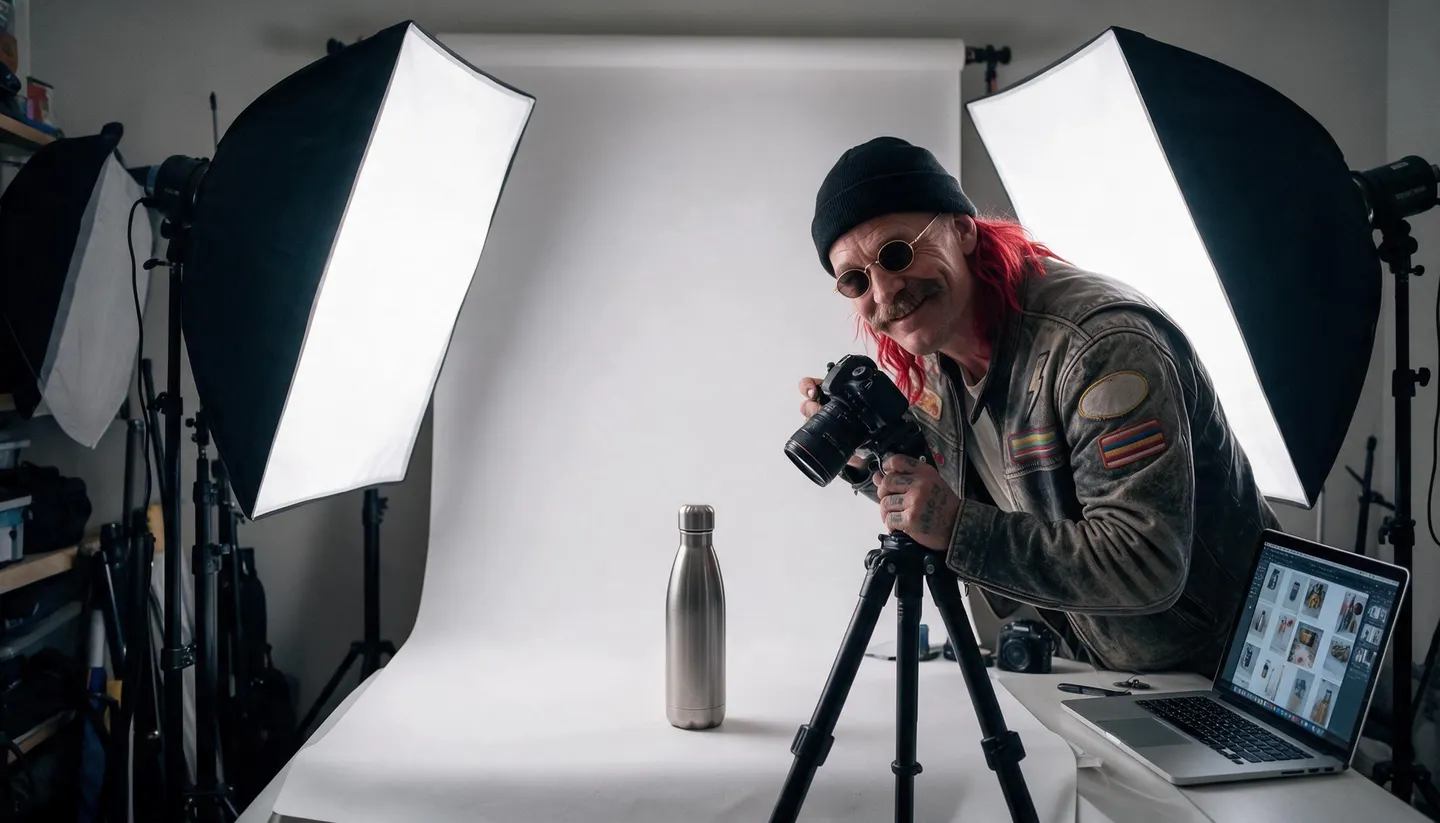
Shoot it whole, on a plain surface, in even light. Amazon wants the actual product, so this photo is the base of the main image.
Make the main image
Open Mango 3, attach the photo, and ask for a pure white background with the product centered and filling about 85% of a square frame.
Build the secondary images
Generate lifestyle, scale and detail shots from the same photo, and text cards with GPT Image 2.5 Flare using only facts you can back up.
Upscale, check, upload
Run the keepers through the Image Enhancer, compare the label and shape with the real product, and upload the set.
Tips and techniques
The main image: Amazon's rules and how to meet them
Start from a photo, not a prompt. Amazon's rule is a picture of the actual product, so the safest main image is your own photo with only the background changed. Attach it to Mango 3 and say what stays before what changes: "Keep the bottle, the cap and the label exactly as in the photo. Replace the background with pure white, RGB 255, 255, 255. Product centered, filling 85% of a square frame." The model repaints the scene around the product in one pass, so there is no pasted-on edge or grey halo.
Then check what a model can get wrong. Open the result in any photo editor and sample the corners with an eyedropper: the rule is exactly 255, 255, 255, and an off-white that looks fine on screen is still off-white. Compare the product with the real item, because the model redraws it and small print, a logo or a barcode can drift. If the product changed, use Inpaint instead: tap Background, describe a plain white backdrop, and everything outside the mask, the product included, stays exactly as you shot it.
Leave out everything the rules leave out: props and accessories that are not in the purchase, a second view of the product in the same frame, and any text, badge, border or watermark. Amazon's staff also discourage showing the product in its packaging, except for items such as consumables and collectibles where the packaging is part of what you sell.
- Background exactly RGB 255, 255, 255.
- The whole product, filling 85% or more of the frame.
- Only what the buyer receives: no props.
- No text, logos, badges, borders or watermarks.
- At least 1,000 px on the longest side; 1,600 px or more is better.
Tips and techniques
Secondary images: answer the questions before they are asked
Shoppers compare several listings side by side, often on a phone, which is why Amazon's own staff tell sellers to check their images on mobile. Once the main image earns the click, the rest of the gallery has to answer what a shopper would otherwise ask in a question or learn from a review: how big is it, what does it look like in use, what is it made of, and what comes in the box. A strong set covers a lifestyle scene, an in-hand or on-body shot for scale, a close-up of the material, a features infographic, a what's-in-the-box flat lay and a size or comparison chart.
Lifestyle and scale shots come from the same product photo. Attach it to Guava 2 Pro, which gives the most photographic hands and skin, or to Mango 3, which takes up to 10 reference images, so a photo of a location and a prop can go into the same shot. Describe the scene the way a photographer would, with the light and the lens, and keep the product instruction at the front of every prompt.
Text cards are a different job. GPT Image 2.5 Flare and Nano Banana 2.1 render readable text, so they can lay out a card with four callouts or three how-to steps. Give the model the exact words and nothing else, make the text large enough to read on a phone, and never let a model invent a claim: every number on a card should be one you can prove.
If a secondary image shows a person who was generated rather than photographed, Amazon now asks you to tag it. Since July 2026 sellers add the keyword contains-synthetic-performer to the image metadata before upload, and Amazon may show shoppers an indicator. Photos of real people edited with AI are not covered. To keep one generated model across the whole gallery, save them with the AI character generator and tag every image they appear in.
Tips and techniques
A+ Content and the Marketplace Listing Images skill
If you work in Claude, Codex or Cursor, Mage's Marketplace Listing Images skill builds the set from one product photo and a list of your facts: a main image on pure white with the product filling about 85% of the frame, secondary images and A+ modules. It uses Mango 3 for the product photos and GPT Image 2.5 Flare for the text cards, writes only the facts you gave it, and checks the main image against the marketplace's rules before it builds the rest. You pick the scope: the main image alone, the main image plus five, the main image plus seven for A+, or the full set. The Product Photoshoot skill adds studio, lifestyle, hands-on and concept shots in the same look. Both are free and open source on the Mage skills page, and each generation they start runs on Gems at the listed price, quoted before anything is made.
A+ Content is the image-and-text area further down the listing. Amazon offers it to sellers with a Professional selling account and a Brand Representative or Reseller role on a brand enrolled in Brand Registry, so check that you qualify before you design modules. Basic A+ covers descriptions, key features with images and comparison charts; Premium A+ adds larger images, video and carousels.
Tips and techniques
What to check before you upload
Most image problems on Amazon are small and avoidable. A label that reads slightly differently from the real one, a color that is a shade off, a lid that changed shape: each of these is a return waiting to happen, and returns cost more than a reshoot. Put every final image next to the real product before it goes live.
Be careful with the sides the camera never saw. Angles can turn a front shot into a three-quarter view, but it can only guess at the back or the base. Photograph those yourself, and use Angles for small moves where the faces it shows are already in your photo. Finish with the Image Enhancer, and upscale last, after every other edit.
- Sample the main image corners for 255, 255, 255.
- Read every word on the label against the real product.
- Match colors to the item, not to the mood of the scene.
- Photograph the back and the base for real.
- Tag images that show a generated person.
The right model for the job
The best models for Amazon listing images
Most sellers make the main image and scenes on Mango 3 or Guava 2 Pro, and the text cards on GPT Image 2.5 Flare.
Mango 3
Edits that keep the product in place while the background changes, with up to 10 reference images. The default for the main image. Unlimited on Pro at 1K and 2K.
Guava 2 Pro
Mage's photorealism model, for in-hand and in-use shots where skin, fabric and glass have to pass for a photograph. Up to three references, up to 2K.
GPT Image 2.5 Flare
OpenAI's model, precise with layouts and readable text, for infographics and A+ modules built from your facts. OpenAI's safety filter applies.
Nano Banana 2.1
Google's model renders text and takes up to 14 reference images, at up to 4K, for comparison charts and detailed scenes. Google's safety filter applies.
Try these prompts
Amazon image prompts to start from
Attach your product photo to each one, and swap in your own product and facts.
Main image on pure white
Keep the bottle, cap and label exactly as in the photo. Replace the background with pure white, RGB 255, 255, 255. Product centered, upright, filling 85% of a square frame, even soft light, no props, no text.
In-hand scale shot
Keep the water bottle exactly as in the reference. A hand holding it at a trailhead at sunrise, the bottle sharp, mountains soft behind, 35mm, shallow depth of field.
Lifestyle scene
Keep the coffee grinder exactly as in the reference. On a kitchen counter beside a pour-over set and a bag of beans, morning window light from the left, 50mm, square frame.
Features infographic
The bottle from the reference on a pale grey background, square. Four callouts with thin lines and this exact text: "750 ml", "Keeps cold 24 hours", "Leak-proof lid", "Dishwasher safe". Large sans-serif type, nothing else.
What's in the box
Keep every item exactly as in the references. A neat flat lay on light oak: the blender base, the jar, the lid and the recipe booklet, top-down, soft even light, square frame.
Room to experiment
Mage vs a product studio for Amazon images
A studio day still makes sense for a flagship launch. For every new variation, seasonal lifestyle set and gallery refresh after it, building the images from one good photo is faster, and you can try ten scenes before you commit to one.
A studio shoot
- Ship samples to the studio
- A new booking for every seasonal set
- Infographics in a separate design round
- Paid per image and per reshoot
Mage
- Start from your own product photo
- White main image and scenes from that one photo
- Text cards written from your facts only
- Unlimited Mango and Guava from Pro
Follow your imagination
Who makes Amazon images this way?
Private label launches
A complete gallery before the first production run lands, from one approved sample photo.
Brand Registry sellers
A+ banners and feature modules that match the main image and the rest of the gallery.
Catalog refreshes
New lifestyle scenes for every season without shipping samples or booking a set.
Small teams
One person covers photography, infographics and A+ design in an afternoon.
Start small. Dream big.
What does it cost to make Amazon images on Mage?
Mage is free to start with a one-time 300-Gem bonus. Unlimited Mango and Guava start on Pro, and the skills run on Gems at each model's price.
Free
$0
One-time 300 Gems for new members. No watermark.
Pro
$30/mo
Unlimited Mango and Guava at 1K and 2K, Enhance to 2K, and 1,500 monthly Gems for text cards and larger sizes.
Pro Plus
$60/mo
Mango at 3K and 4K, Enhance to 4K, and up to 10 generations queued at once for a whole catalog. 3,500 monthly Gems.
A little more clarity
Frequently asked questions
Can I use AI-generated images on Amazon?
What size should Amazon product images be?
Does every Amazon image need a white background?
Do I have to label AI images on Amazon?
Can Mage make a transparent PNG for Amazon?
Can Mage make A+ Content?
Will the AI change my product?

Ready to fill your Amazon gallery?
Free to start, private by design. Have fun creating!
Open the Mango generatorRelated generators & guides
- AI product photo generator
- AI product video generator
- AI background changer
- Image Enhancer
- Inpaint
- Mage skills
- AI eBay listing photos
- Amazon: Product image requirements (source)
- Amazon Seller Forums: Product photography standards (source)
- Amazon Seller Forums: Image requirements and best practices (source)
- Amazon: A+ Content (source)
- CNBC: Amazon makes sellers label AI-generated people (source)
- beBOLD: How the synthetic performer tag works (source)
Mage is for adults, 18+ only. Nothing illegal is allowed; any content involving minors or non-consensual depictions of real people is strictly prohibited.