
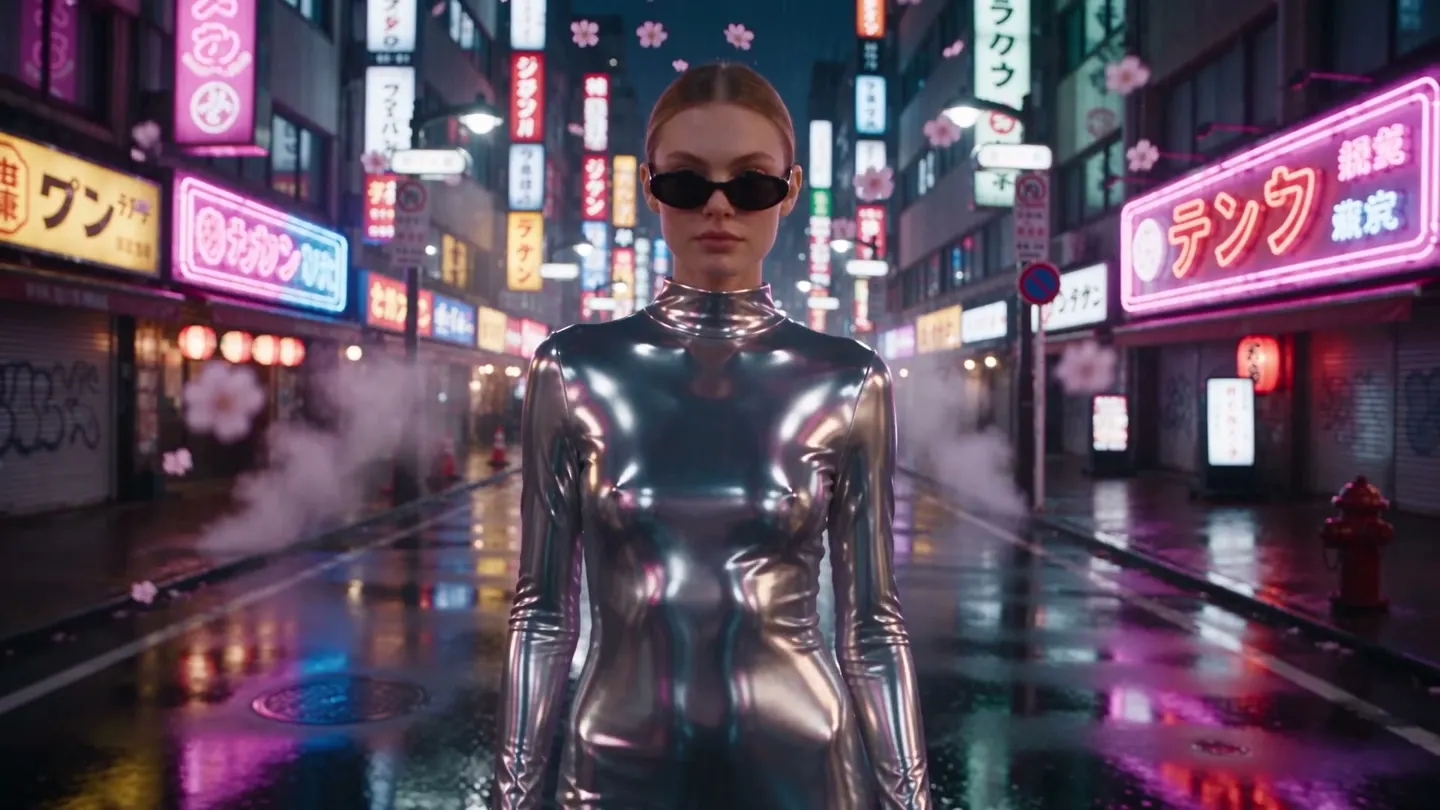
Video Editor · Edit with a prompt
Edit video with words
Add a clip, describe the change, and add reference images if you like; the motion and composition stay as filmed.
Add your own photo or start from an example. The price in Gems shows before you generate.
Before and after
See what Video Editor does
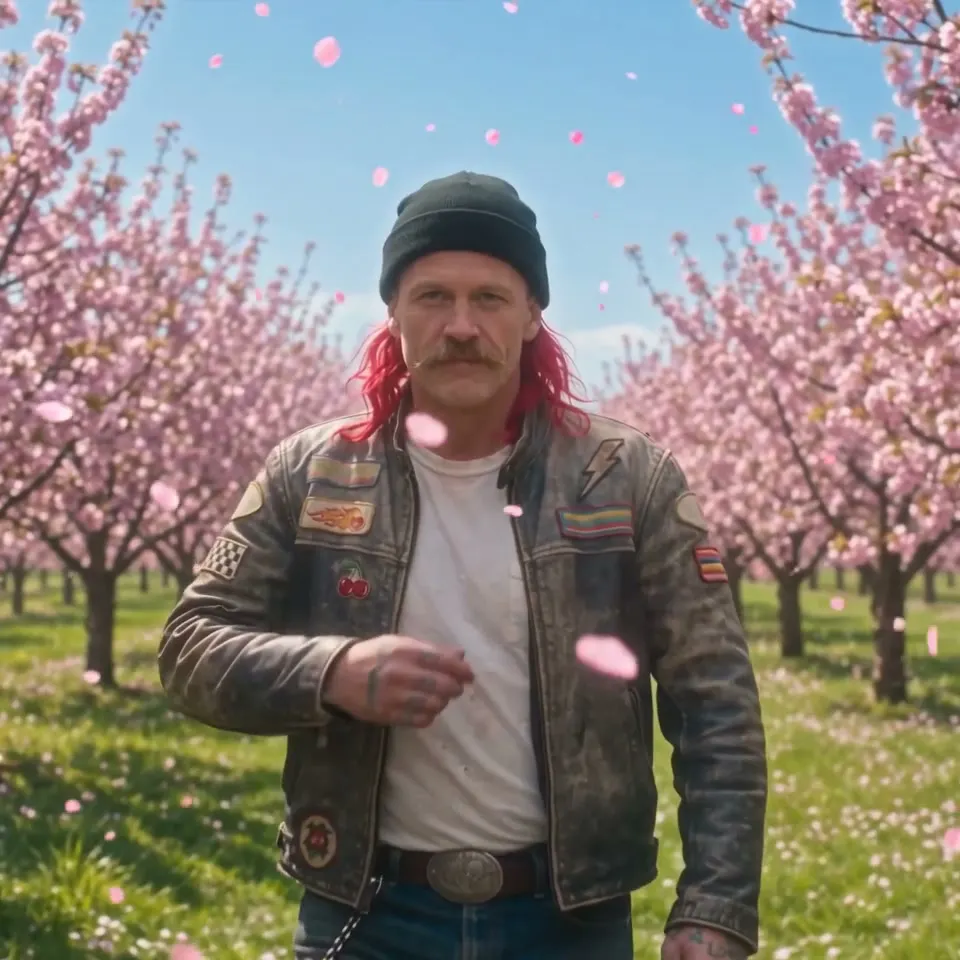
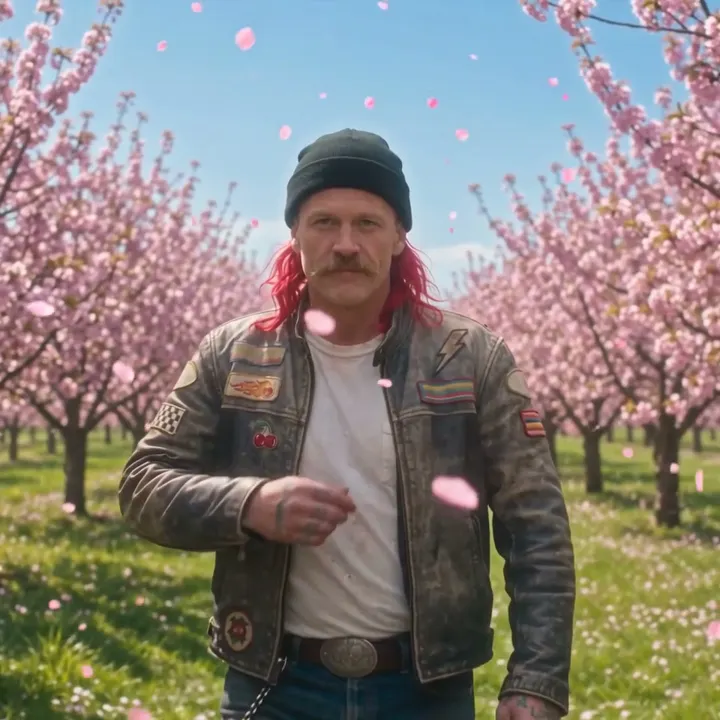
A burning barn becomes a sunny cherry blossom orchard while the walk and the shades moment stay the same. Drag the handle to compare the original with the result.

Mage examples
Made with Video Editor
Real runs of Video Editor. Open one in the app, swap in your own photo, and generate.


How it works
How to use Video Editor
Add a clip, describe the change, and add reference images if you like; the motion and composition stay as filmed.
Add a video
Upload an MP4, MOV, or WebM up to 30 MB, or pick one of your video creations.
Describe the edit
Say what to change, such as the style, an outfit, or an object. Add up to two reference images or saved characters to show what you mean.
Generate
Lemon is the default model; change the model and settings if you like. The price in Gems shows on the Generate button, and the video lands in History.
What you need
- A video to edit
- A description of the edit
For the best result
- Ask for one change per run; everything you do not mention is kept.
- Add a reference image when words alone do not show what you mean.
- Turn on Keep original audio, where the model offers it, to keep the clip's sound.
Ideas
What people make with Video Editor
Restyle a clip
Turn live footage into animation, film noir, or a painted look.
Change an outfit
Dress the person in the clip in something new, shown by a reference.
Replace an object
Swap a car, a sign, or a product in the shot.
Change the setting
Move the action to a new place or a new time of day.
The basics
What is an AI video editor?
An AI video editor changes what is in a video rather than where it is cut. Instead of trimming clips on a timeline, you describe an edit, such as turn her jacket into a chrome gown, make it snow, or restyle the whole clip as a watercolor, and the model repaints every frame to match while keeping the original movement.
Mage’s Video Editor app does exactly that. You upload one video, write the change, and add up to two reference images when the change needs to look like something specific, such as a real garment or a particular place. The edit is applied across every frame, and the original motion and composition carry through.
It is worth being plain about what it is not: it is not a timeline cutter for trimming, captions or transitions. For joining finished clips into one file, Mage has Storyboard. For restyling footage, swapping outfits or changing the world around your subject, the Video Editor is the tool.
A little more possibility
Why creators edit video on Mage
Edit with a sentence
Describe the change in plain words. No masks, no rotoscoping, no keyframes.
Motion stays yours
The edit follows the original movement and framing, so the performance in your footage survives.
Show, don’t just tell
Add up to two reference images when the new outfit, object or place has to match something real.
Nine models to choose from
Lemon by default, plus Cherry, Cherry 2 Pro, Plum, Berry, Grok Video and more, each with its own look.
Keep the original audio
An option keeps your clip’s sound under the edited picture.
Private by default
Uploads and edits stay in your account unless you post them.
Tips and techniques
Writing an edit prompt the model can follow
Say what changes and what does not. The model treats your video as the base and your words as the change, so a prompt like replace the denim jacket with a red silk bomber, keep her face, hair and the street unchanged gives it a clear boundary. Vague prompts such as make it cooler invite it to change more than you meant.
Name the thing being changed by how it looks in the video: the man in the grey suit, the car on the left, the sky. When there are several people in the frame, describe the one you mean by clothing or position. For a whole-clip restyle, say so outright: restyle the entire video as hand-drawn anime, keep the motion and camera.
Reference images do the heavy lifting for specific looks. A photo of the exact dress, a shot of the location, or a picture of the product will beat a paragraph of description. To change who is in the video rather than what they wear, use the AI video face swap or AI character swap instead.
- State the change and what must stay the same.
- Point at the subject by clothing or position.
- Use a reference image for any specific garment, object or place.
- One change per pass gives cleaner results than five.
- Turn on Keep original audio when the sound matters.
Tips and techniques
Source length and which model to choose
Each model accepts a different length of source video. Cherry 2 Pro takes 4 to 30 seconds, and its output follows the length and aspect ratio of your clip. Lemon, the default, takes 1 to 15 seconds. Cherry, Cherry Mini and Cherry Pro take 2 to 15 seconds, as does Plum. Berry accepts longer uploads but edits the first 15 seconds.
Pick Lemon for everyday edits at a balanced price, Cherry 2 Pro for the longest and most polished results, and Berry when the edit must stay very faithful to your reference images. Grok Video is available too, for sources up to about 8.7 seconds, with xAI’s safety filter applying.
Footage that is soft or low resolution edits better after a pass through the AI video enhancer, and a finished edit can be joined with other clips in Storyboard.
The right model for the job
The best models for AI video editing
All of these run inside the Video Editor app. Pick by source length, quality and price.
Lemon
The default: balanced quality and price for sources of 1 to 15 seconds.
Cherry 2 Pro
The longest sources, 4 to 30 seconds, and the most polished edits. Output length and aspect ratio follow your clip. The most expensive option.
Berry 2
Reference-driven and faithful to the images you give it. Edits the first 15 seconds of a longer upload.
Grok Video
xAI’s video model for sources up to about 8.7 seconds. xAI’s safety filter applies.
Try these prompts
Edit prompts to try
Each one names the change and protects what should stay.
Outfit change
Replace her black leather jacket with a long chrome gown. Keep her face, hair, walk and the street exactly the same.
Weather and time
Turn the sunny afternoon into a snowy night with falling snow and warm street lights. Keep the people and the camera move unchanged.
Whole-clip restyle
Restyle the entire video as a watercolor painting with visible paper texture. Keep all motion and timing.
Set swap
Move the runway walk to a seaside cliff at golden hour. Keep the model, her outfit and her stride.
Room to experiment
AI video editing vs a timeline editor
Timeline editors are the right tool for cutting, captions and color. Changing what is inside the frame, such as an outfit, the weather or the whole style, would mean frame-by-frame masking or a reshoot. That is where an AI video editor earns its place.
Timeline editors
- Cuts, transitions and captions
- Changing what is in the frame needs masking or a reshoot
- Style changes are filters on top
- Desktop software to install
Mage Video Editor
- Describe the change, every frame is repainted
- Original motion and composition are kept
- Reference images for exact looks
- In your browser, nothing to install
A little more clarity
Frequently asked questions
What is the Video Editor?
What can I upload?
How long can my video be?
Which models can I use?
How much does an edit cost?
Are my videos private?
Can AI edit an existing video?
Is this a timeline editor for cutting clips?
Can I keep the original sound?
Can it change a person’s face?
Are my uploads private?

Make your own with Video Editor
Open the app, add your photo, and see the price before you generate. Everything you make stays in your History.
Open Video Editor