
Character Builder: Attributes · Character Builder
Build a character from traits
Pick the traits you want, generate a full-body portrait, and save it as a character to use anywhere on Mage.
Add your own photo or start from an example. The price in Gems shows before you generate.
Mage examples
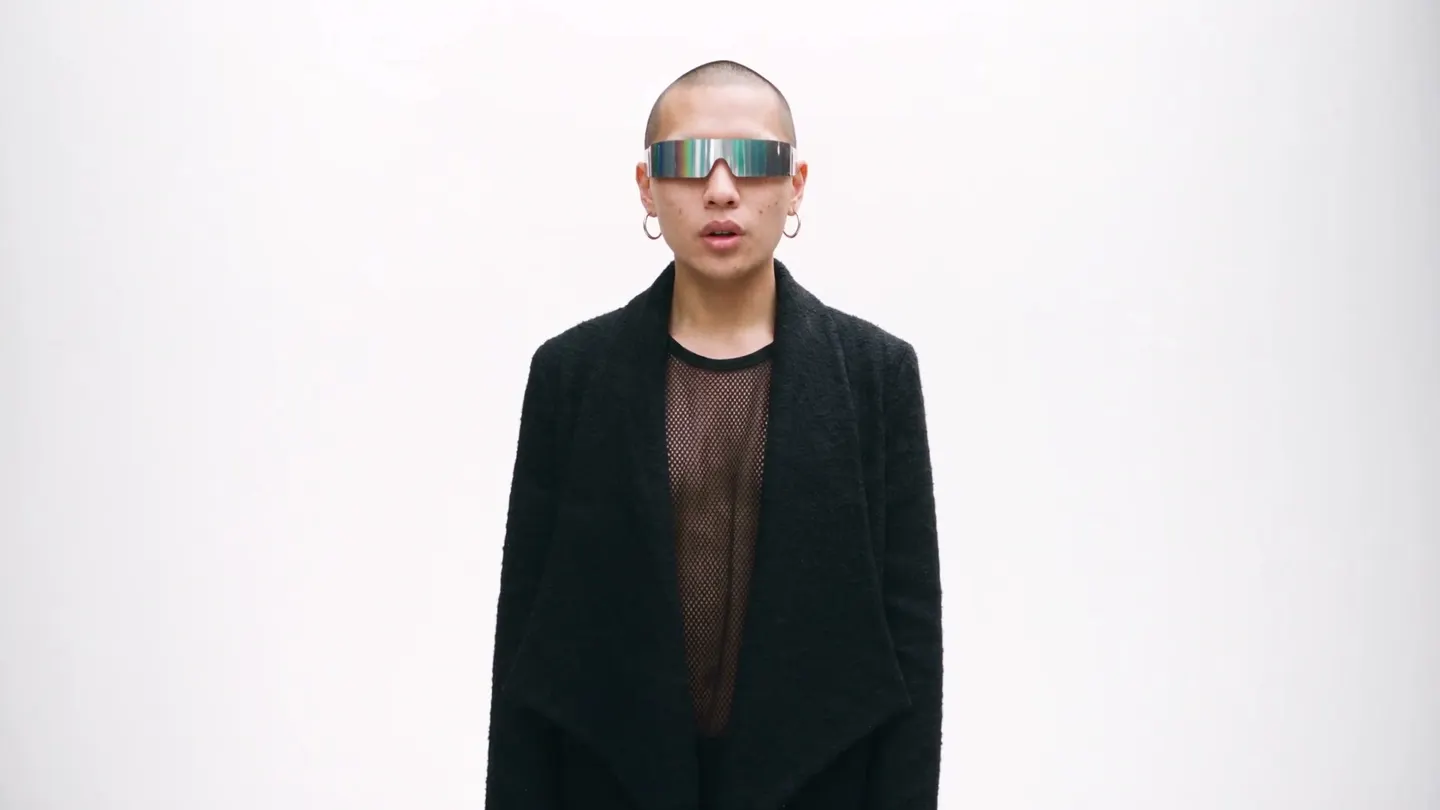
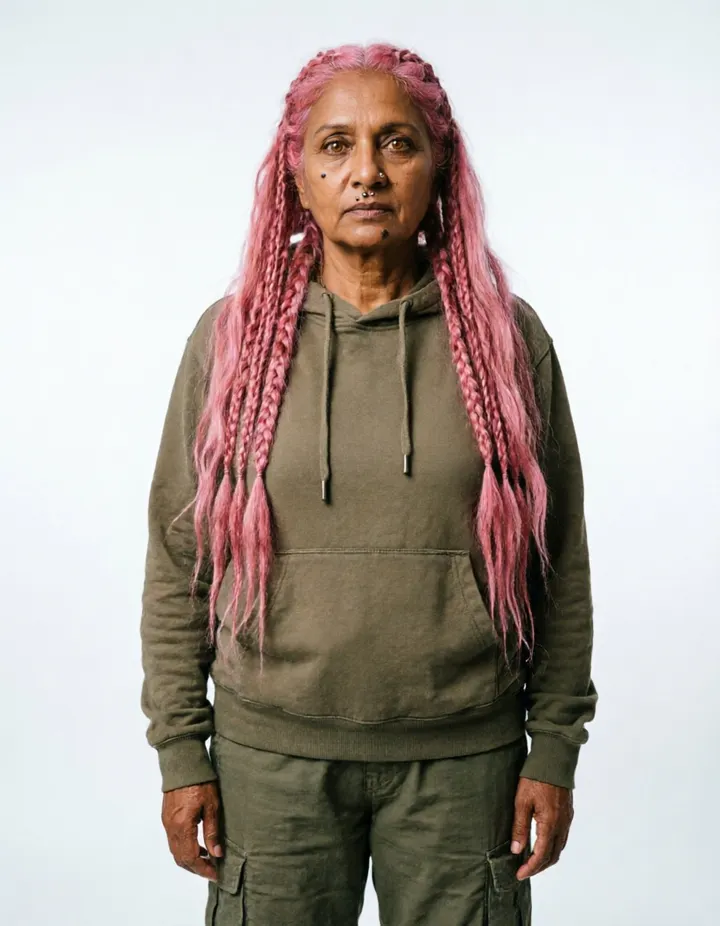
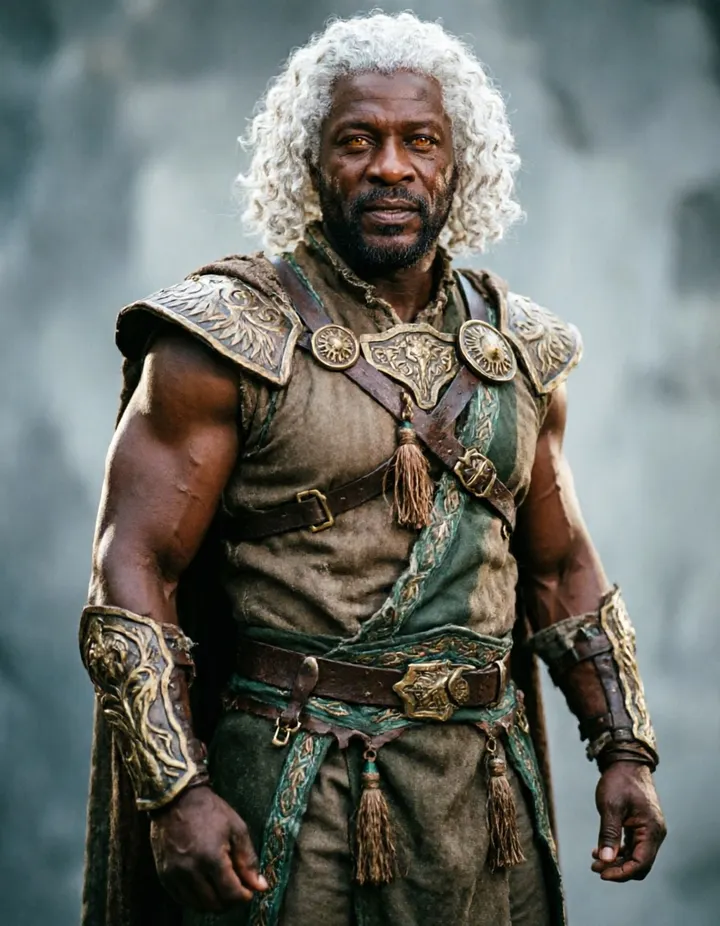
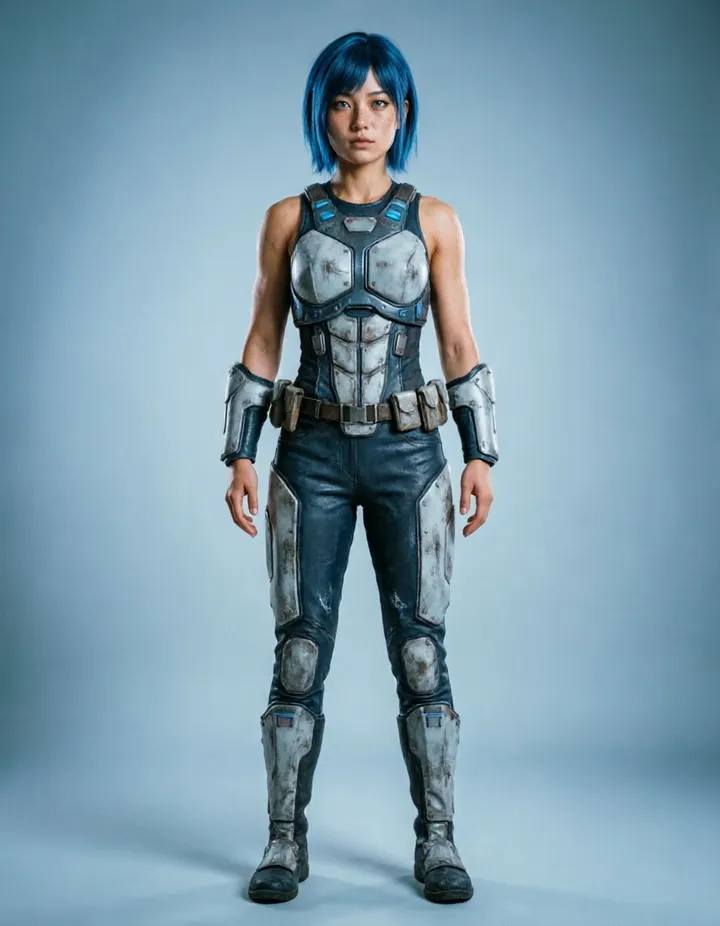
Made with Character Builder: Attributes
Real runs of Character Builder: Attributes. Open one in the app, swap in your own photo, and generate.
How it works
How to use Character Builder: Attributes
Pick the traits you want, generate a full-body portrait, and save it as a character to use anywhere on Mage.
Choose attributes
Pick from gender, ethnicity, hair, skin tone, body type, eyes, face, nose, facial features, age range, and clothing style. Any group can stay empty.
Generate
Guava is the default model; change the model or resolution if you like. The price in Gems shows on the Generate button.
Save the character
The portrait lands in History. Press Create Character to save it with an @handle, or download, share, or remix it.
What you need
- At least one attribute
For the best result
- Pick only the traits that matter and let the model fill in the rest.
- Generate a few times with the same traits and save the one you like best.
- Once saved, write the character as its @handle in any prompt to keep the same look.
Ideas
What people make with Character Builder: Attributes
Original characters
Design a new face for a story, a comic, or a game.
Consistent personas
Create one persona and keep it the same across images and video.
A cast for other apps
Make characters to use in Scene Builder, Music Video, and the swap apps.
The basics
Build a character without writing a prompt
Describing a face in words is hard. A prompt that tries to pin down a nose, a jawline, and a hairstyle at once often comes out different every time. The Character Builder replaces the prompt with a set of choices: you pick the traits you want from lists, and it generates a full-body standing portrait of a person who has them.
The attribute groups cover appearance from head to toe: gender, ethnicity, hair color, length, and style, skin tone, body type, eye color and shape, face shape, nose shape, facial features, age range, and clothing style. Every group is optional. Set only what matters to you, and the model fills in the rest so the portrait still looks like one believable person.
When you like the result, save it as a character. A saved character has an @handle that you can mention in later prompts and pick in other apps, so the same face shows up in every image and video you make with it. It is the most direct way to start an AI character you plan to reuse.
Tips and techniques
Choosing attributes
Start with the traits that define the character, usually the age range, the hair, and the clothing style, then add details. A few deliberate choices give the model a clear direction and leave room for a natural result. Filling every group can make a character that looks assembled rather than real.
Facial features take more than one choice, so you can combine details such as freckles, dimples, or a beard. Clothing style sets the overall look of the portrait, from casual to formal to fantasy. Change one group at a time between runs to see what each choice does.
- Start with three or four groups, then add more.
- Change one group per run to see its effect.
- Generate a few portraits with the same traits and keep the best.
Tips and techniques
Choosing a model
Guava is the default, a model family made for photoreal people. Switch to a Mango model or another Guava model from the Model menu for a different look, or when you want an illustrated or stylized character. The resolution choices depend on the model, and the portrait always comes out in a 4:5 frame, tall enough for the whole figure.
Running the same traits on two models is a quick way to find the style you want before you save the character.
Tips and techniques
Saving and reusing your character
Press Create Character on the portrait you want to keep, and it is saved with an @handle. Write that handle in a prompt to put the character in a new image or video, or pick it in an app that takes a character, and the face, hair, and build come along.
A full-body portrait makes a good reference, because it shows the outfit and the build as well as the face. For an even fuller one, turn it into a character sheet with front, side, and back views, then save the sheet as the character.
Tips and techniques
Designing a cast
Stories usually need more than one character, and a cast reads best when its members look clearly different. Vary the traits that are easiest to tell apart at a glance: the age range, the hair color and length, the body type, and the clothing style. Two characters with the same hair and build can blur together in a busy scene, even when their faces differ.
Give each character a place in the look of the cast. A hero in bright, simple clothes, a mentor in muted, formal ones, and a rival with a sharper face and darker colors are easy to follow from scene to scene.
When the cast is ready, put two of them in one clip with Scene Builder to check that they read as different people side by side.
Tips and techniques
What to make with your character next
Put two characters in one short video with Scene Builder, make them perform a song with Music Video, or recast a clip with Video Character Swap. Dress them in new looks with Outfit Swap.
To start from a picture instead of a list, Character Builder: Muse begins with a starter image and refines the face step by step. For a creator persona with the same look across posts, see the AI influencer generator.
A little more clarity
Frequently asked questions
What is the Character Builder?
Which attributes can I set?
What do I get?
Which models can I use?
How much does it cost?
Are my results private?
Do I have to set every attribute?
Which attributes should I pick first?
Why do the same traits give different portraits?
How do I put the character in a video?
What is the difference between Attributes and Muse?
Can I use the portrait without saving a character?

Make your own with Character Builder: Attributes
Open the app, add your photo, and see the price before you generate. Everything you make stays in your History.
Open Character Builder: Attributes