

Character Builder: Muse · Character Builder
Start close, then refine
Pick a starter or your own image, adjust the face until it feels right, and save it as a character.
Add your own photo or start from an example. The price in Gems shows before you generate.
Before and after
See what Character Builder: Muse does
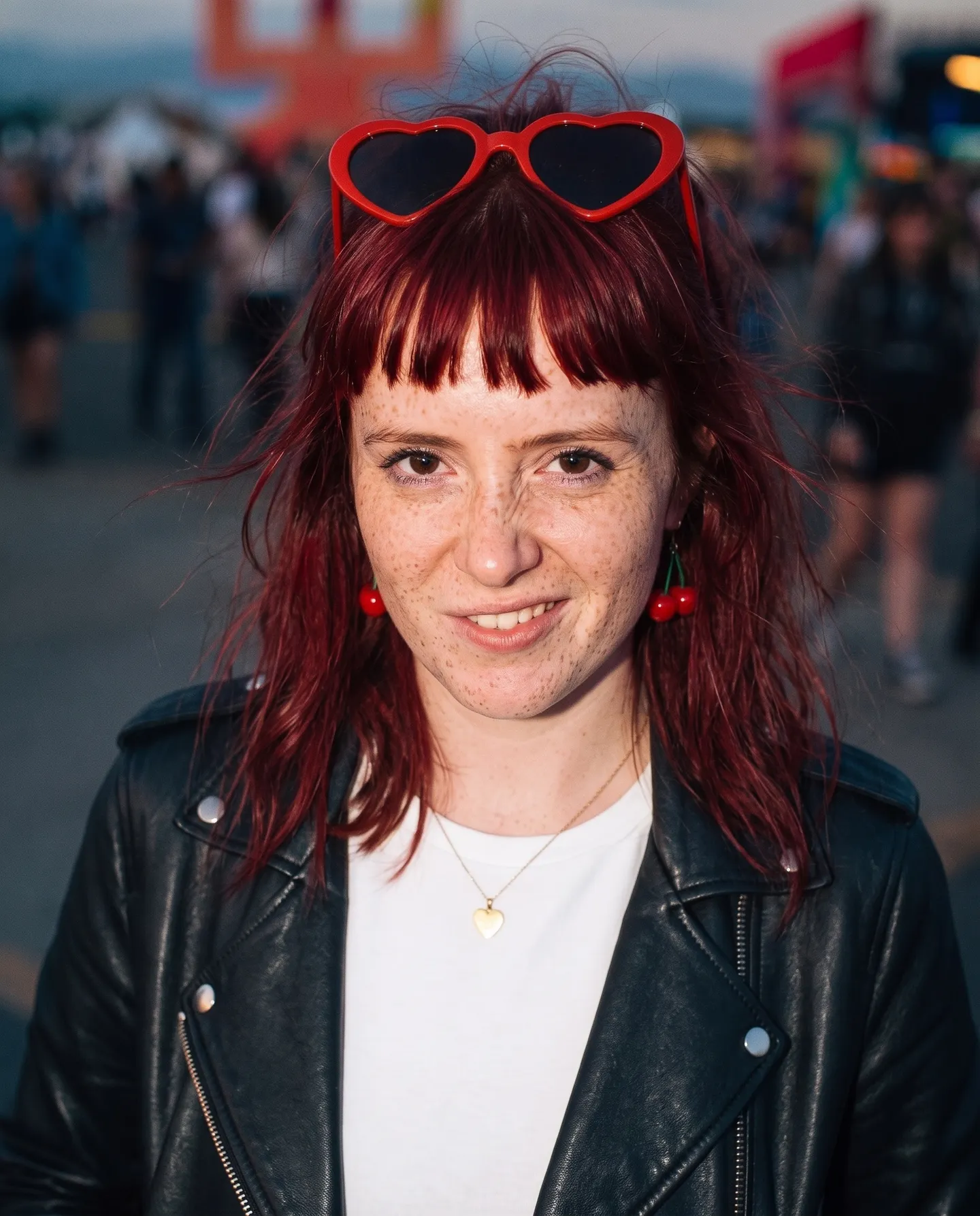
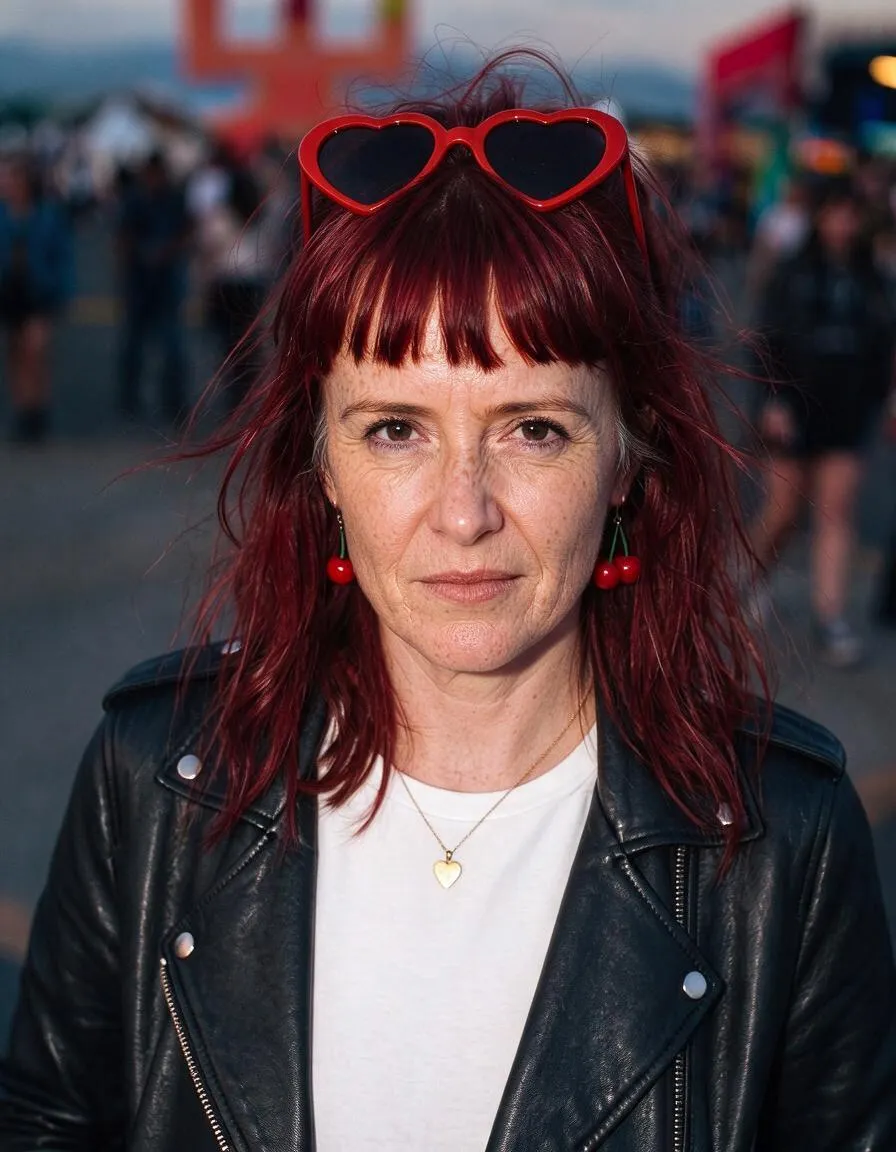
The Mature face preset ages a festival-goer by twenty years while her look stays put. Drag the handle to compare the original with the result.
Mage examples
Made with Character Builder: Muse
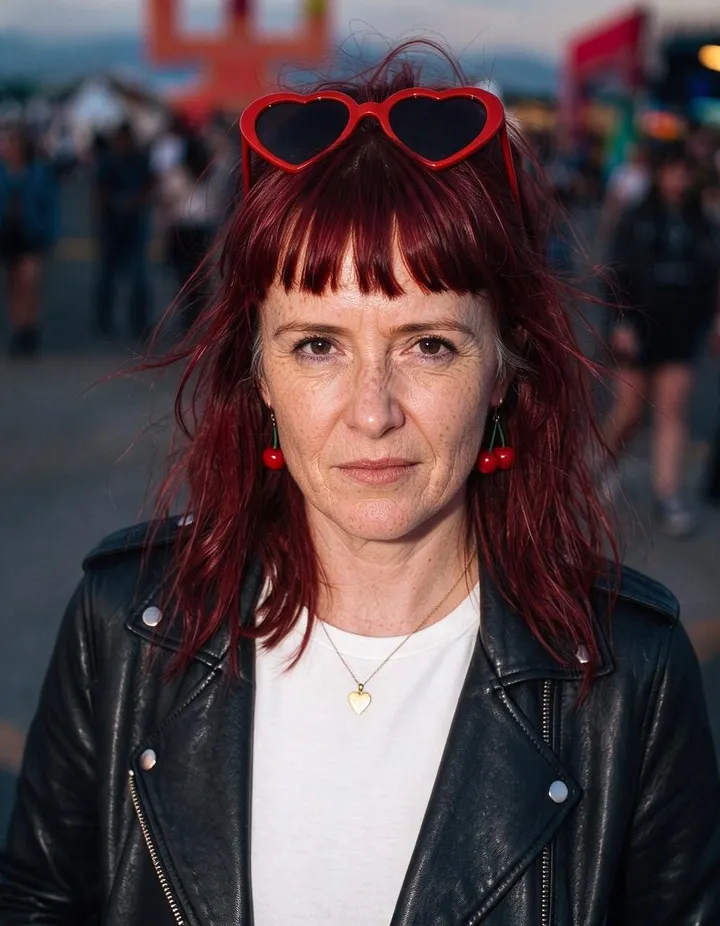
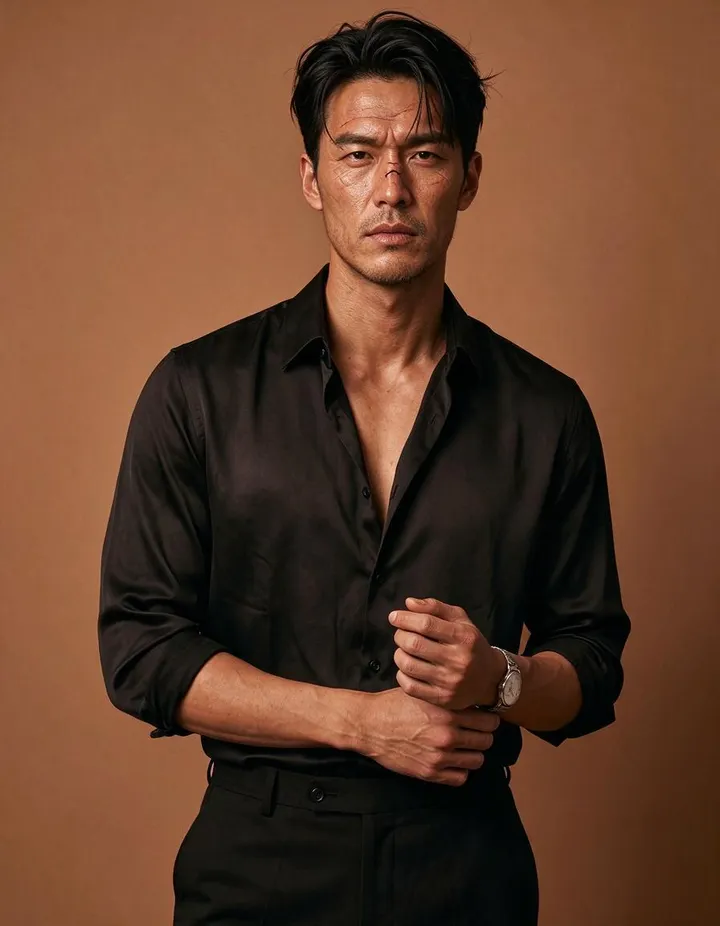
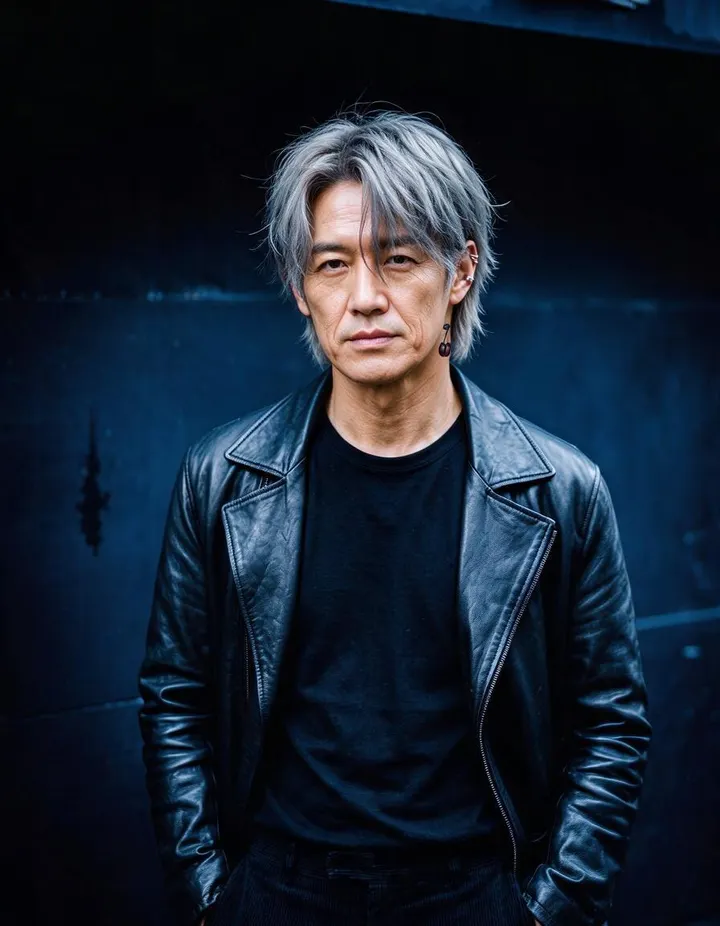
Real runs of Character Builder: Muse. Open one in the app, swap in your own photo, and generate.


How it works
How to use Character Builder: Muse
Pick a starter or your own image, adjust the face until it feels right, and save it as a character.
Pick a starting point
Browse female and male starters and pick the closest one, or start with your own upload or creation.
Refine the face
Tap a face preset such as Cute, Chiseled, or Mature, or describe a change like brown wavy hair. The price in Gems shows on the Generate button.
Save the character
Each version lands in History and in a strip beside the image, so you can continue from any of them. Press Create Character to save the one you like.
What you need
- A starter image or one of your own
- A face preset or a short change to make
For the best result
- Pick the starter closest to the outfit, body, and setting you want; the presets change the face.
- Make one change per run and build on the best version.
- Choosing a new starter clears the session, so save a character you like first.
Ideas
What people make with Character Builder: Muse
Find a face
Start from a starter and steer it toward the face you have in mind.
Refine your own image
Upload a portrait and adjust the features while the outfit and setting stay.
Build a cast
Make a set of characters for a story or a series.
The basics
A character builder that starts from a picture
Most character tools start from a blank prompt. Muse starts from an image. You pick a starter portrait close to what you have in mind, or your own photo or creation, and then steer the face toward the character you want, one change at a time. It is easier to say "softer" or "older" about a face you can see than to describe one from nothing.
Each refinement changes the face and keeps the rest of the picture: the outfit, the body, the pose, and the setting stay as they are. The versions you make line up in a strip beside the image, each one building on the one before it, so you can follow the face as it changes and go back to any earlier version to try another direction.
When a version feels right, press Create Character to save it with an @handle and use it in your other generations.
Tips and techniques
Choosing a starting point
The starters are portraits of women and men in a range of looks, outfits, and settings. Since the presets work on the face, pick the starter whose outfit, body, and setting are closest to what you want, even if the face is not. Browse a few before you choose: the right starter saves several steps later.
To refine a face you already have, choose Start with your image and upload a portrait or pick one of your creations. A clear portrait with the face toward the camera gives the face presets the most to work with.
Tips and techniques
Using the face presets
Each preset moves the face in one direction, as its name says. Cute, Doll, and Soft lean gentle and youthful. Chiseled, Sharp, and Rough lean defined and rugged. Elegant refines the features, Freckled adds freckles, and Mature adds age.
Apply one preset per step and look at the result before the next one. A second step in the same direction pushes a trait further, and a preset that leans the other way pulls it back.
- One preset per step.
- Repeat a preset to push a trait further.
- Go back to an earlier version when a step goes the wrong way.
Tips and techniques
Describing your own changes
For anything the presets do not cover, write the change in a few words: "brown wavy hair", "green eyes", "a small scar over the left eyebrow", "a short beard". Short, concrete changes work best.
Describe one or two changes per step instead of the whole person, because the image already carries everything else. Name the feature and how it should change, such as "shorter, darker hair", rather than describing the hair from scratch.
Tips and techniques
Keeping a character on track
Each step builds on the one before, so small changes add up. After several steps, compare the newest version with the first one in the strip: it is easy to drift away from the character you started with without noticing. If the face has moved too far, go back to the version you liked best and continue from there.
Changes that pull in opposite directions undo each other. Asking for a sharper face and then a softer one leaves you close to where you started, a few steps later. Decide the direction first, such as older and more rugged, then pick presets and changes that all lean that way.
Stop when the face reads as the character at a glance. Save it, then make a character sheet when you need side and back views.
Tips and techniques
From one face to a cast
A saved character works across Mage: mention its @handle in a prompt, or pick it in apps such as Scene Builder, Outfit Swap, and Video Character Swap. Turn it into a character sheet for front, side, and back views of the same character.
To build a character from a list of traits instead, use Character Builder: Attributes. For more ways to design characters, see the AI character generator.
A little more clarity
Frequently asked questions
What is Muse?
Can I start with my own image?
What do the face presets do?
Which models can I use?
How much does it cost?
Are my images private?
Does Muse change the outfit or the background?
Can I go back to an earlier version?
What should I write as my own change?
Can I use the face in other generations?
What is the difference between Muse and Attributes?
Which starter should I pick?

Make your own with Character Builder: Muse
Open the app, add your photo, and see the price before you generate. Everything you make stays in your History.
Open Character Builder: Muse