
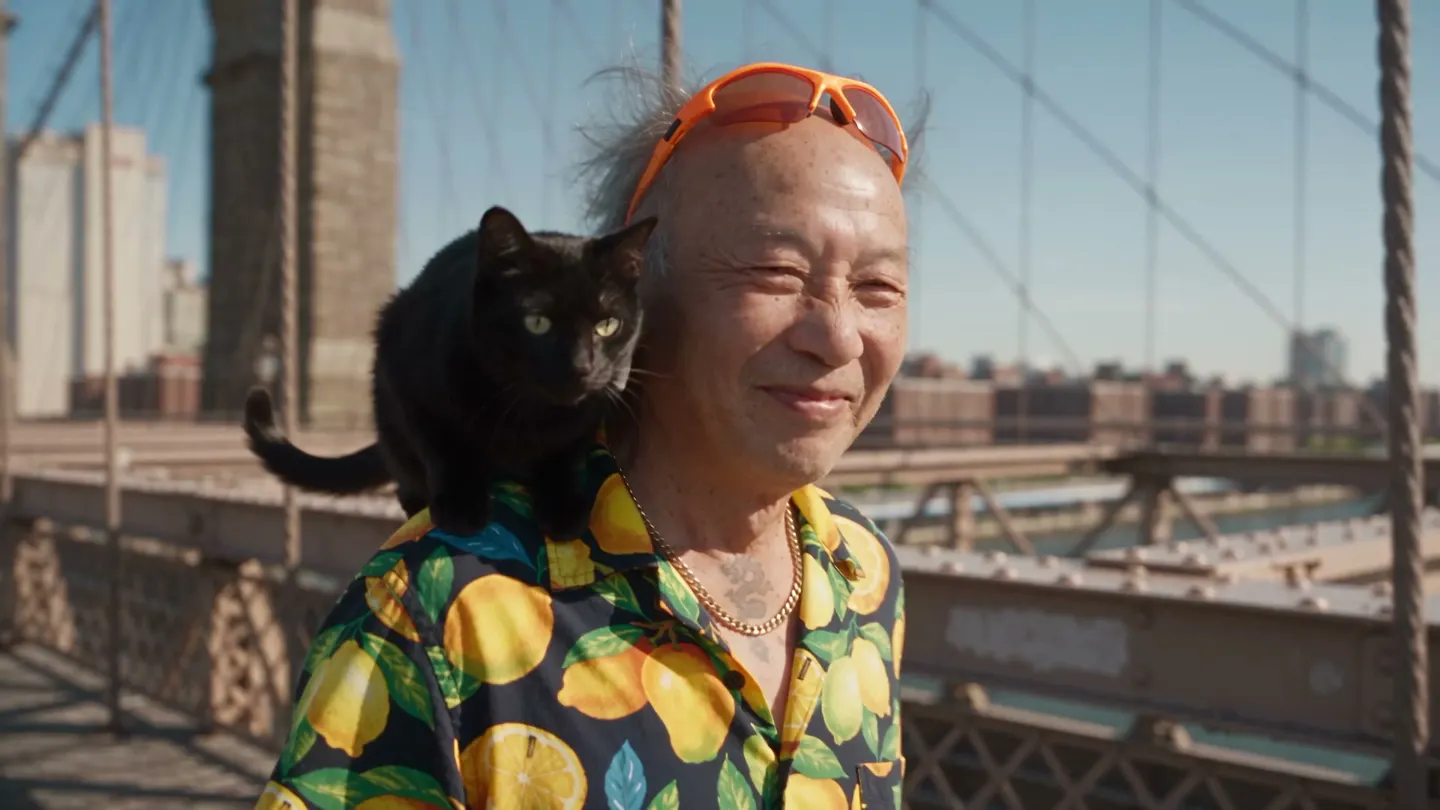
Video Character Swap · Video character swap
Recast anyone in a video
Add a video and the character to put in it, and get the same clip with your character in every frame.
Add your own photo or start from an example. The price in Gems shows before you generate.
Before and after
See what Video Character Swap does
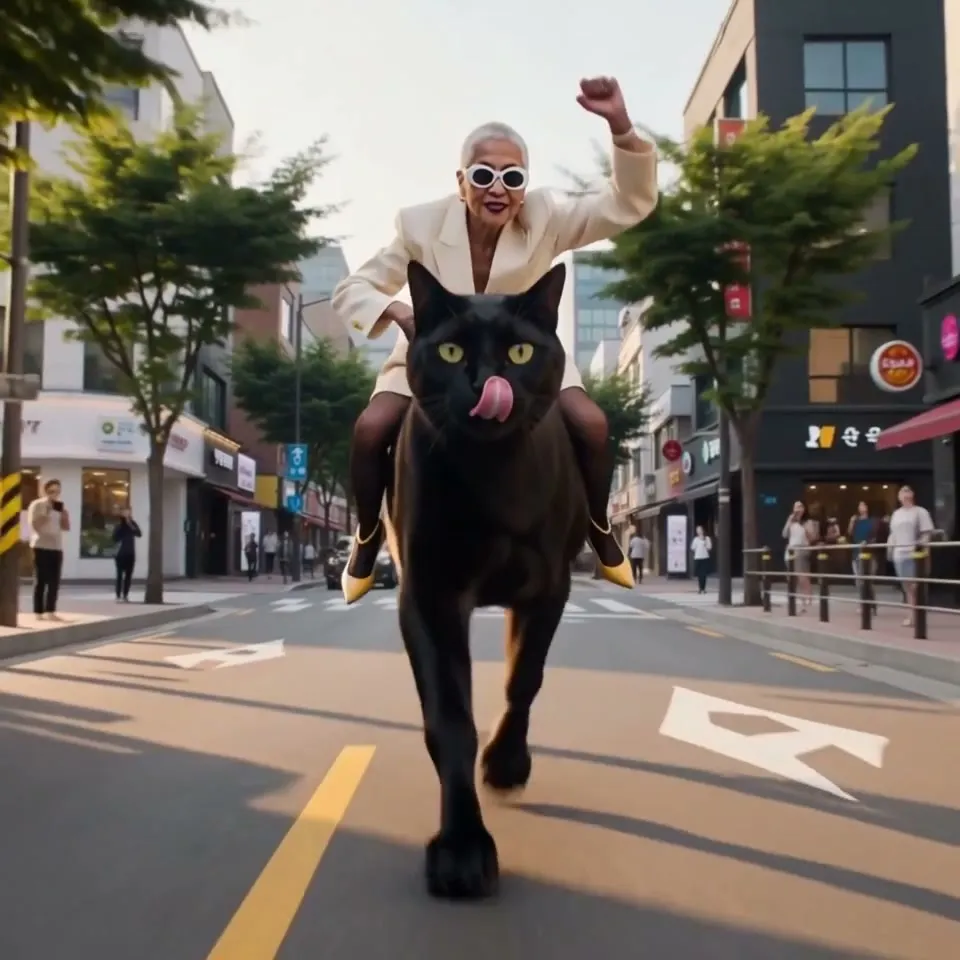
A new rider in a cream blazer takes the reins of the giant cat, same street and same gallop. Drag the handle to compare the original with the result.

Mage examples
Made with Video Character Swap
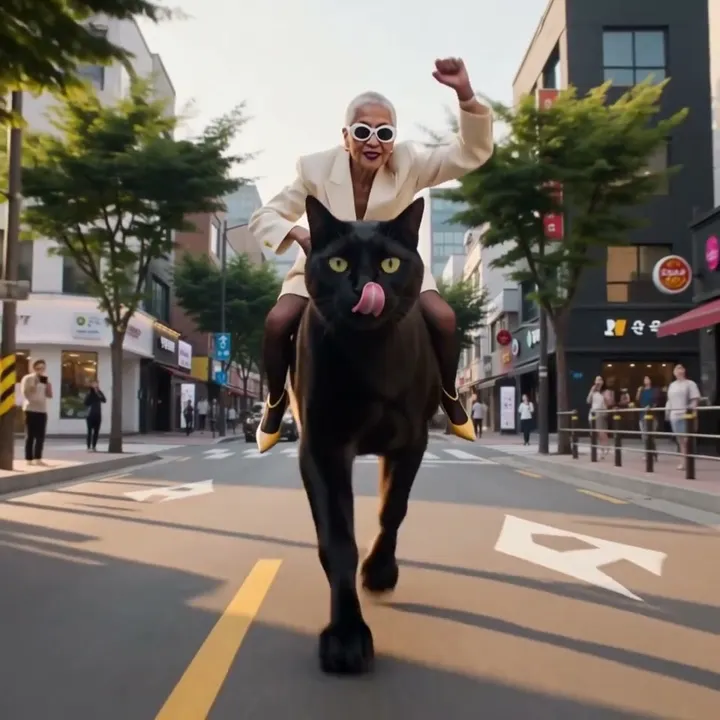
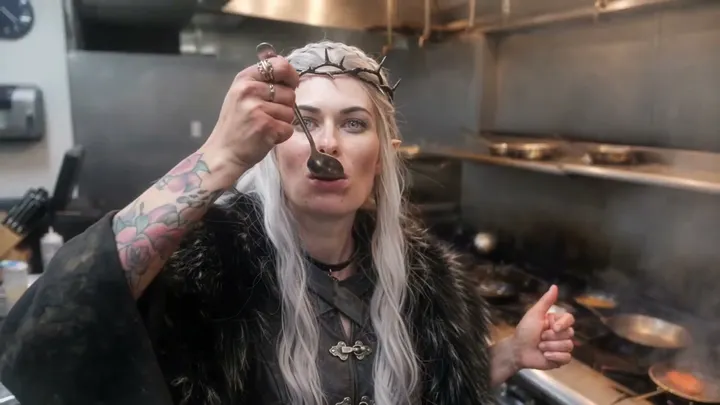
Real runs of Video Character Swap. Open one in the app, swap in your own photo, and generate.


How it works
How to use Video Character Swap
Add a video and the character to put in it, and get the same clip with your character in every frame.
Add the video and the character
Upload an MP4, MOV, or WebM up to 30 MB, or pick a video creation. Then add the character as an upload, a creation, or a saved character.
Pick a model
Lemon is the default. Change the model and settings if you like; the price in Gems shows on the Swap button.
Swap
Check the permission notice and press Swap. The video lands in History, ready to download, save, share, or remix.
What you need
- The video to change
- The character to swap in
For the best result
- Use a full-body image of the character so the outfit and build carry over.
- Clips with one clear person in frame give the most consistent results.
- Saved characters work as the reference, so one character can star in many clips.
Ideas
What people make with Video Character Swap
Star your character
Put a saved character into a dance, a walk, or a scene you filmed.
Trends and challenges
Recreate a popular clip with your own character in the lead.
Short films
Recast a role, costume included, without a reshoot.
The basics
Recast a video with your own character
Video Character Swap replaces the person in a video with the character from one image. Unlike a face swap, it changes the whole person: the face, the hair, the body, and the outfit. What the camera recorded stays as it was: the movement, the expressions, the lip movements, the camera work, the timing, and the background.
That makes it a way to recast a scene without a reshoot. Film a dance, a walk, or a line of dialogue yourself, or take a clip you have the rights to, and put a saved character, a costume, or a new performer in the lead. The clip keeps the performance; the character changes.
Lemon is the default model and takes clips of 1 to 15 seconds. Cherry 2 Pro takes clips up to 30 seconds, and other Berry, Cherry, and Plum models are in the Model menu too; some of them can keep the original audio. To change only the face and keep the hair and outfit, use Video Face Swap instead.
Tips and techniques
Choosing the video
Clips with one clear person in frame give the most consistent results. The person should be visible for most of the clip, not hidden behind objects or cut off at the edge for long stretches. Steady footage and even light help the new character hold its look from frame to frame.
Trim the clip to the part you need before you upload it. The video can be an MP4, MOV, or WebM up to 30 MB, or one of your video creations, and the app tells you when a clip is longer or shorter than the model accepts.
- One person, clearly visible.
- A steady camera and even light.
- Trimmed to the moment you need.
Tips and techniques
Choosing the character image
The character image sets everything that changes: the face, the hair, the build, and the outfit. A full-body image shows all of them, while a face-only portrait leaves the model to guess the body and clothes. Match the framing roughly to the video: a full-body image for a full-body dance, a waist-up one for a talking shot.
Saved characters work as the reference, so one character can star in many clips and look the same in each. To get a clean reference first, make a character sheet or build a character with Character Builder: Attributes.
Tips and techniques
Ideas for recasting
Put your character into a trending dance or a challenge clip; the AI dance video generator covers more ways to make dance videos. Recast a role in a short film, costume included, or have a brand mascot present a product demo you filmed yourself.
To change a single photo instead of a video, use Character Swap. To change only the clothes in a photo, use Outfit Swap. To restyle the whole video from a prompt, such as a new setting or art style, use the Video Editor.
Tips and techniques
Video Character Swap or Video Face Swap?
Both keep the motion, the camera, and the background of your clip. Video Face Swap changes only the face: the hair, the body, and the outfit of the person in the video stay. Video Character Swap changes the whole person, so the character arrives with their own hair, build, and clothes.
Choose Video Face Swap when the outfit in the clip is right and only the identity should change. Choose Video Character Swap when the character has a look of their own that the clip should take on, such as a costume, a mascot, or a saved character.
The same choice applies to photos, between Face Swap and Character Swap.
Tips and techniques
Checking the result
Watch the result at full size, especially around fast movements and the moments when the person turns away or is partly hidden: that is where a swap is hardest. If the character slips there, try a shorter clip that leaves out the hardest moment, a clearer character image, or another model.
Only swap in real people with their permission, and use footage you have the rights to. Before every swap, the app asks you to confirm that you have permission to use the content, including any likeness in it.
A little more clarity
Frequently asked questions
What is Video Character Swap?
What do I need to upload?
How long can my video be?
Which models can I use?
How much does a video character swap cost?
Can I swap a real person into a video?
Does the swap keep the original audio?
What happens to the lip movements?
What kind of video works best?
Can the same character star in several clips?
Should I use Lemon or Cherry 2 Pro?
Can I swap a character into a video I generated?

Make your own with Video Character Swap
Open the app, add your photo, and see the price before you generate. Everything you make stays in your History.
Open Video Character Swap