
Video Face Swap · Video face swap
Swap a face in any video
Add a video and the face to put in it, and get the same clip with the new face in every frame.
Add your own photo or start from an example. The price in Gems shows before you generate.
Before and after
See what Video Face Swap does
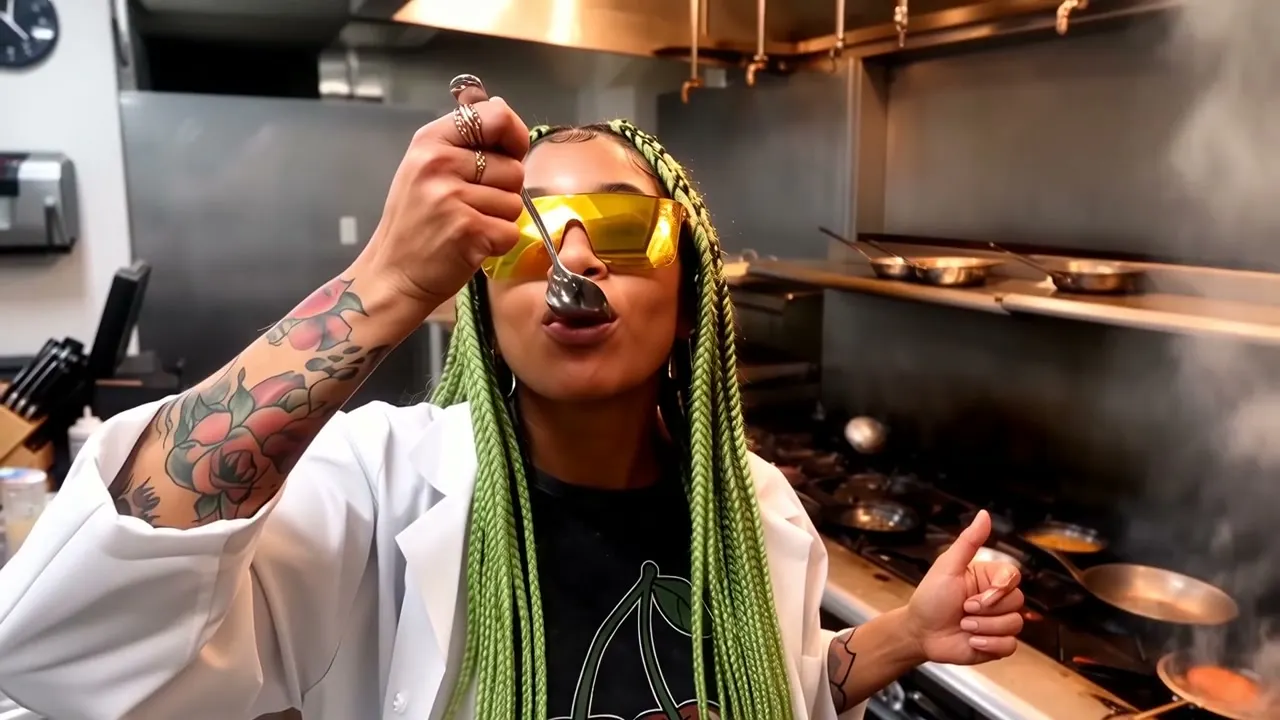
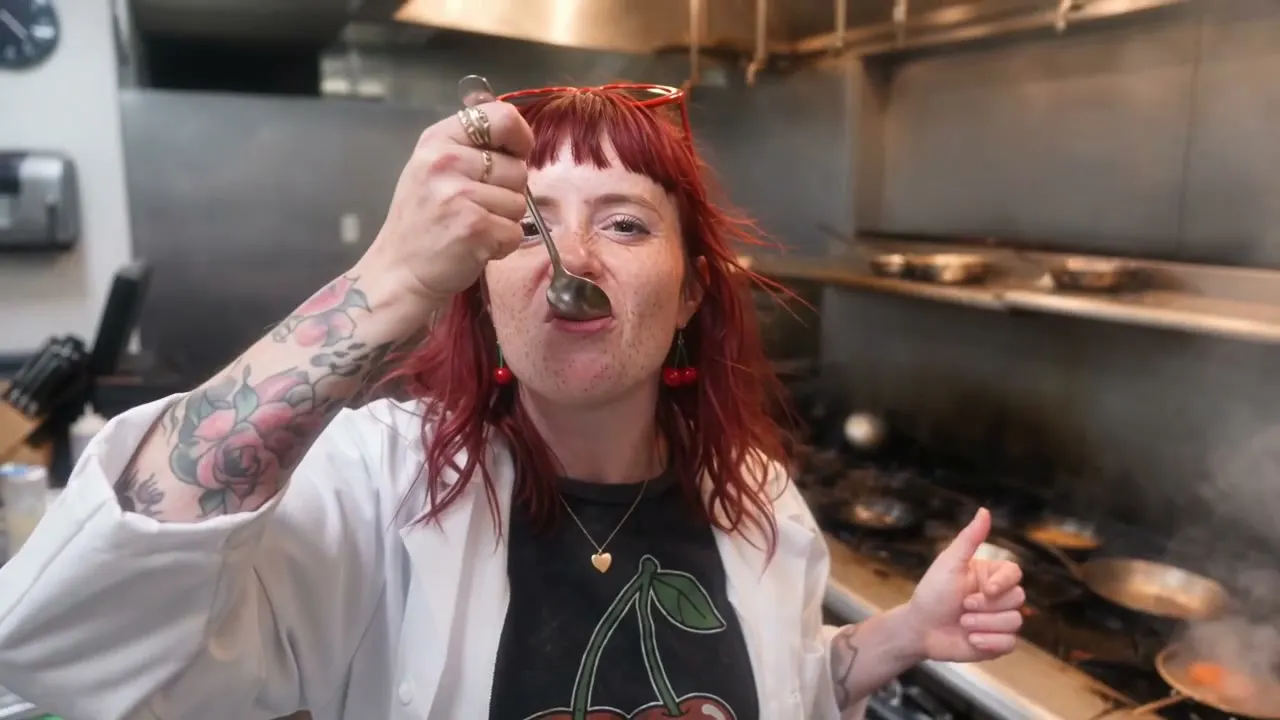
A chef keeps every bite and thumbs-up while her face and braids become a new red-haired look. Drag the handle to compare the original with the result.
Mage examples
Made with Video Face Swap
Real runs of Video Face Swap. Open one in the app, swap in your own photo, and generate.


How it works
How to use Video Face Swap
Add a video and the face to put in it, and get the same clip with the new face in every frame.
Add the video and the face
Upload an MP4, MOV, or WebM up to 30 MB, or pick a video creation. Then add the face as an upload, a creation, or a saved character.
Pick a model
Lemon is the default. Change the model and settings if you like; the price in Gems shows on the Swap button.
Swap
Check the permission notice and press Swap. The video lands in History, ready to download, save, share, or remix.
What you need
- The video to change
- The face to swap in
For the best result
- Use a sharp, front-facing photo for the face.
- Clips where the face is large and clearly visible give the best results.
- The hair comes from the face photo too, so pick one with the hairstyle you want.
Ideas
What people make with Video Face Swap
Cast your character
Bring a saved character's face into a video you made.
Short films
Recast a role without a reshoot.
Variations
Make several versions of one clip with different faces.
The basics
What is an AI video face swap?
An AI video face swap replaces the face of a person in a video with a face from another image, on every frame. The body, the clothes, the background and above all the performance stay the same: the head turns, the expressions and the lip movement of the original carry over onto the new face.
Mage’s Video Face Swap app takes two inputs: the video and one image of the face to swap in. It applies the new identity across the whole clip, keeps the original pose, motion, expressions and lip movements, and keeps the original audio by default. You pick the video model that does the work, with Lemon as the default.
Face swapping is powerful, which is why Mage asks you to confirm you have permission to use the people, faces and voices in your uploads before you generate. Harmful deepfakes are strictly forbidden, and so is any non-consensual imagery of real people. Within those lines, it is a fast way to recast a scene, localize a spot or put your own character into footage.
A little more possibility
Why creators swap faces in video on Mage
One photo is enough
A single clear image of the face is all the swap needs. No dataset, no training.
The performance survives
Pose, motion, expressions and lip movements come from your original clip, frame by frame.
Original audio kept
The source clip’s sound stays by default, so dialogue and music line up as before.
Eight models to pick from
Lemon by default, or Cherry 2 Pro, Cherry, Plum, Berry and more for a different balance of quality and price.
Swap in a character you made
Use a portrait of a character you designed on Mage as the face image, and recast the same footage again and again.
Private by default
Your footage and swaps stay in your account unless you choose to share them.
Tips and techniques
Getting a convincing video face swap
The face photo matters most. Use a sharp, evenly lit, front-facing image with the whole face visible: no sunglasses, no hand in front of the mouth, no heavy filters. A photo at a similar angle and in similar light to the video helps the swap sit naturally in the scene.
The video matters next. Clips where the face is reasonably large in frame and not hidden for long stretches swap most cleanly. Fast whip pans, extreme profiles and faces covered by hair or hands are the hardest frames for any face swap; if a few frames look off, try a different model or a shorter section of the clip.
A face swap changes the face and keeps the rest. If you want to replace the whole person, outfit and body included, use the AI character swap, which has a video version too. For a still photo, the AI face swap page covers the image app.
- Use a sharp, front-facing face photo in even light.
- Match the angle and lighting of the video where you can.
- Pick clips where the face is visible most of the time.
- Trim the source to the part you need before uploading.
- Try Cherry 2 Pro when the default result is not strong enough.
Tips and techniques
Permission, consent and what is not allowed
Before every swap, the app shows a permission checkbox: you confirm that you have permission to use the content you upload, including any likeness or voice in it. Unchecking it blocks the swap, and checking it is a statement you are responsible for. Below it, Mage states plainly that harmful deepfakes are strictly forbidden.
In practice that means swapping your own face, faces of people who have agreed, characters you created, or performers you have the rights to. It never means putting a real person into a video they did not agree to, impersonating someone to deceive, or anything involving minors. Those uses are against Mage’s terms on every model and every app.
Swaps you make are private by default. Nothing you create is posted anywhere unless you post it yourself.
The right model for the job
The best models for video face swap
The app runs the swap on a video model of your choice. Source length limits differ by model.
Lemon
The default, for sources of 1 to 15 seconds at a balanced price.
Cherry 2 Pro
For the longest sources, 4 to 30 seconds, and the most polished swaps. The most expensive option.
Plum Max
A full-feature video model for sources of 2 to 15 seconds.
Berry 2
Faithful to the reference image; it swaps within the first 15 seconds of a longer upload.
Room to experiment
Face swap on Mage vs single-purpose swap apps
Many face swap apps run one fixed model and a library of template clips. Mage lets you bring your own footage, choose the model, and keep the work private.
Mainstream tools
- Template clips instead of your own footage
- One fixed model
- Swaps posted to a public gallery
- Short clips only
Mage
- Your own video and your own face photo
- Eight video models to choose from
- Private by default
- Sources up to 30 seconds on Cherry 2 Pro
A little more clarity
Frequently asked questions
What is Video Face Swap?
What do I need to upload?
How long can my video be?
Which models can I use?
How much does a video face swap cost?
Can I swap a real person's face?
How do I swap a face in a video?
Does the swapped face move and talk like the original?
How long can the video be?
Is video face swapping legal?
Can I swap the whole person instead of just the face?
Are my swaps private?

Make your own with Video Face Swap
Open the app, add your photo, and see the price before you generate. Everything you make stays in your History.
Open Video Face Swap