
Angles · New camera angle
Same moment, new angle
Drag the camera to a new viewpoint and get the same subject and scene, seen from there.
Add your own photo or start from an example. The price in Gems shows before you generate.
Before and after
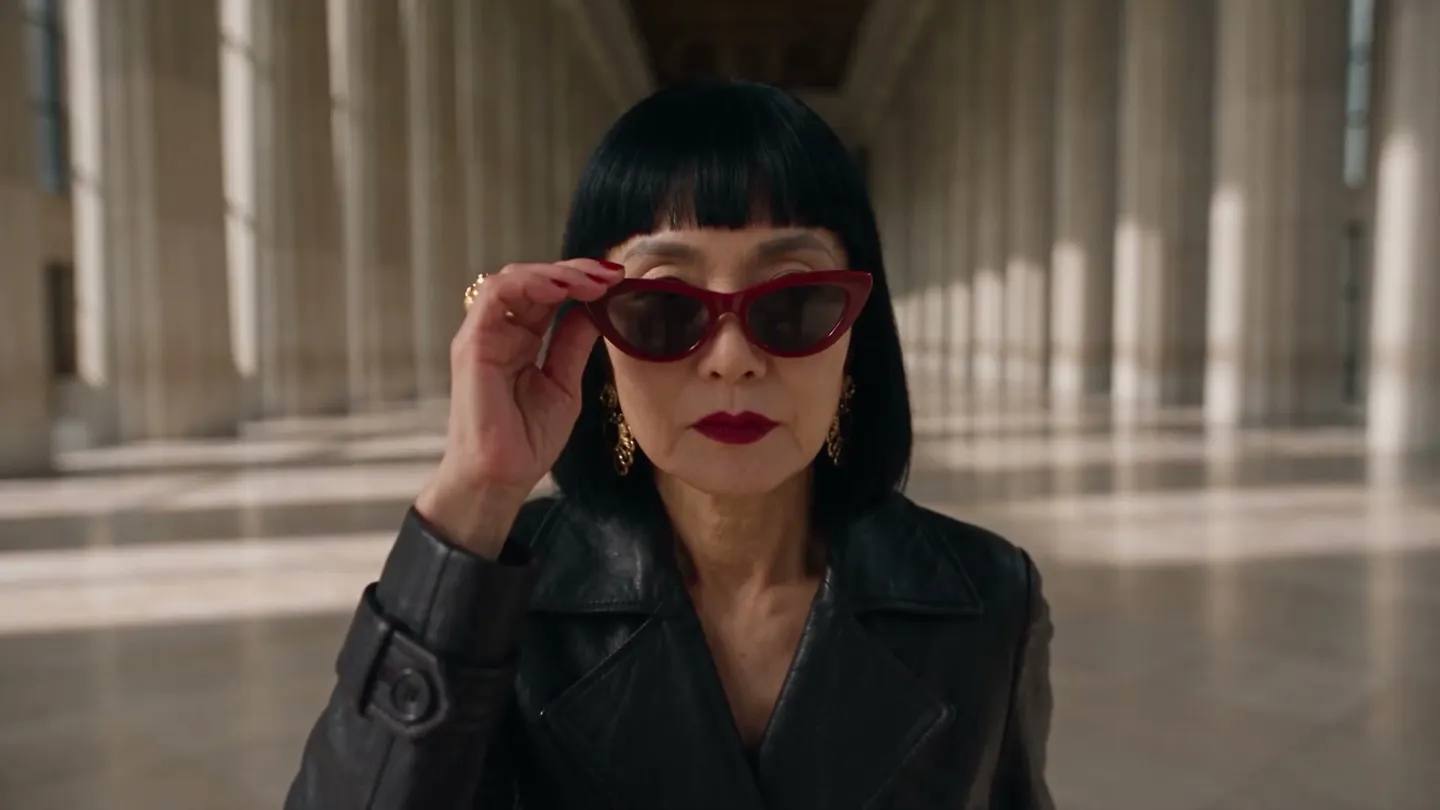
See what Angles does
undefined Drag the handle to compare the original with the result.
Mage examples
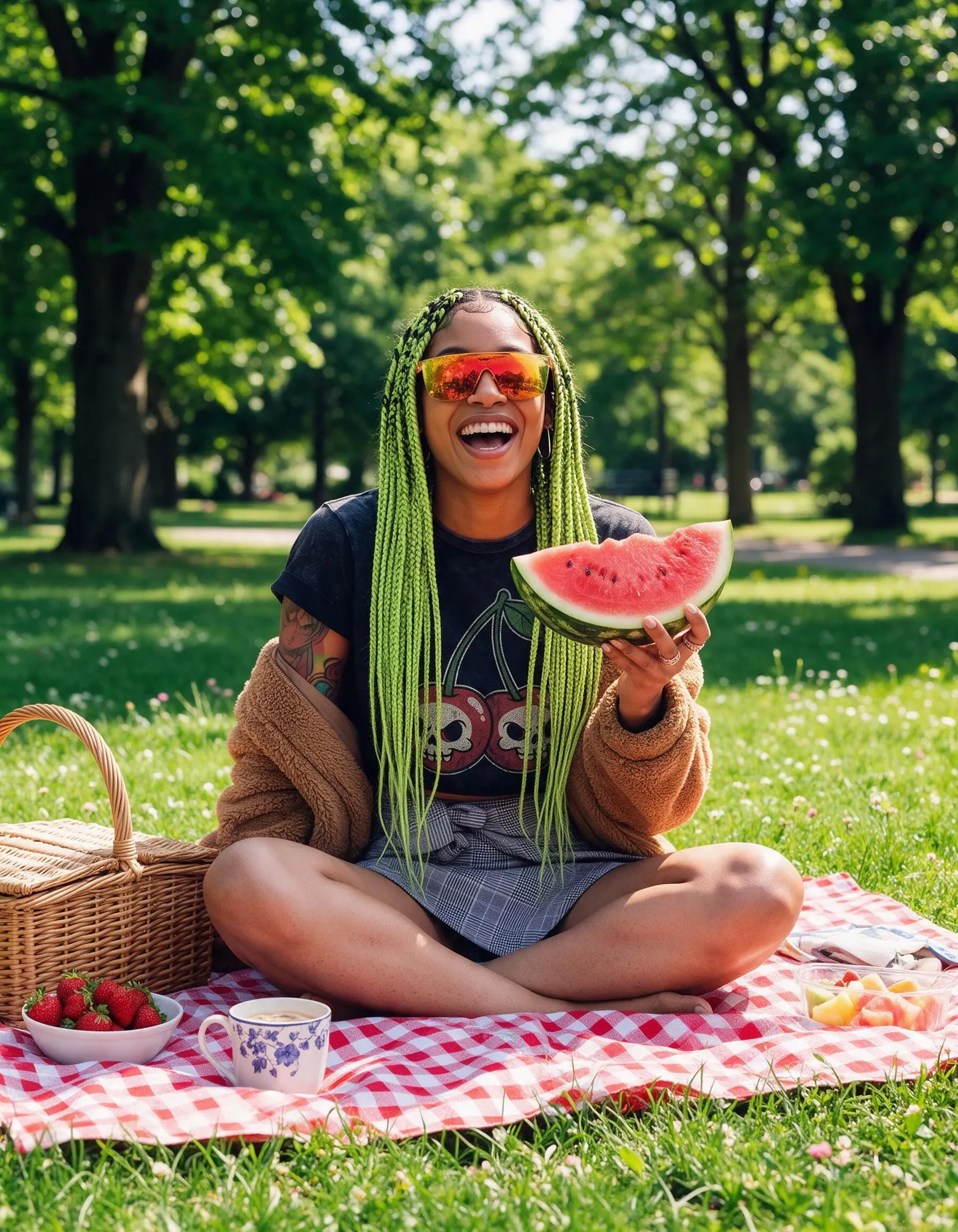
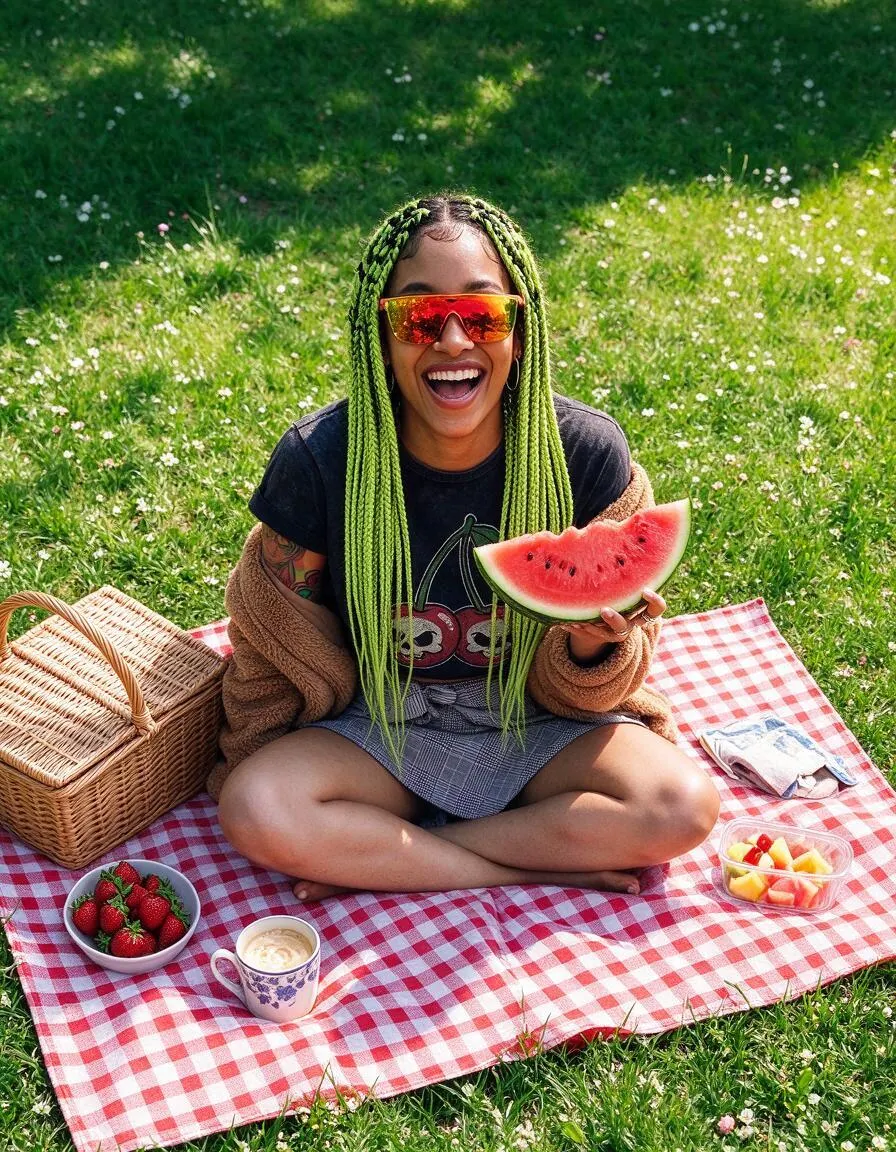
Made with Angles
Real runs of Angles. Open one in the app, swap in your own photo, and generate.

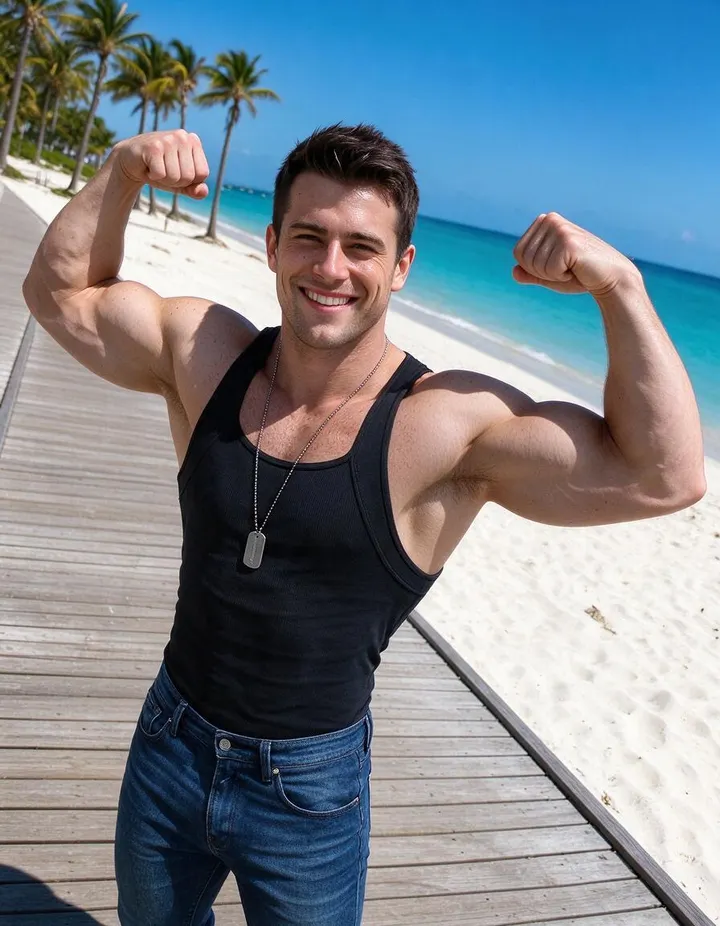
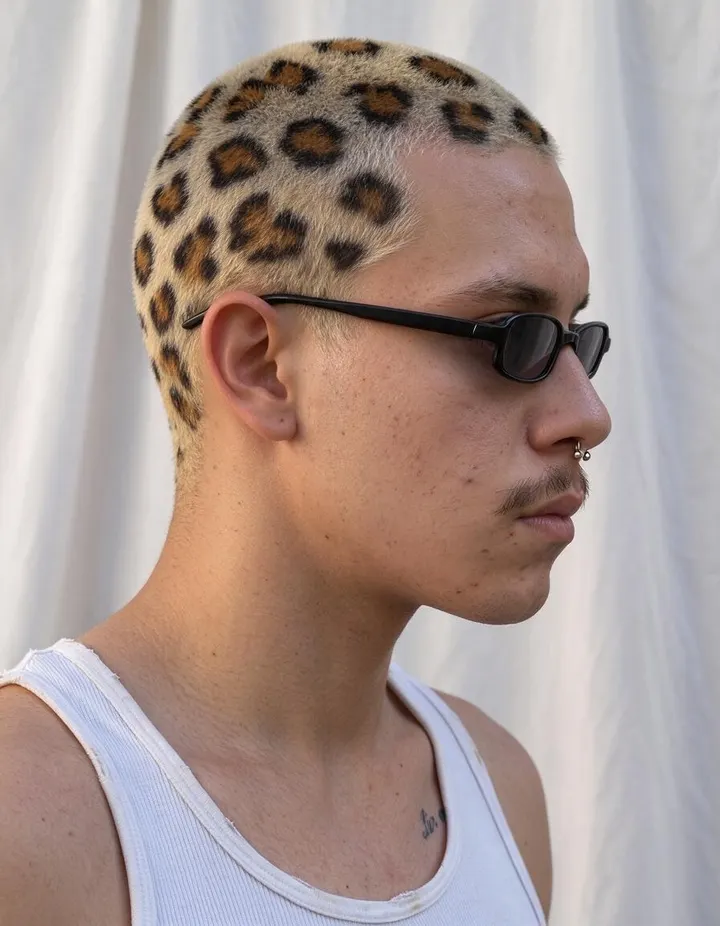
How it works
How to use Angles
Drag the camera to a new viewpoint and get the same subject and scene, seen from there.
Add an image
Upload a JPEG or PNG up to 30 MB, drop it on the page, or pick one of your creations.
Move the camera
Hold and drag to set the angle: high or low, from the front, a three-quarter view, the side, or behind.
Change the angle
Pick a model if you like; the price in Gems shows on the Change Angle button. The result lands in History, ready to download, save, share, or remix.
What you need
- An image to view from a new angle
For the best result
- Small moves, such as a three-quarter view, keep the most detail from the original.
- Clear images with one main subject give the most consistent results.
- Run several angles of one image to build a set for a character or a product.
Ideas
What people make with Angles
Character turnarounds
See a character from the side or from behind.
Product views
Show a product from more than one angle.
Storyboards
Get a reverse or overhead shot of the same moment.
The basics
See the same moment from another camera
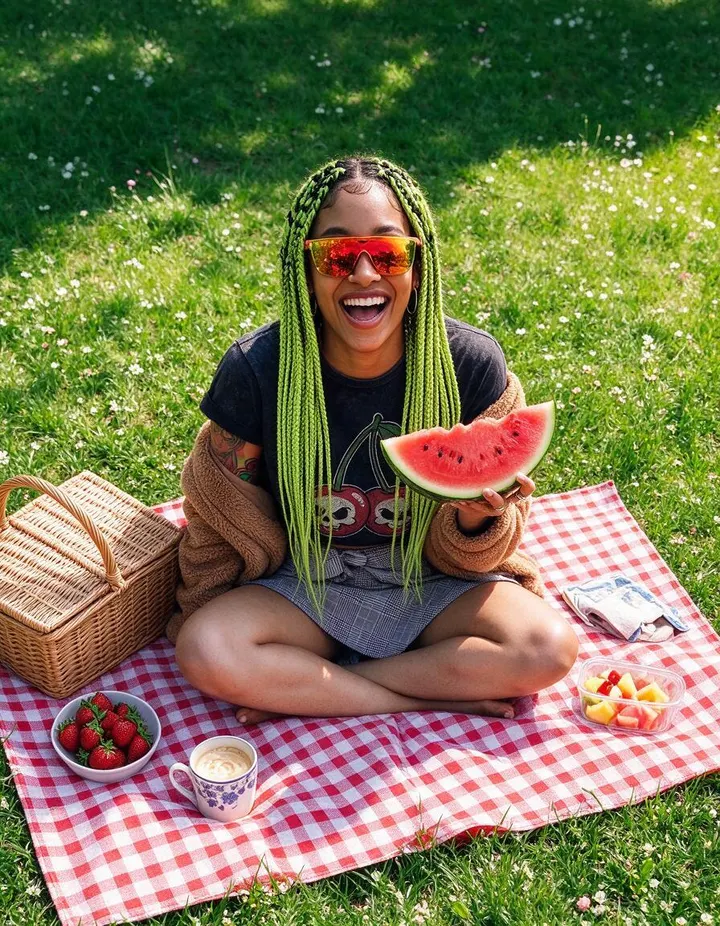
A picture is taken from one viewpoint. Angles gives you another. Add an image, drag the camera to a new position, and it makes the scene again as if a second camera had stood there at the same moment: the same subject, pose, clothes, light, and setting, seen from the side, from above, from below, or from behind.
The camera moves in steps of 45 degrees, in two directions. Around the subject, it goes from the front to a three-quarter view, the side profile, and behind. Up and down, it goes from eye level to high and low angles, and to straight overhead or straight below. Combine the two for views such as a high three-quarter shot or a low side view.
The parts of the scene the original never showed have to be imagined, so the result is a new image rather than a measured 3D view. Small moves keep the most from the original; big ones, such as turning to the back, show more that the model had to invent.
Tips and techniques
Camera angles and what they say
Camera height changes how a subject feels. Eye level is neutral and natural. A high angle looks down on the subject and makes them seem smaller or calmer. A low angle looks up and makes them seem taller, stronger, or more imposing. Straight overhead shows layout and pattern, which suits food, desks, and flat lays.
Turning around the subject changes what the viewer learns. A three-quarter view shows the face and the shape of the body together and flatters most portraits. A side profile shows silhouette and posture. A view from behind shows where the subject is looking and what they are walking into.
- Low angle: power and scale.
- High angle: calm, small, or an overview.
- Three-quarter: the most flattering view for most portraits.
Tips and techniques
Choosing the image
Images with one clear subject and a readable setting give the most convincing new angles. The model has more to go on when the subject is fully in frame and in focus; a very tight crop leaves little of the scene to carry into the new view.
What the original shows matters most. Turning a portrait to the side keeps the face consistent, while turning it to the back depends on what the model can infer about the hair and clothes from the front.
Tips and techniques
Character turnarounds, products, and storyboards
For characters, run Angles a few times to get side and back views of the same pose. For a full reference in one image, a character sheet lays out the face, front, side, and back views together.
For products, show one item from the front, a three-quarter view, and above, so a listing has more than one view. The AI product photo generator makes the first shot. For storyboards, get the reverse shot or the overhead of a frame you already like, so the cut reads as one place; see the AI storyboard generator.
Tips and techniques
Getting the best result
Move the camera one step at a time when the subject has to stay exact, and run Angles again on the result for a bigger turn. Mango 3 Turbo is the quick default; switch to Mango 3 or a Guava model from the Model menu for a final version.
To change the light for the new view, use Relight, and upscale the final image with the Image Enhancer.
Tips and techniques
What stays the same and what changes
Angles keeps what defines the moment: who or what the subject is, the pose, the clothes, the light, and the setting. What changes is everything that depends on where the camera stands: which side of the subject you see, how the background lines up behind it, and how big things look next to each other.
That last part is perspective. From a low angle, the parts of a subject nearest the camera look larger, and tall buildings lean in. From high above, people look shorter and the ground fills more of the frame. A real camera does the same, and it is part of what makes a new angle read as real.
Expect the background to change most. A wall behind the subject in a front view becomes a corner in a side view, and a view from behind shows what the subject was looking at, which the model has to imagine.
A little more clarity
Frequently asked questions
What does Angles do?
Which angles can I pick?
What can I upload?
Which models can I use?
How much does it cost?
Are my images private?
Can I combine a height and a direction?
Will the subject look right from behind?
Does Angles change the lighting?
Can I use Angles for product photos?
Is the result a 3D model?

Make your own with Angles
Open the app, add your photo, and see the price before you generate. Everything you make stays in your History.
Open Angles