
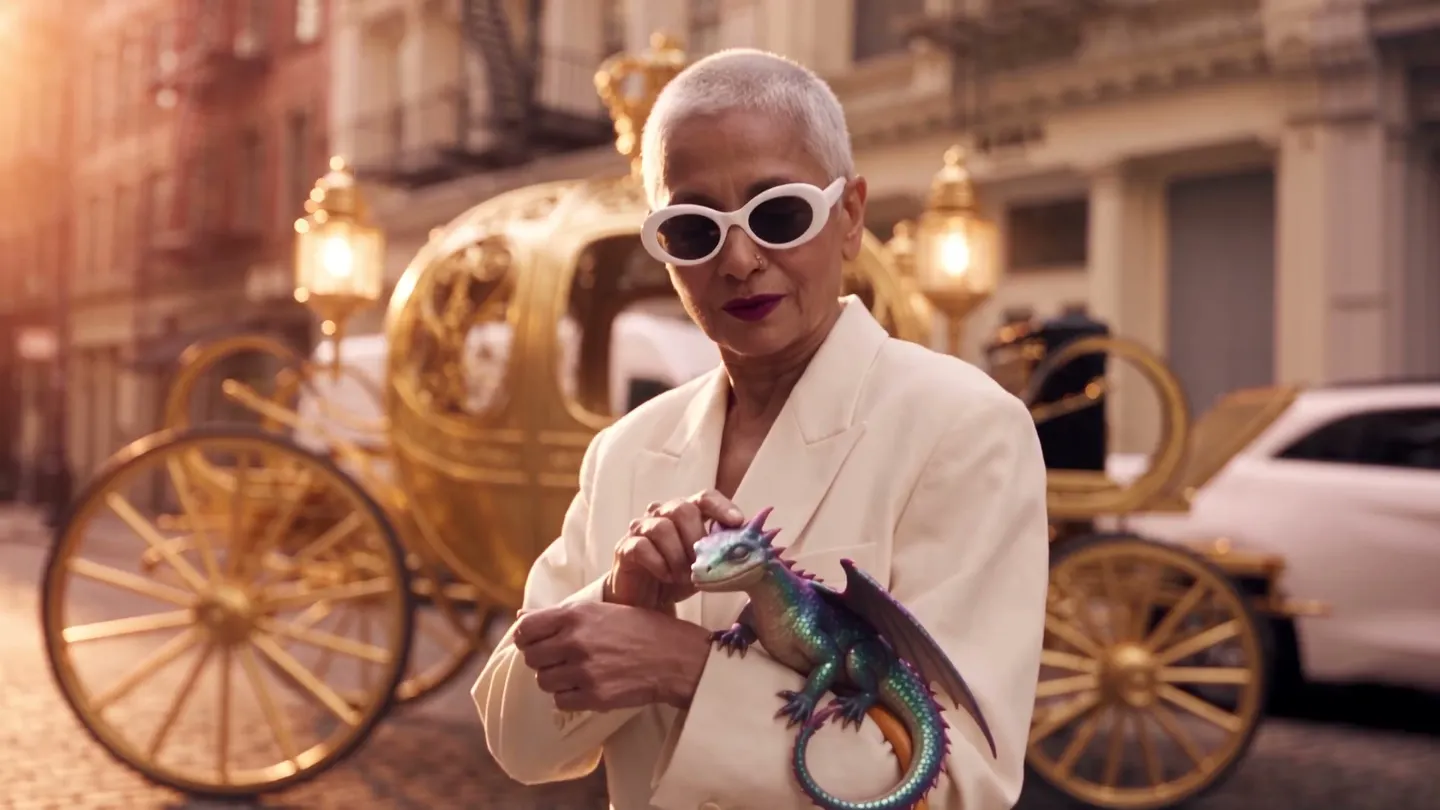
Inpaint · Mask and describe
Edit one part of an image
Paint over the area you want to change, describe what belongs there, and the rest of the image stays as it was.
Add your own photo or start from an example. The price in Gems shows before you generate.
Before and after
See what Inpaint does
undefined Drag the handle to compare the original with the result.
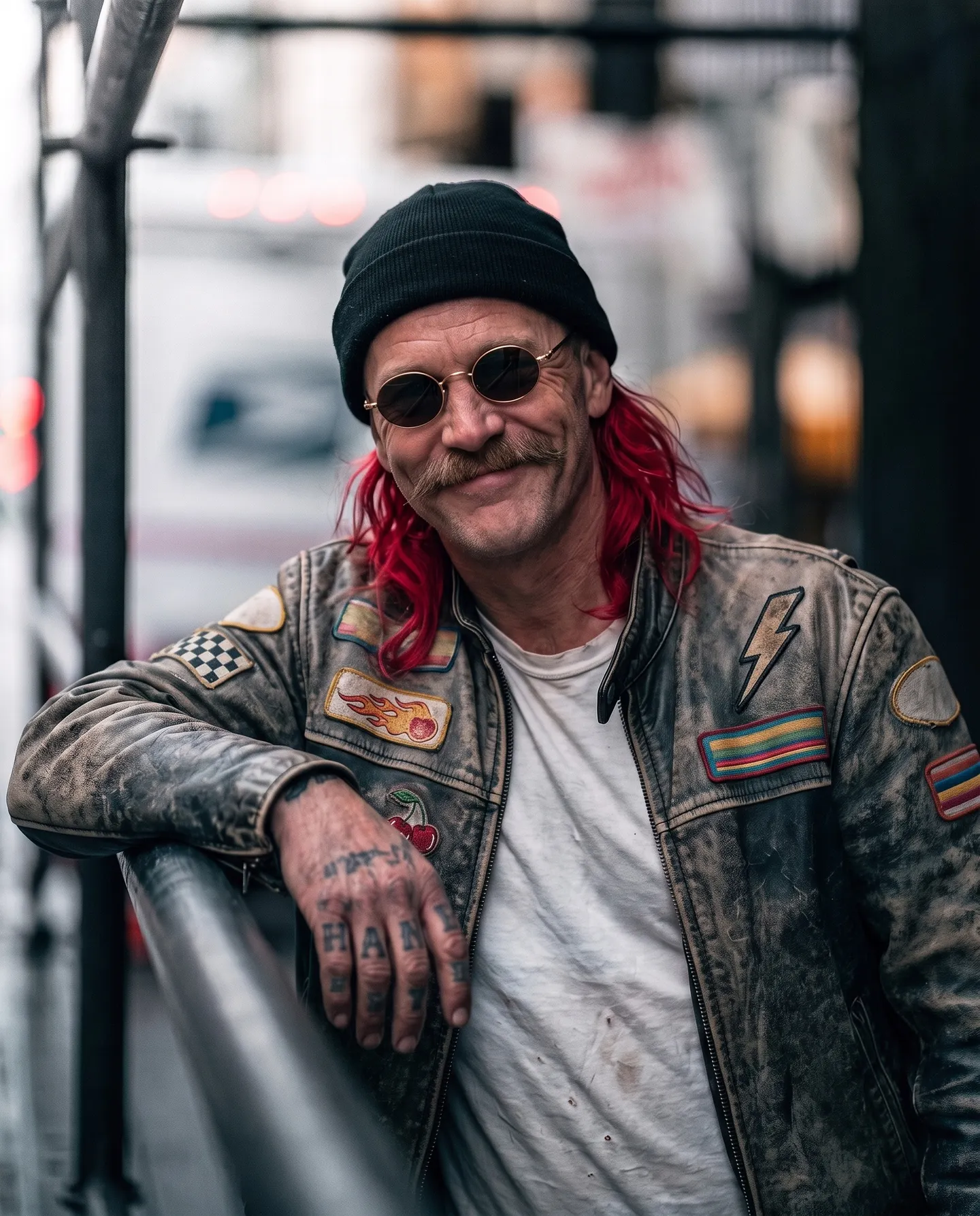
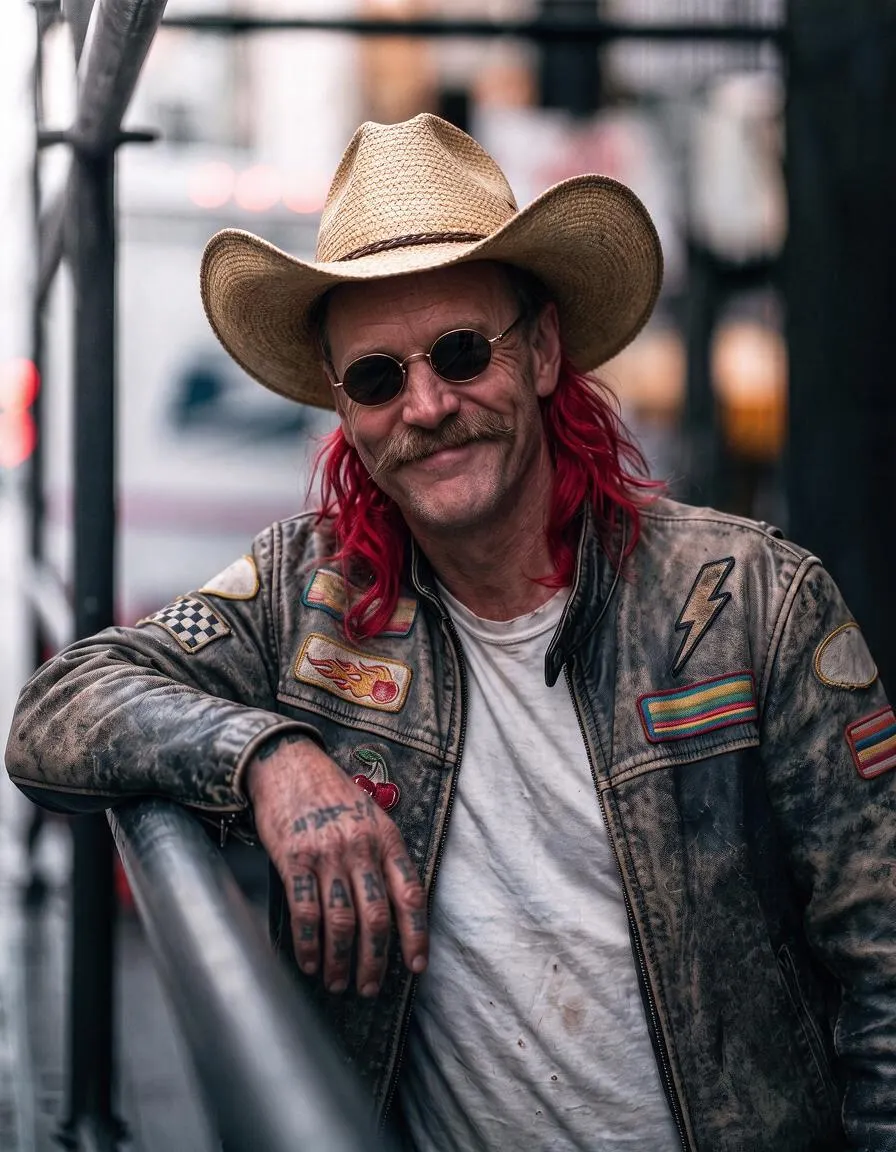
Mage examples
Made with Inpaint
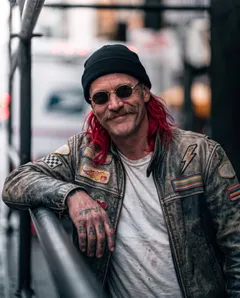
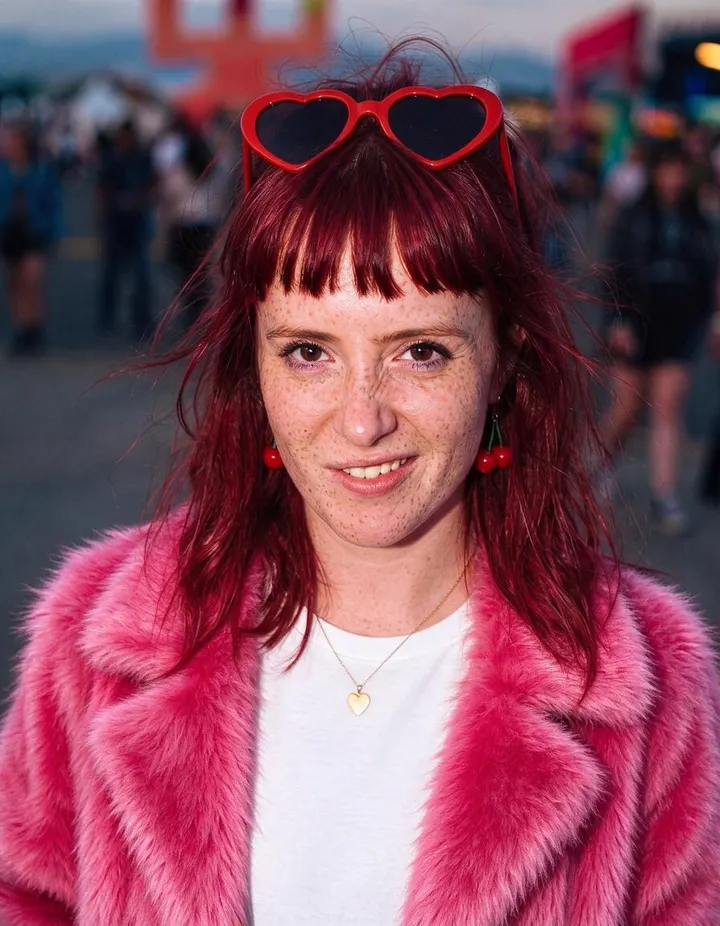
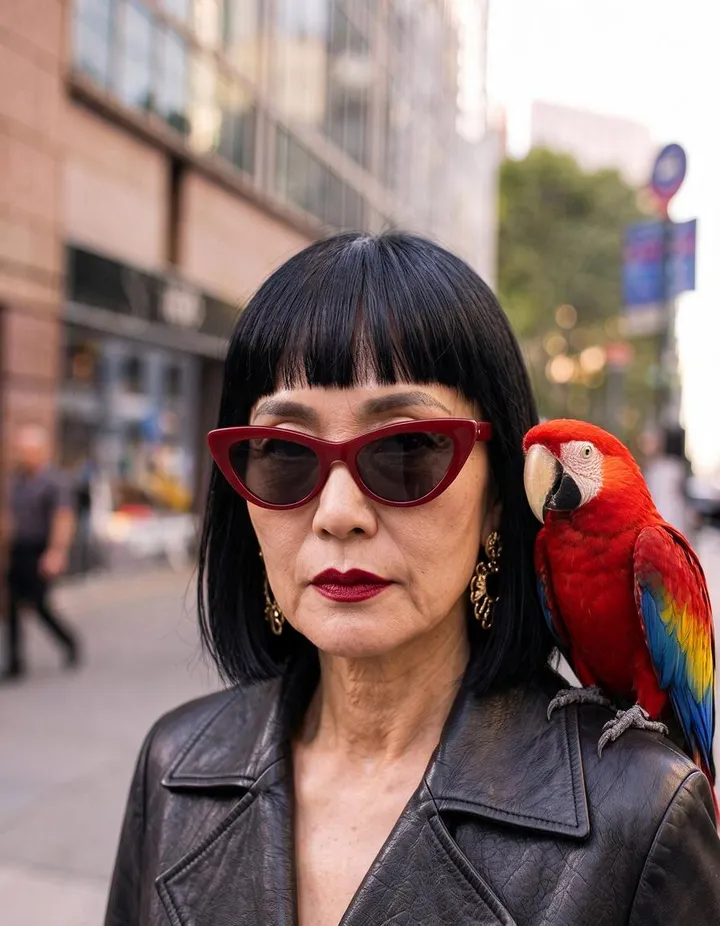
Real runs of Inpaint. Open one in the app, swap in your own photo, and generate.
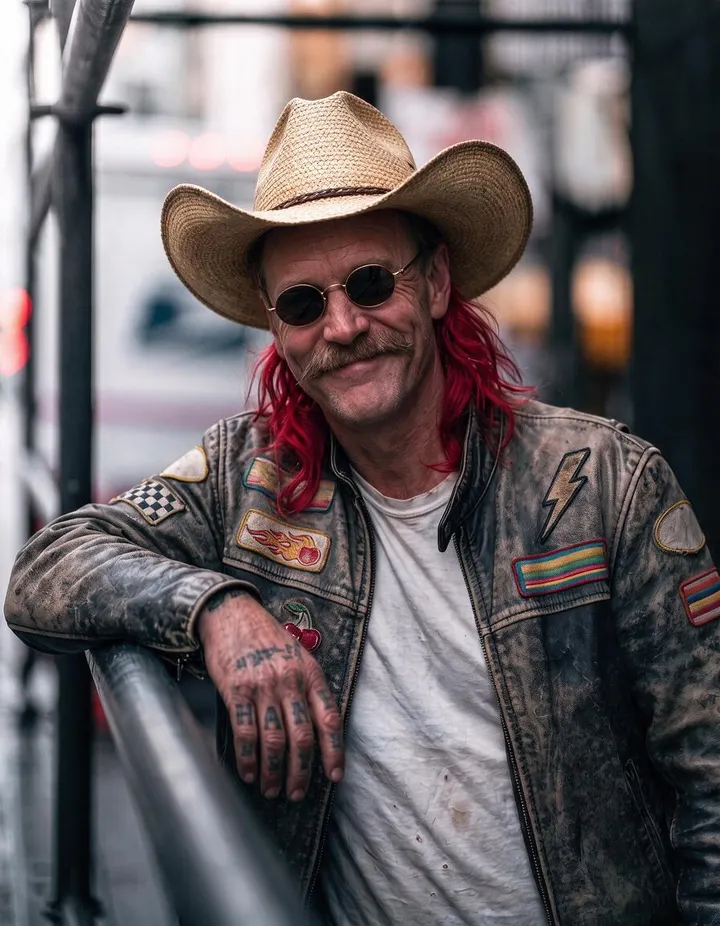
How it works
How to use Inpaint
Paint over the area you want to change, describe what belongs there, and the rest of the image stays as it was.
Add an image
Upload a JPEG or PNG up to 30 MB, drop it on the page, or pick one of your creations.
Mask and describe
Paint over the area with the brush, or tap Foreground or Background to select it for you. Then describe what should be there.
Inpaint
Pick a model if you like; the price in Gems shows on the Inpaint button. Check the permission notice, press Inpaint, and the result lands in History.
What you need
- An image to edit
- A mask over the area to change
- A description of the change
For the best result
- Mask a little wider than the object so the edit blends at the edges.
- Describe what should be there, not what to remove.
- Make one change per pass, then build on the best result.
Ideas
What people make with Inpaint
Fix a detail
Repaint a hand, a sleeve, or a stray object and leave the rest alone.
Change the background
Tap Background, describe a new setting, and keep the subject as it is.
Replace an object
Turn a cup into a book, or give a sign new text.
Restyle clothing
Mask a jacket and describe the one you want instead.
The basics
What inpainting is and when to use it
Inpainting is editing by area. Instead of writing a new prompt for the whole picture, you paint a mask over the part you want to change and describe what belongs there. The model repaints only the masked area and blends it into the pixels around it, so everything outside the mask stays as it was: the face, the light, the composition, and the small details you liked.
That makes it the right tool when an image is almost there. A hand has an extra finger, a sign has garbled letters, a cup should be a book, or a plain wall should be a city street. Generating again would change everything; inpainting changes the one thing.
Inpaint works on photos and AI images alike, and the result keeps the shape of the original. You also choose the model that does the repainting, from Mango 3 Turbo for quick edits to Mango 3 and the Guava models for detailed ones.
Tips and techniques
How to paint a good mask
The mask tells the model where it may change pixels. Cover the whole object you want to replace and go a little past its edges, so the model has room to blend the new content into the old. A mask that stops exactly on the outline often leaves a thin halo of the old object.
Match the brush size to the job: a large brush for a background or a jacket, a small one for a hand or an earring. Erase fixes the edges of the mask, and Clear Mask starts over. Foreground and Background select the main subject or everything behind it in one tap, which is the fastest way to change a whole setting.
- Cover the shadows and reflections that belong to the object too.
- Leave out what you want to keep, such as the face next to a collar.
- For a large area, mask a little more than you think you need.
Tips and techniques
How to write the prompt
Describe what should be in the masked area, not what should go away. "A leather-bound book on the table" works better than "remove the cup", because the model paints what you name. Mention the material, color, and light when they matter, so the new content matches the scene: "a red knit scarf, soft window light".
Keep the prompt about the masked area. The rest of the image is already there, and the model reads it as context. A short, specific description usually beats a long one.
Tips and techniques
Common edits, step by step
To change a background, tap Background and describe the new setting, such as "a rooftop at dusk with city lights". The subject stays as it is. The AI background changer covers more ways to do it.
To restyle clothing, mask only the garment and describe the new one. To put on a specific outfit from another picture, Outfit Swap takes the outfit as an image instead of words. To fix the text on a sign or a label, mask the letters and write the exact words in quotes.
- Remove an object: mask it and describe what is behind it, such as "an empty wooden floor".
- Fix a hand: mask the hand and wrist and describe "a relaxed hand with five fingers".
- Add an object: mask the empty spot and describe the object and where it sits.
Tips and techniques
When the result is not right
Make one change per pass. If the new area looks pasted on, widen the mask and run it again. If the change is too small, describe it more plainly or try another model from the Model menu. Every result lands in History, so you can keep the best version and inpaint on top of it.
When the problem is spread across the picture rather than in one spot, such as eyes that look slightly off or a soft image, Refine fixes it without a mask. To change the whole picture from a prompt, such as a new style or time of day, use the AI image editor. When the edit is done, upscale it with the Image Enhancer.
A little more clarity
Frequently asked questions
What is inpainting?
How do I make a mask?
What can I upload?
Which models can I use?
How much does an edit cost?
Can I edit photos of real people?
How big should the mask be?
Should I describe what to remove or what to add?
Can I change the background and keep the subject?
Can I fix the text in an image?
What is the difference between Inpaint and Refine?

Make your own with Inpaint
Open the app, add your photo, and see the price before you generate. Everything you make stays in your History.
Open Inpaint