
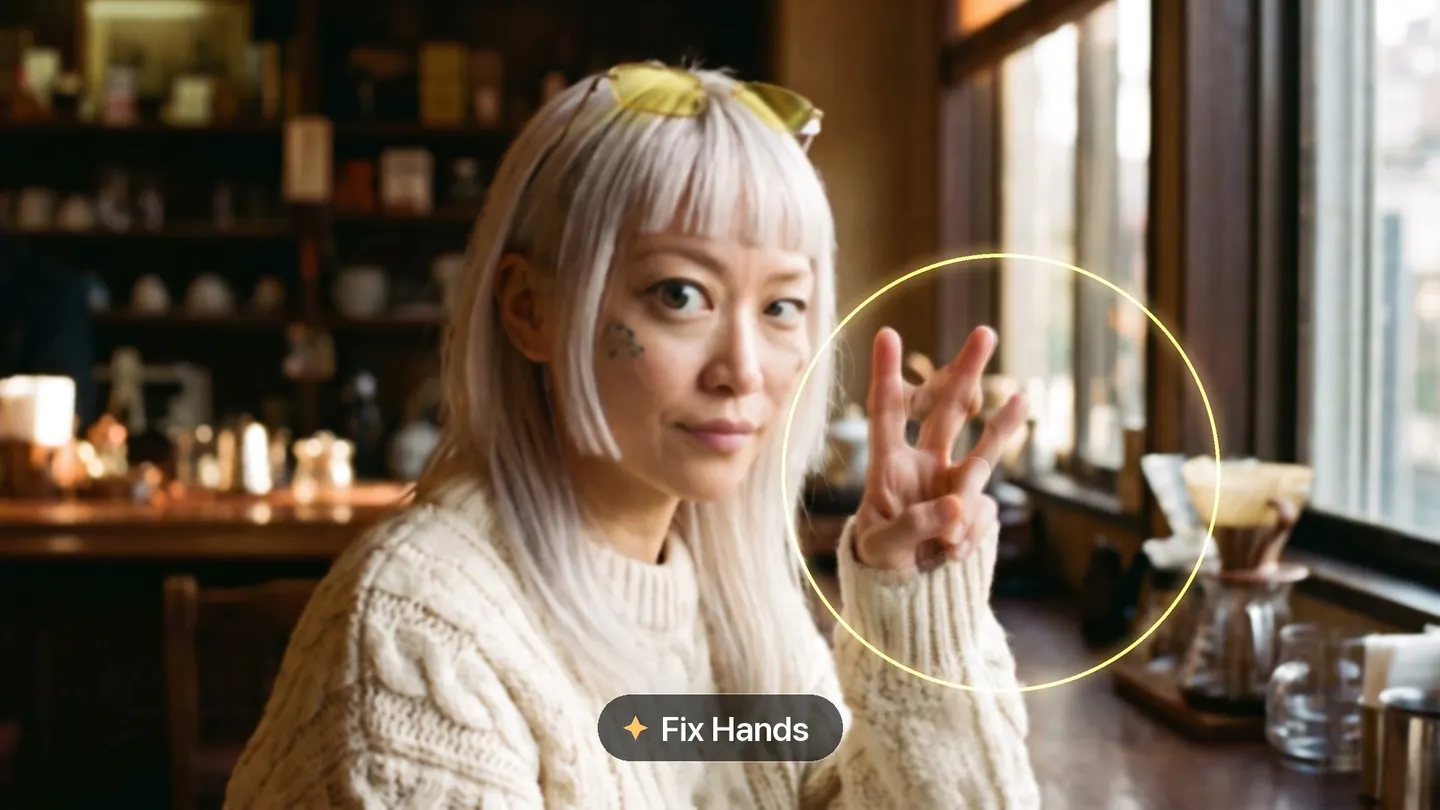
Refine · Focused fixes
Fix what came out wrong
Add an image, pick a preset or describe the fix, and get the same image with that one thing improved.
Add your own photo or start from an example. The price in Gems shows before you generate.
Before and after
See what Refine does
undefined Drag the handle to compare the original with the result.
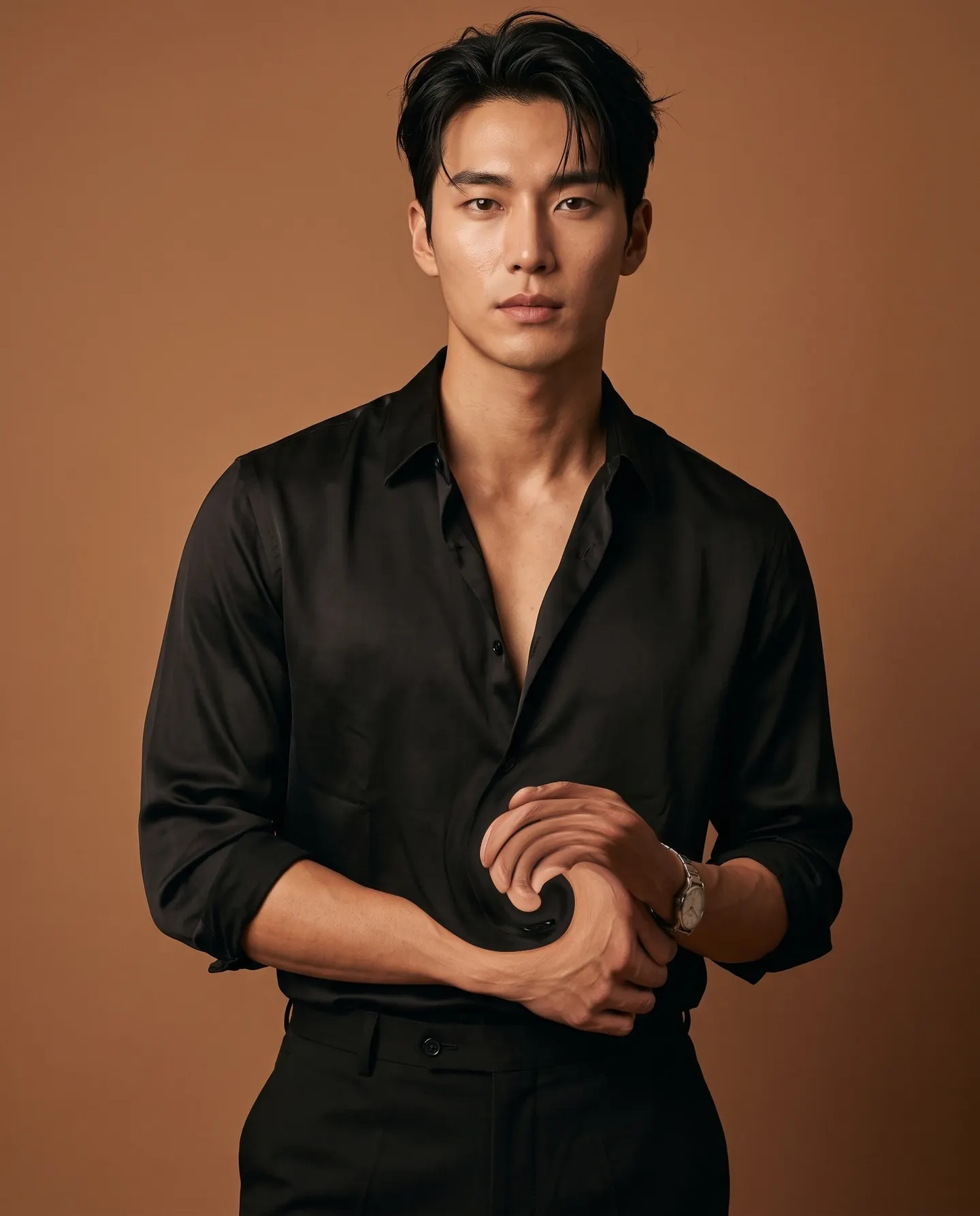
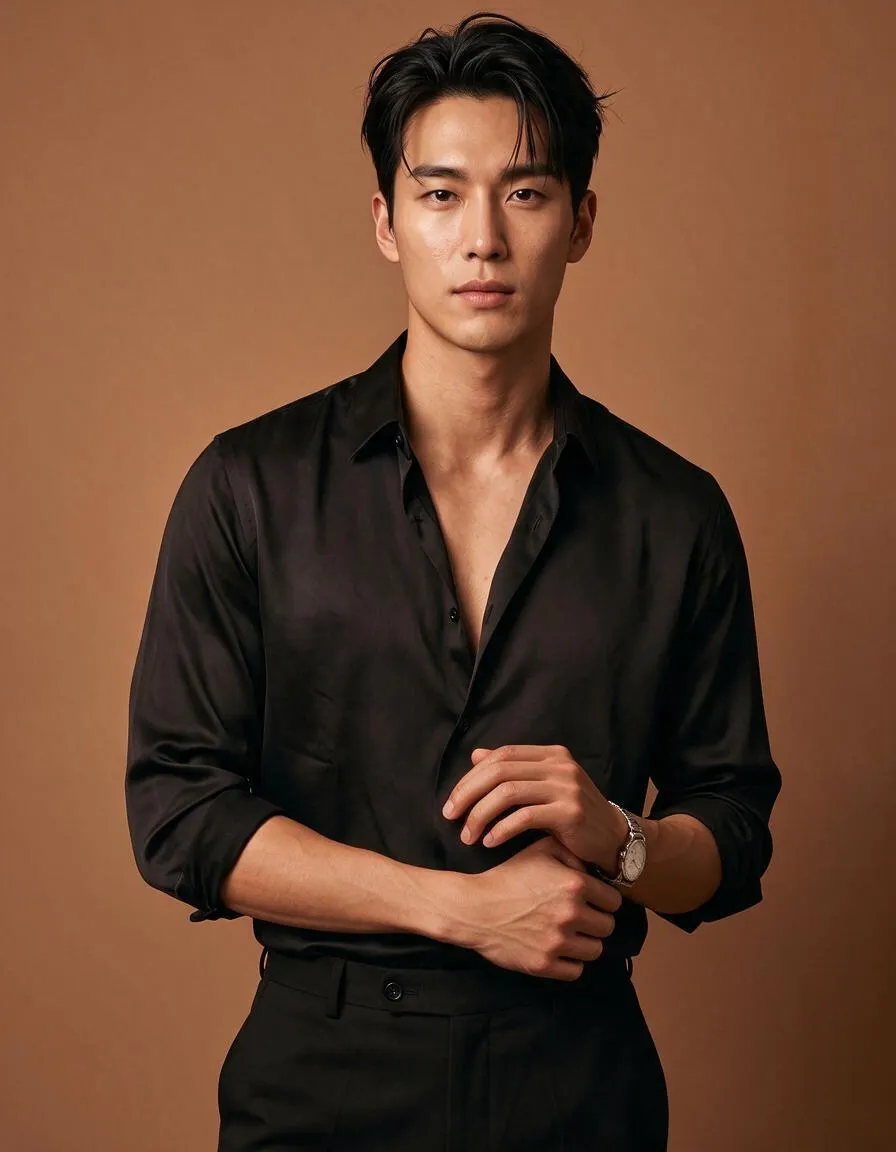
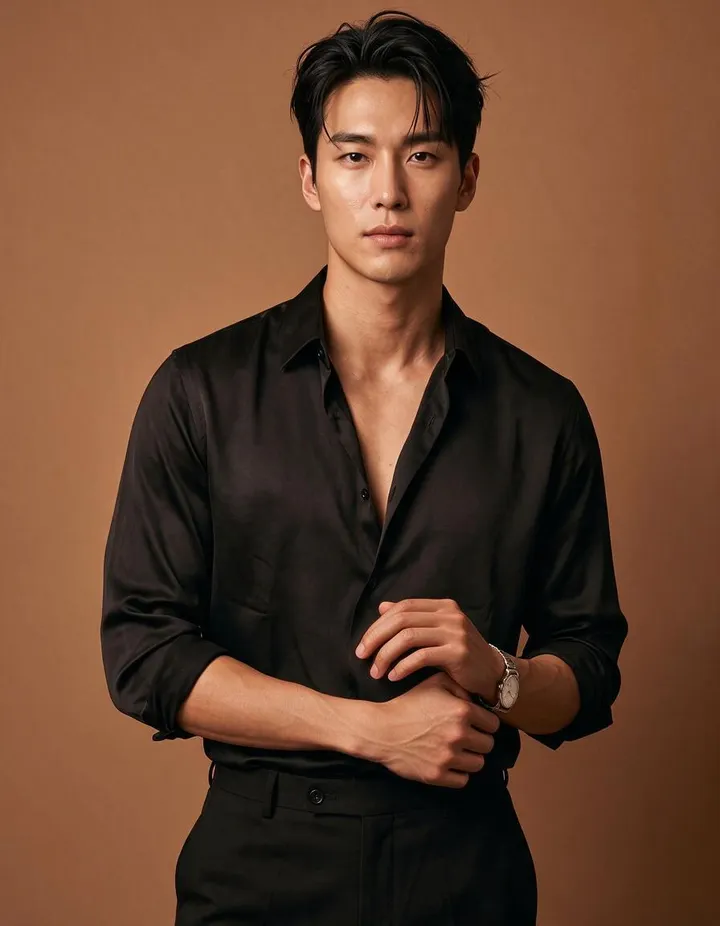
Mage examples
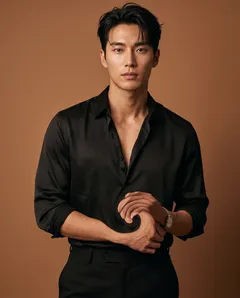
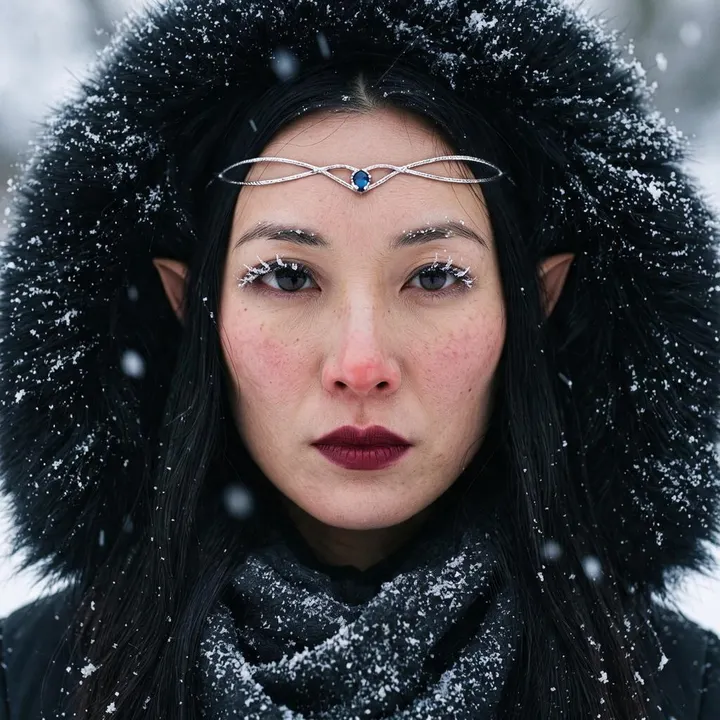
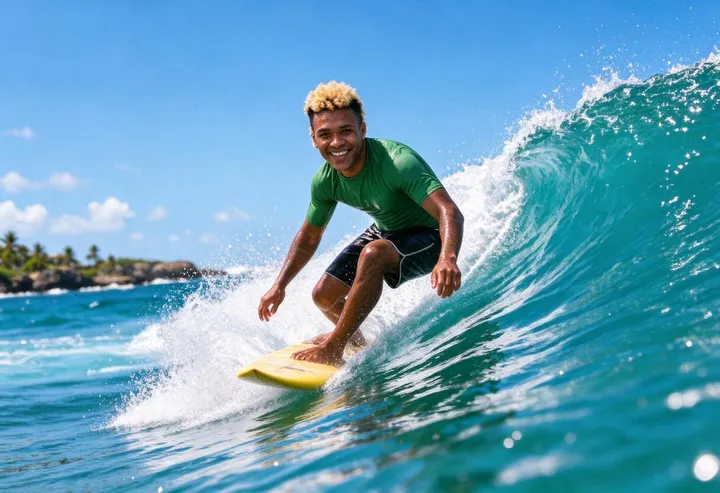
Made with Refine
Real runs of Refine. Open one in the app, swap in your own photo, and generate.
How it works
How to use Refine
Add an image, pick a preset or describe the fix, and get the same image with that one thing improved.
Add an image
Upload a JPEG or PNG up to 30 MB, drop it on the page, or pick one of your creations.
Pick a preset or describe it
Choose Fix Eyes, Fix Hands, or Add Detail, or write the improvement you want in your own words.
Generate
Pick a model if you like; the price in Gems shows on the Generate button. The result lands in History, ready to download, save, share, or remix.
What you need
- An image to refine
- A preset or a description of the fix
For the best result
- Use one preset per run, then refine the best result again.
- Describe the fix in one plain sentence, such as "make the smile softer."
- When you can point at the exact spot, Inpaint gives you more control.
Ideas
What people make with Refine
Fix hands
Correct extra or bent fingers in a generated image.
Fix eyes
Make eyes look aligned, natural, and detailed.
Add detail
Sharpen texture across a soft image before you upscale it.
The basics
Fix one thing without starting over
A generation can be right in almost every way and still have one thing wrong: a hand with too many fingers, eyes that do not quite line up, or a picture that is a little soft. Generating again might fix it and would change everything else. Refine fixes that one thing and keeps the rest.
Add an image, then pick a preset or write the improvement in your own words. Refine applies it while the subject, pose, lighting, style, and background stay as they were. The result keeps the shape of your image, so it drops straight back into whatever you were making.
Refine is the quick fix. It needs no mask: you name the problem, and the model finds where it is. When you want to choose exactly which part of the picture changes, Inpaint lets you paint over it.
Tips and techniques
The three presets
Fix Hands corrects the problems hands often have in generated images: extra or missing fingers, fingers that merge or bend the wrong way, and hands that look boneless. Fix Eyes makes eyes look aligned, focused, and detailed. Add Detail sharpens texture across a soft image, such as fabric, hair, skin, and surfaces, without changing what is in it.
Use one preset per run. When a picture has more than one problem, fix the most visible one first, then run Refine again on the result.
- Fix Hands: extra, missing, or bent fingers.
- Fix Eyes: eyes that do not line up or look blurry.
- Add Detail: soft texture across the whole image.
Tips and techniques
Writing your own refinement
When the presets do not cover the problem, describe it in one plain sentence: "make the smile softer", "straighten the glasses", "make the jacket black leather". Name the thing and the change. Short instructions work best, because the rest of the image already says everything else.
Describe the improvement, not the whole picture. A full description of the scene can lead the model to change more than you asked for.
- "Make the fingers hold the cup naturally."
- "Add texture to the wool sweater."
- "Make the eyes look at the camera."
Tips and techniques
Where Refine fits in your workflow
Refine sits between generating and finishing. Generate the image, refine what came out wrong, retouch the skin with the Skin Enhancer if it looks airbrushed, and upscale last with the Image Enhancer. Upscaling first would only enlarge the mistake along with everything else.
Every result lands in History. Keep the best version and refine it again when you need to; each run starts from the image you give it.
Tips and techniques
When to choose a different tool
Refine changes details, not the idea of a picture. To change a whole region, such as the background or an object, mask it in Inpaint. To change the whole image from a prompt, such as a new style or setting, use the AI image editor. To change the light, use Relight.
If a fix does not take, try another model from the Model menu. Models differ in how closely they keep the original, and a second model often gets a stubborn hand right.
Refine is not a way to change who is in the picture, either. To put a different face or a different person in it, use Face Swap or Character Swap.
Tips and techniques
Problems worth a Refine pass
Generated images share a handful of familiar flaws. Hands are the best known: a sixth finger, a thumb on the wrong side, or fingers that melt into a cup. Eyes come next: a pupil a little off center, irises of two sizes, or a gaze that points nowhere. Small text, jewelry, teeth, and the places where two things touch, such as a hand on a railing, are other common trouble spots.
Look over every image you plan to keep at full size before you share it, and run Refine on what stands out. One quick pass on the most visible flaw usually does more for a picture than generating a dozen new versions and hoping one comes out clean.
Photos gain too. A slightly soft phone shot can get crisper texture with Add Detail before you print it or post it, and a short instruction can tidy a small distraction, such as "remove the stray hair over the eye".
A little more clarity
Frequently asked questions
What does Refine do?
What can I upload?
Which presets are there?
Which models can I use?
How much does it cost?
Are my images private?
Does Refine change the rest of the image?
How is Refine different from Inpaint?
Can I refine the same image more than once?
Should I refine before or after upscaling?
Does Refine work on illustrations and anime?
Which preset should I use for a blurry image?

Make your own with Refine
Open the app, add your photo, and see the price before you generate. Everything you make stays in your History.
Open Refine