
Free to start · Unlimited edits from $10/mo
AI Background Changer
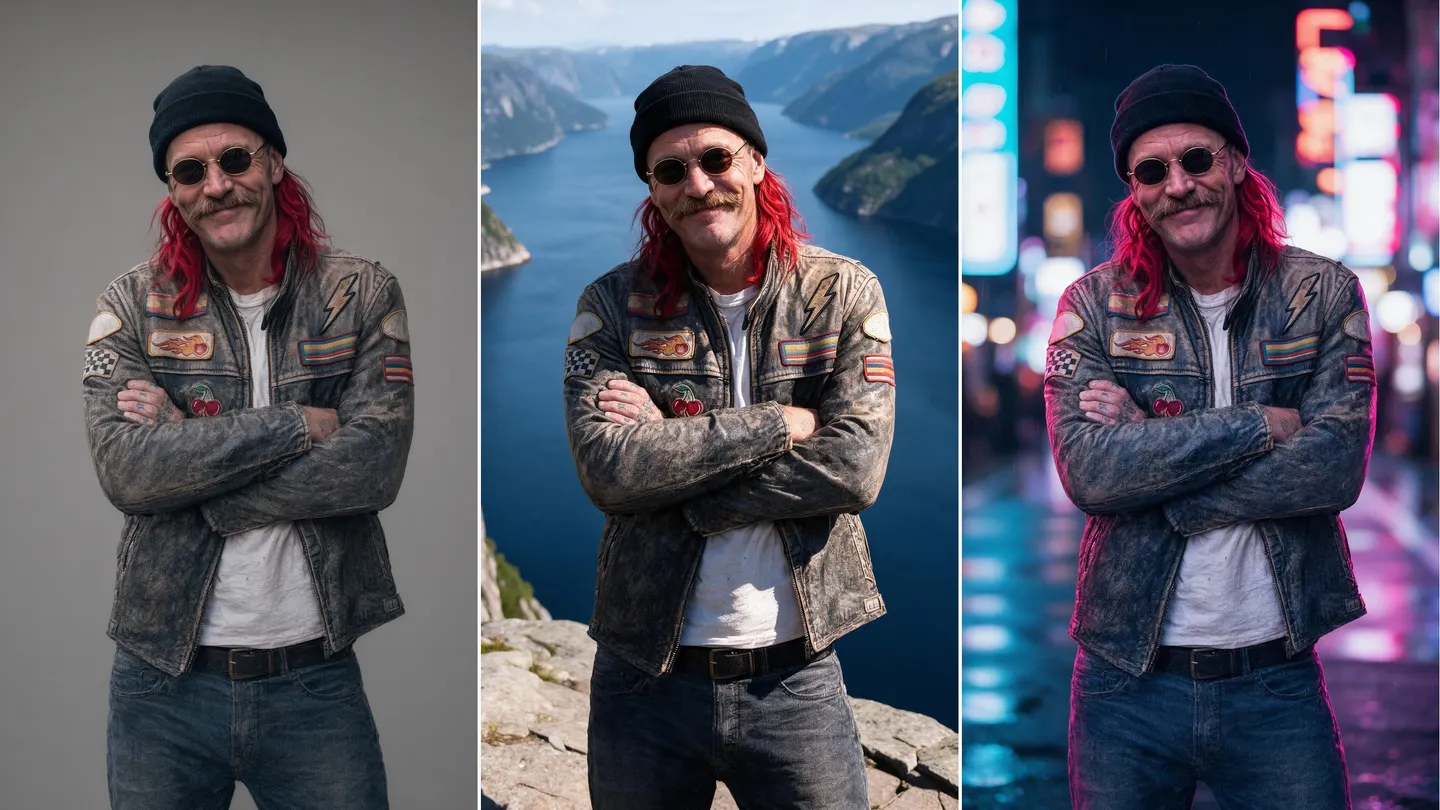
Put the same person somewhere new. Describe the scene you want and Mage replaces everything behind your subject, then matches the light so it looks shot there. In your browser, free to start.
No installation. No credit card. Private by default.
- Up to 4KOutput with Nano Banana 2.1
- 14Reference images on Nano Banana 2.1
- ZeroWatermarks
- $0Free to start
The basics
What is an AI background changer?
An AI background changer replaces the scene behind a subject while leaving the subject alone. The person, their pose, their clothes and the way they hold their hands stay as they were. The street, the studio wall or the cluttered living room behind them becomes whatever you describe: a beach at golden hour, a neon alley, a clean backdrop for a product.
Mage does it as an edit. You attach your photo to an edit model such as Mango 3, Nano Banana 2.1 or GPT Image 2.5 Flare and write what the new background should be. The model repaints the scene around your subject in one pass, so the edges, the shadow on the ground and the reflection in a window are generated together instead of pasted on afterwards. When you need tighter control, Inpaint lets you paint over exactly the area to replace.
Mage does not cut subjects out into transparent PNG files. Every result is a finished image with a full background, which is what you want for social posts, listings, thumbnails and profile photos. If a job needs a transparent cutout for a layout tool, use a dedicated background remover for that one step, and Mage for the scene itself.
A little more possibility
Why creators change backgrounds with Mage
Describe the scene, keep the subject
Write the new background in plain language. The edit keeps the person and the pose and rebuilds what is behind them.
Mask exactly what changes
Inpaint lets you paint over the background yourself, so nothing outside the mask moves, not even a stray strand of hair.
Light that matches
Relight sets the light direction, soft or hard light, brightness and color afterwards, so the subject reads as if they stood in the new place.
Several edit models
Run the same edit on Mango 3, Nano Banana 2.1 or GPT Image 2.5 Flare and keep the version whose edges and light look right.
Reference photos of real places
Attach a photo of the location next to your subject. Nano Banana 2.1 takes up to 14 reference images and Mango 3 up to 10.
Private by default
Your photos and results stay in your account. Nothing is shared unless you post it yourself.
From idea to creation
How do you change the background of a photo with AI?
It takes three steps, and it is free to start.
Open the generator
Open the Mango generator from this page and pick Mango 3 in the model menu, or switch to Nano Banana or GPT Image.
Attach your photo
Add the photo as an input image. If you have a picture of the place you want, add it as a second image.
Describe the new background
Say what stays ('keep the woman, her pose and her coat exactly as they are'), then what changes ('replace the background with a rainy Tokyo street at night').
Match the light, then upscale
If the light on the subject doesn't fit the new scene, run the result through Relight, then take the keeper to Image Enhancer for 4K or 6K.
Tips and techniques
How to write a background prompt that keeps your subject
The most common failure is a model that changes too much. It decides the new beach needs different clothes, or that the person should turn to face the sea. Prevent it by naming what stays before naming what changes. Start with the subject and the details you care about, the face, the hair, the outfit, the pose and the framing, and say they stay exactly as they are. Then describe the background.
Describe the new scene the way a photographer would: the place, the time of day, the light, and how far away things are. 'A sunlit café terrace in Lisbon, late afternoon, warm side light from the left, blurred tables behind her' gives the model a camera position and a light direction to match. 'Put her in Lisbon' leaves it to guess.
If the same subject has to survive many backgrounds, for a set of listing photos or a character who travels through a story, save them once as a character and mention them by @handle, so the face stays the same from one scene to the next. The AI character generator guide shows how the Characters system works.
- Name what stays first, then what changes.
- Give the light a direction and a time of day.
- Say how blurred the background should be: 'shallow depth of field' or 'everything in focus'.
- Keep the camera height: a waist-level photo wants a waist-level scene.
- For a plain backdrop, name the color and the material: 'seamless warm grey paper'.
Tips and techniques
Prompt edit or Inpaint: which one to use
A prompt edit is the fast path. The model sees the whole image, works out which pixels belong to the person, and rebuilds the rest. It handles hair, glass and sheer fabric well because it regenerates them together with the new scene. The trade-off is that it can touch the subject slightly, so check hands and faces against your original before you keep a result.
Inpaint is the precise path. You paint the mask over the background yourself and describe what should be there, and everything you did not paint stays untouched. It takes more care around fine hair, but nothing about the person can drift. The same tool removes a single distracting object, which the AI photo editor guide covers in more detail.
Many good results use both: a prompt edit for the new scene, then Inpaint for the one corner that came out wrong.
Tips and techniques
Making the subject belong in the new scene
A swapped background gives itself away through light. If the new scene is a sunset and your subject is lit by flat office light from above, the eye notices before it can say why. Relight fixes that after the fact: choose the direction the new light comes from, soft or hard light, the brightness and a color, and the subject picks up light that agrees with the scene.
Shadows matter just as much. Ask for 'a soft contact shadow under his feet' when the subject stands on a floor, and for reflections when they stand near water or glass. Finish with Image Enhancer, which upscales the result to 2K, 4K or 6K so it holds up as a print or a large banner.
The right model for the job
Best models for changing a background
Every model below edits from an input image. Run the same prompt on two of them and keep the cleaner edge.
Mango 3
Mage's flagship for edits that keep the rest of the image in place, with up to 10 input images at 1K or 2K. Unlimited on Pro and above at those sizes.
Nano Banana 2.1
Google's model, strong at realistic scenes and readable signs, with up to 14 reference images and output up to 4K. Google's safety filter applies, and 4K runs on Gems.
GPT Image 2.5 Flare
OpenAI's model, precise with detailed instructions and many references. At Low quality it is unlimited from Basic. OpenAI's safety filter applies.
Mango 3 Turbo
The fast, low-cost Mango for trying ten backgrounds before you commit to one, with the same characters and references.
Try these prompts
Background prompts to start from
Each one names what stays before what changes. Swap in your own subject and scene.
Clean product backdrop
Keep the sneaker exactly as it is, same angle and laces. Replace the background with seamless warm grey paper, soft studio light from above, a soft contact shadow under the sole.
Travel photo
Keep the man, his jacket, his pose and his smile unchanged. Replace the background with a cliffside village above a turquoise sea at golden hour, sun low on the right, gentle background blur.
Moody portrait
Keep the woman and her hair exactly as they are. Replace the background with a rainy neon street at night, reflections on wet pavement, shallow depth of field.
Profile photo
Keep the face, hair and shirt unchanged. Replace the cluttered room with a plain soft blue wall, even light, head-and-shoulders framing.
Room to experiment
Cutouts vs editing the whole scene
A cutout approach separates the subject and pastes it onto something new. It is quick, and it is why so many swapped backgrounds look pasted: the edge is hard, the light disagrees, and there is no shadow. Mage regenerates the scene around the subject instead, so the edge, the light and the shadow come out of the same pass.
Mainstream tools
- Cut out the subject, paste it onto a stock backdrop
- Hard edges around hair and glass
- Light and shadows that do not match the new scene
- Pick from a library of preset backgrounds
Mage
- Describe any scene, or attach a photo of it
- Hair, glass and shadows regenerated with the scene
- Relight the subject to match the new light
- Several edit models, unlimited on paid plans that cover them
Follow your imagination
What can you use an AI background changer for?
Product and listing photos
Put a product on a clean backdrop or in a setting that sells it, without booking a studio day.
Profile and team photos
Replace a messy room with a plain wall or an office, and keep the same backdrop across a whole team.
Travel and social posts
Move a photo you love to the place you wish it had been taken, then relight it so it looks real.
Characters in new places
Place a saved character in new locations for a story, a comic or a series of posts.
Start small. Dream big.
Is the AI background changer free?
Mage is free to start: new members get a one-time 300 Gems, and every model runs on Gems on any plan. Paid plans make editing unlimited on the models they cover.
Free
$0
One-time 300 Gems for new members. No watermark.
Basic
$10/mo
Inpainting and Refine, unlimited GPT Image 2 and 2.5 at Low quality, 500 monthly Gems.
Pro
$30/mo
Unlimited Mango and Guava at 1K and 2K, Enhance to 2K, 1,500 monthly Gems.
A little more clarity
Frequently asked questions
Can AI change the background of a photo?
Does Mage remove backgrounds or export transparent PNGs?
How do I keep the face from changing?
What is the best way to change the background of a product photo?
Is the AI background changer free?
Are my photos private, and can I use the results commercially?
What is not allowed?

Ready to put your photo somewhere new?
Free to start, private by design. Have fun creating!
Open the Mango generatorRelated generators & guides
Mage is for adults, 18+ only. Nothing illegal is allowed; any content involving minors or non-consensual depictions of real people is strictly prohibited.