
Character Swap · Swap the subject
New character, same scene
Add a photo and the character to put in it, and get the same scene with your character in the pose.
Add your own photo or start from an example. The price in Gems shows before you generate.
Before and after
See what Character Swap does
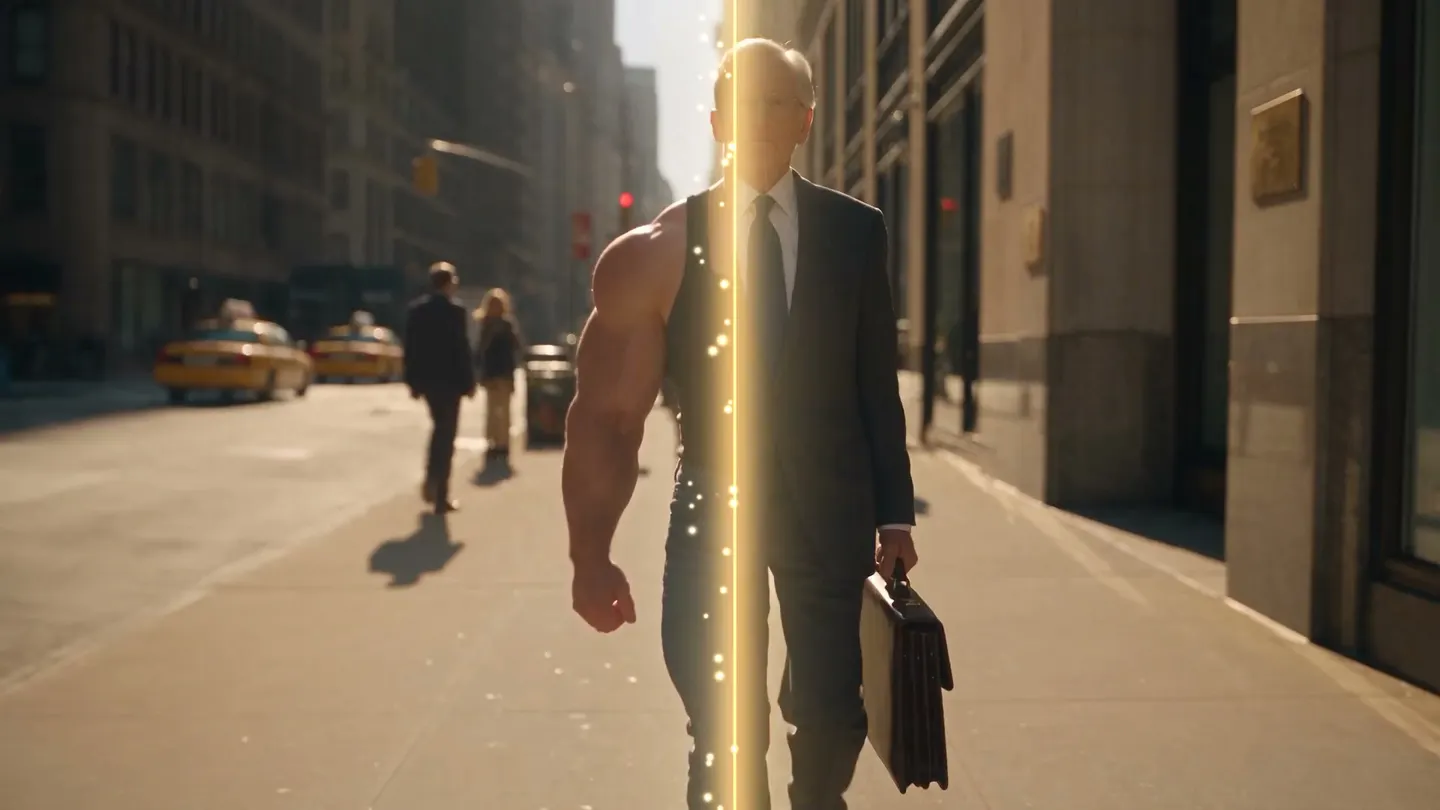
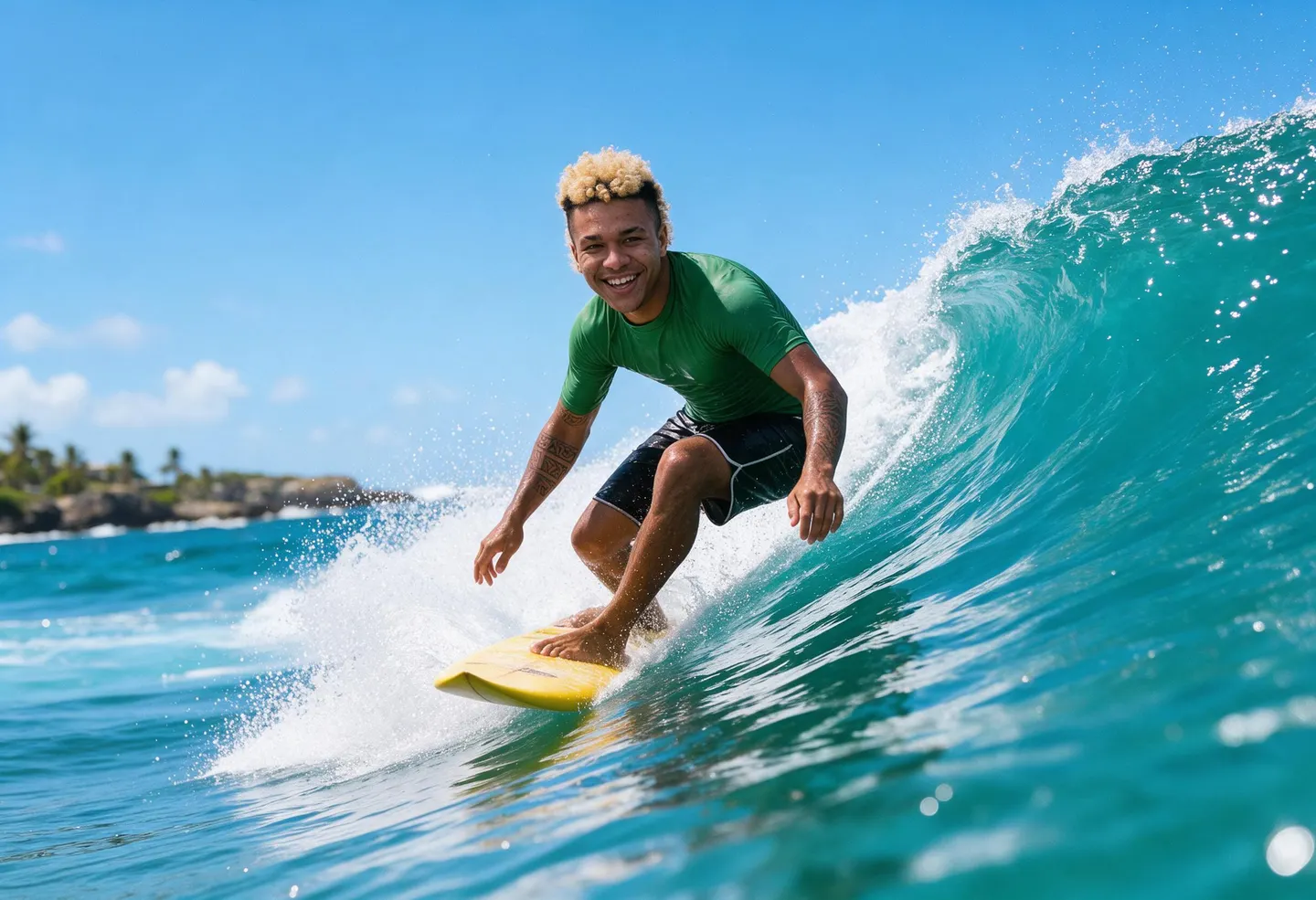
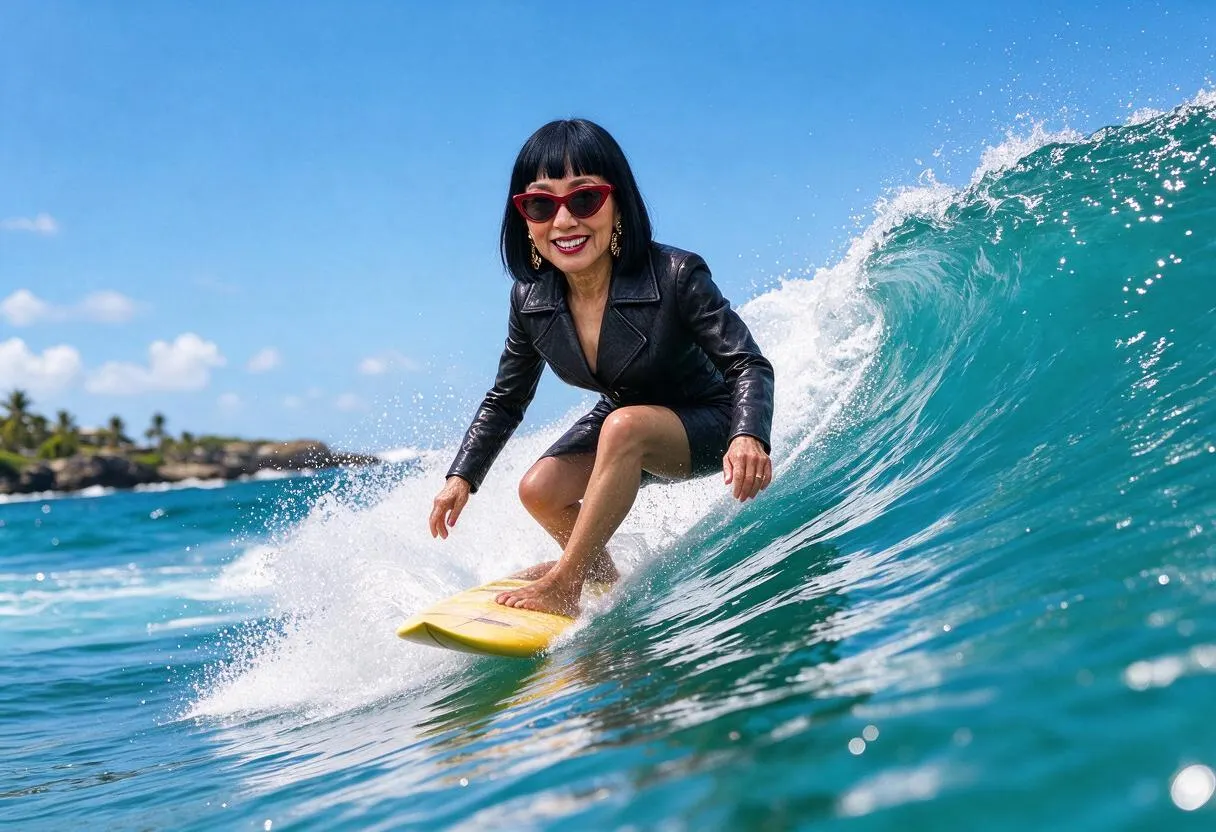
A K-drama villain in a leather trench and cat-eye shades carves a turquoise wave. Drag the handle to compare the original with the result.
Mage examples
Made with Character Swap
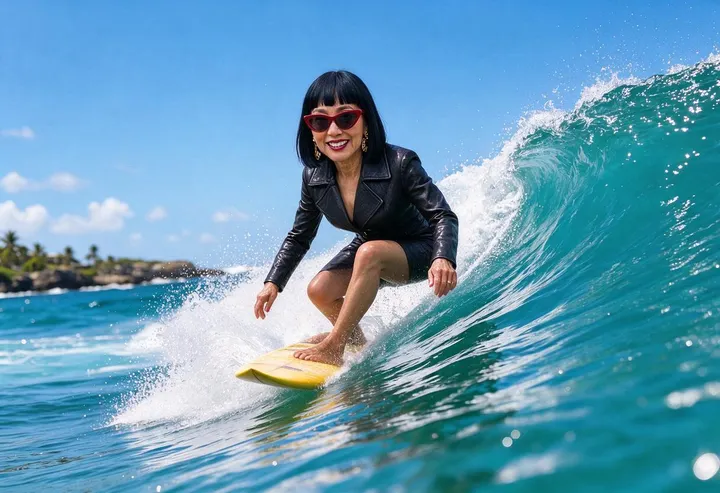
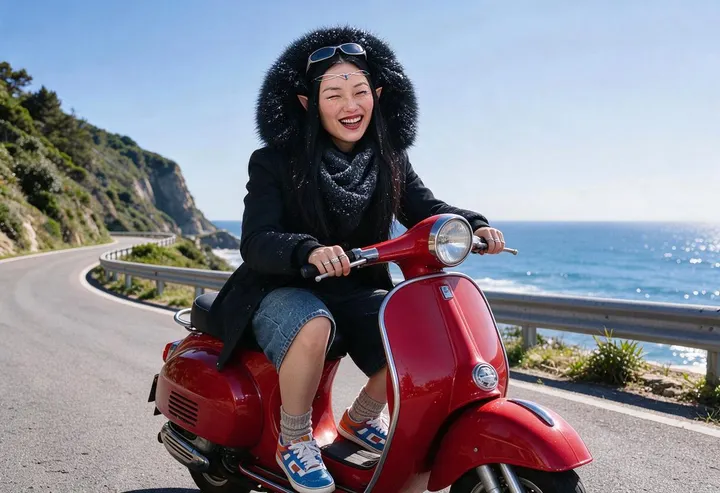
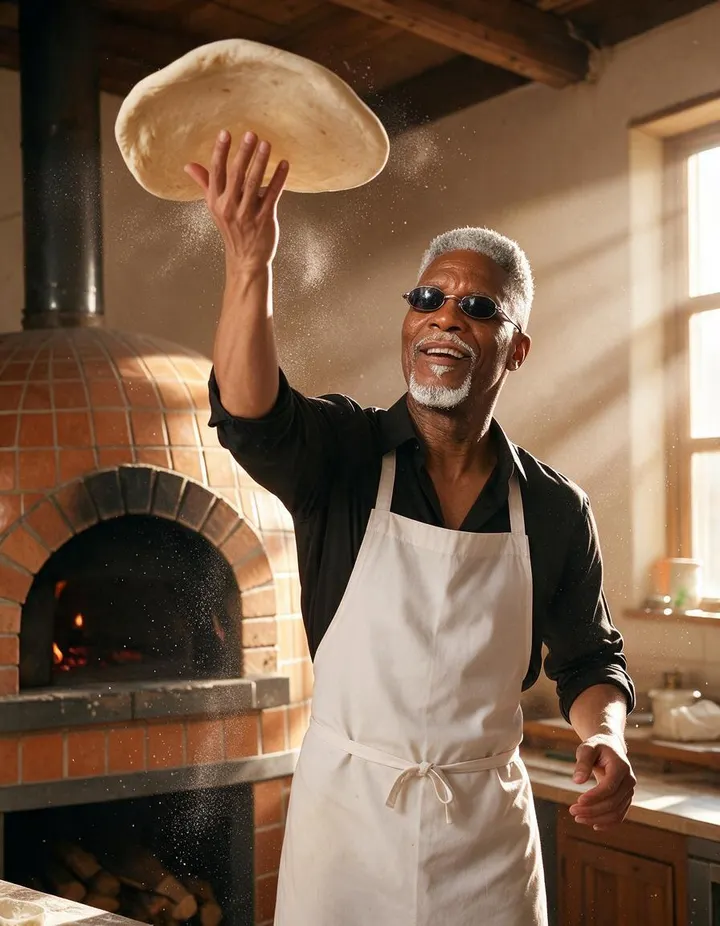
Real runs of Character Swap. Open one in the app, swap in your own photo, and generate.


How it works
How to use Character Swap
Add a photo and the character to put in it, and get the same scene with your character in the pose.
Add two images
In Base Image, add the photo to change. In Replacement Character, add the character to put in. Upload, pick a creation, or choose a saved character.
Pick a model
Mango 3 Turbo is the default. Change the model or resolution if you like; the price in Gems shows on the Swap button.
Swap
Press Swap. The result lands in History, ready to download, save, share, or remix.
What you need
- The photo to change
- The character to swap in
For the best result
- Use a full-body image of the character so the outfit and build carry over.
- Pick a base photo where the subject is clear and not cut off.
- Saved characters work as the replacement, so one character can step into many scenes.
Ideas
What people make with Character Swap
Cast a character
Put a saved character into a scene you found or made.
Storyboards
Keep one composition and try different characters in it.
Series and sets
Place the same character across a run of scenes.
The basics
What is an AI character swap?
An AI character swap replaces an entire person in an image or a video with someone else. It goes further than a face swap. The face, the hair, the build and the outfit all come from your character, while the location, the lighting, the pose and the camera framing come from the original. The result looks as if your character was there when the shot was taken.
Mage has two apps for it. Character Swap works on photos: you give it the original image and an image of the character, and it replaces the person while preserving the scene. Video Character Swap does the same for a clip, applying the new character to every frame while keeping the original motion, camera and background, and it keeps the clip's original audio by default.
If only the face should change and the rest of the person should stay, a face swap is the better tool. Character swap is for when the whole person changes: a different body, a different outfit, a different character entirely, dropped into a shot you already like.
A little more possibility
Why creators swap characters with Mage
The whole person, swapped
Face, hair, build and clothing all come from your character, so the swap holds up in a full-body shot, not only a close-up.
The scene stays put
Location, light, pose and framing carry over from the original, so the shot keeps its composition.
Works on video too
Video Character Swap applies the character to every frame and keeps the original motion and camera.
Keeps the original sound
Video swaps keep the clip's audio by default, so dialogue and music stay where they were.
Choose the model
Photos run on Mango, Nano Banana or GPT Image; clips run on Lemon, Cherry, Plum or Berry. Switch when a take isn't right.
Private by default
Uploads and results stay in your account unless you choose to post them.
Tips and techniques
Character swap, face swap or outfit swap?
These three tools sound alike and do different jobs. Character swap replaces the entire person. Face swap keeps the original person's body, outfit and hair and changes only the identity in the face. Outfit swap keeps the person and changes only what they wear.
Pick by what should survive. If the original body and clothes matter, use the AI face swap. If the person should stay and only the look should change, use the AI clothes changer. If nothing of the original person should remain, use character swap. Video follows the same split: video face swap for the face, Video Character Swap for the whole person.
Tips and techniques
Getting a clean swap from your character image
The character image does most of the work. A sharp, evenly lit image where the whole character is visible gives the model their face, build and outfit to copy. A cropped close-up leaves it to invent the body, and heavy shadows or sunglasses hide the details it needs.
Match the framing when you can. A full-length character image suits a full-length original. If the original is a seated, waist-up shot, a waist-up character image transfers more faithfully than a small figure in a wide photo. And if the character will appear in many shots, save them once in Characters so every swap starts from the same reference.
- Use a sharp, evenly lit character image with the face fully visible.
- Show the outfit you want carried over; the swap copies what it can see.
- Match the framing: full body for full body, waist-up for waist-up.
- Run the same swap on two models and keep the better take.
- For a series, save the character once and reuse it.
Tips and techniques
Swapping a character into a video
Video Character Swap takes one video and one character image. It runs on Lemon by default, at 480p and 4 seconds, and you can switch to Cherry, Cherry Mini, Cherry Pro, Cherry 2 Pro, Plum, Plum Max or Berry. Each model accepts a different source length. Cherry 2 Pro takes clips from 4 to 30 seconds, and its output follows the input's length and aspect ratio. Cherry, Cherry Mini, Cherry Pro and Plum take 2 to 15 seconds, and Lemon takes 1 to 15.
Steady footage swaps best. A clip where the person is clearly visible, not tiny in the frame or hidden behind others, gives the model one consistent subject to replace. Before it generates, the app asks you to confirm that you have permission to use the people and voices in the content. Harmful deepfakes are forbidden, and so is swapping a real person who has not agreed to it.
The right model for the job
Best models for character swaps
Photo swaps run on image edit models and clip swaps on video models. Each model page lists its settings and limits.
Mango 3 Turbo
The Character Swap default: fast and low-cost, with characters and references, so you can try a few takes quickly.
Mango 3
Mage's flagship for edits that keep the rest of the scene in place. Use it for the final take of a photo swap.
Lemon
The Video Character Swap default, balanced between quality and price, for source clips of up to 15 seconds.
Cherry 2 Pro
Mage's flagship video model, for final-quality swaps of clips up to 30 seconds. Its output follows the input, and it is the most expensive video model.
Room to experiment
How Mage compares for character swaps
Many swap tools stop at the face. That works for a close-up and falls apart in a full-body shot, where the original body and outfit no longer match the new face. Mage swaps the whole character, in photos and in clips, from one account.
Mainstream tools
- Face only; the original body and outfit stay
- Photos or video, rarely both in one place
- One model's interpretation of every swap
Mage
- Whole-person swaps, face to shoes
- Character Swap for photos, Video Character Swap for clips
- Switch between image and video models and compare takes
A little more clarity
Frequently asked questions
What is Character Swap?
How is it different from Face Swap?
What do I need to upload?
Which models can I use?
How much does a character swap cost?
Can I use photos of real people?
What is the difference between character swap and face swap?
Can I swap a character into a video?
How long can the video be?
What makes a good character image?
Is AI character swap free?
Can I swap a real person into a photo or clip?
Are my swaps private?

Make your own with Character Swap
Open the app, add your photo, and see the price before you generate. Everything you make stays in your History.
Open Character Swap