
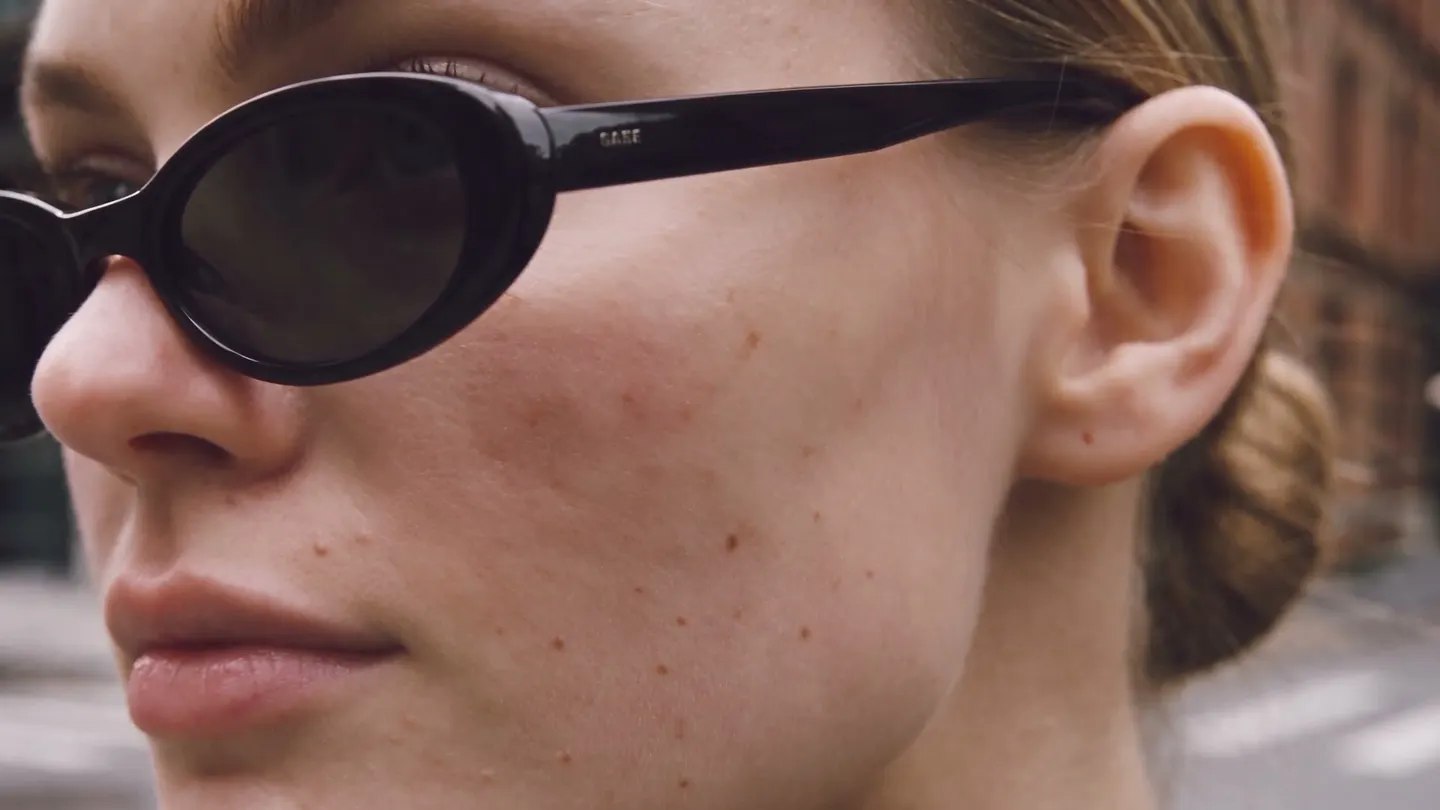
Skin Enhancer · Portrait retouching
Natural skin in any portrait
Add a portrait, pick a skin mode, and get real texture back where the skin came out airbrushed.
Add your own photo or start from an example. The price in Gems shows before you generate.
Before and after
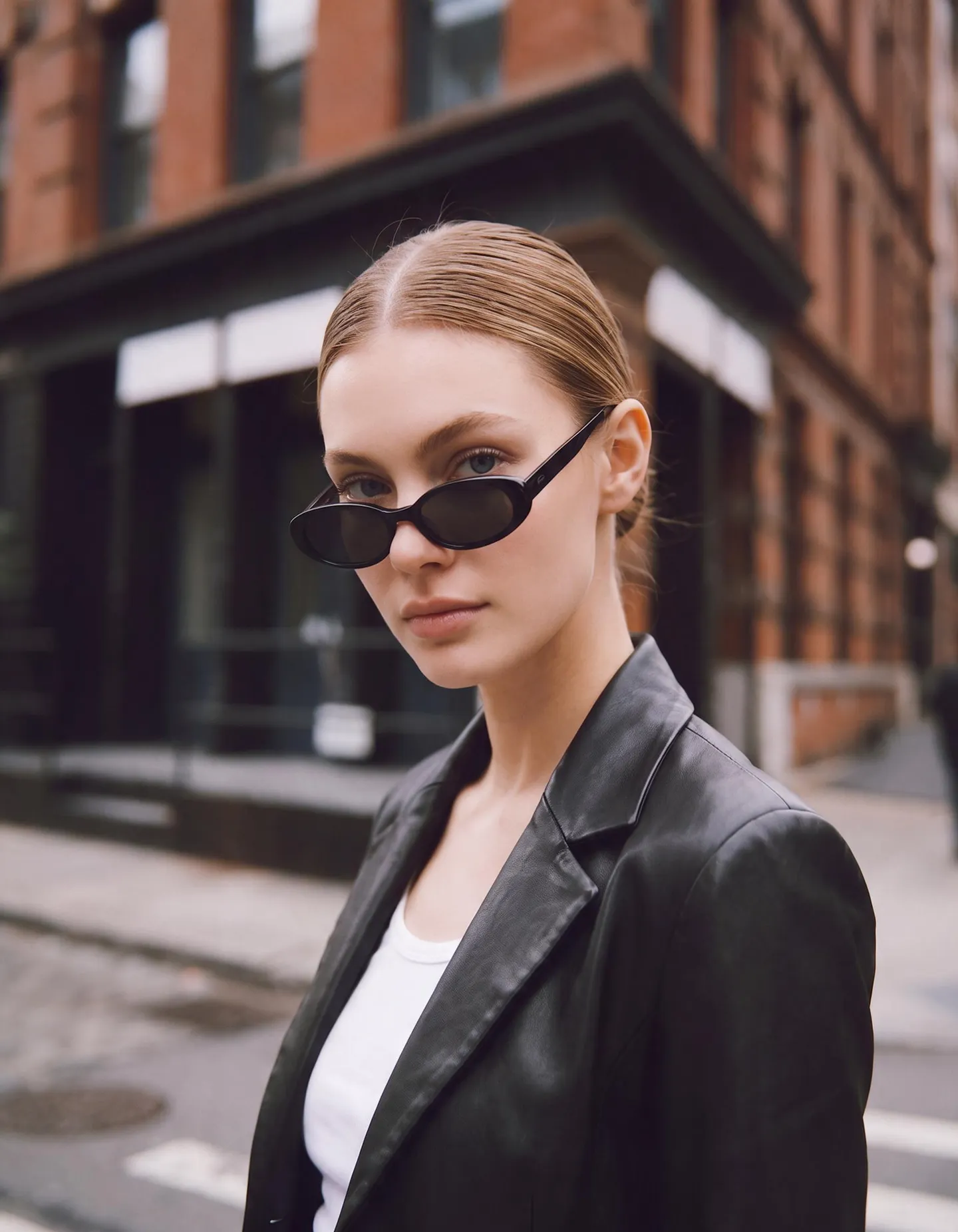
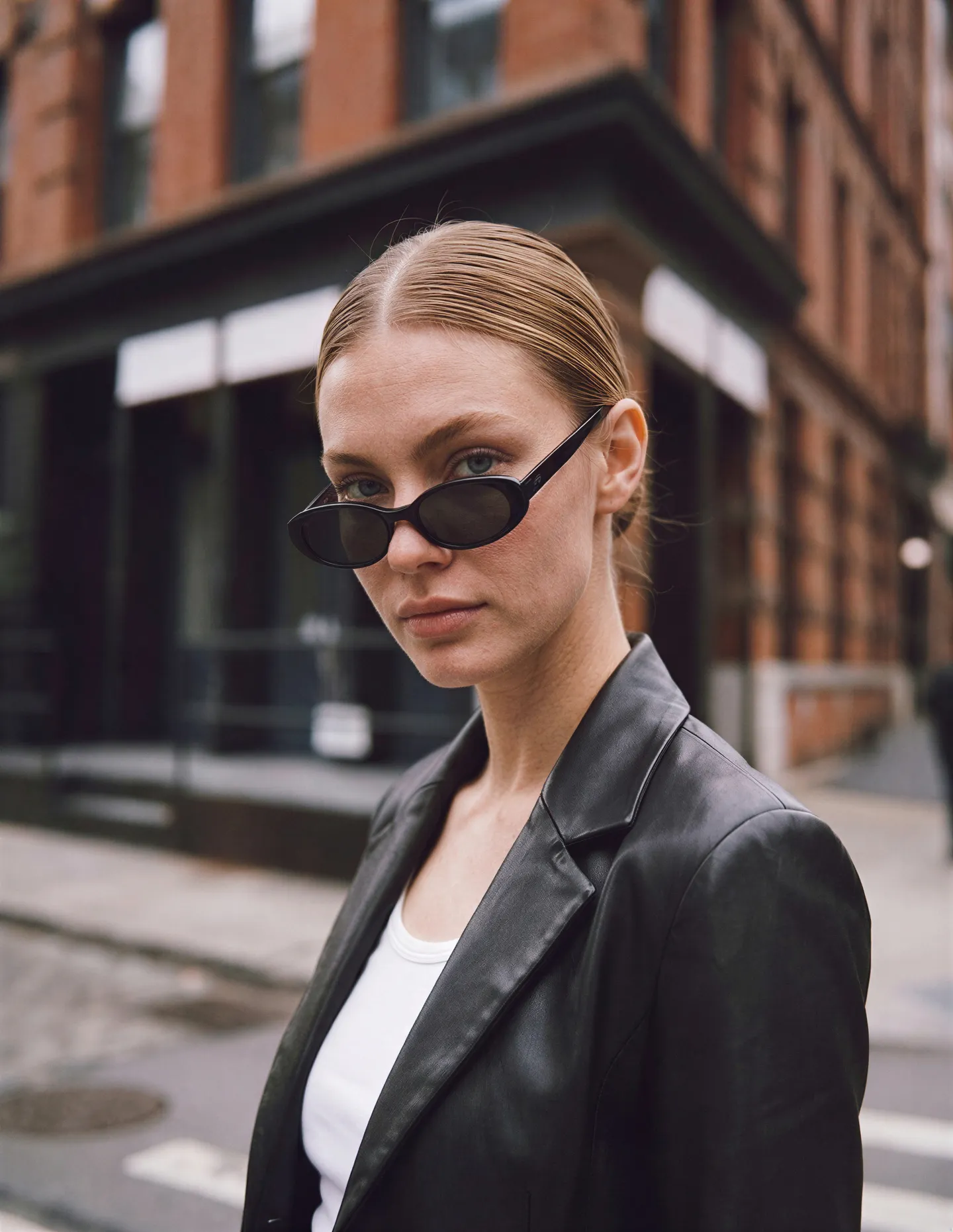
See what Skin Enhancer does
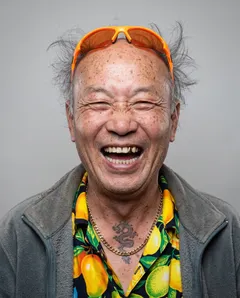
An over-airbrushed selfie gets real skin texture and pores back. Drag the handle to compare the original with the result.
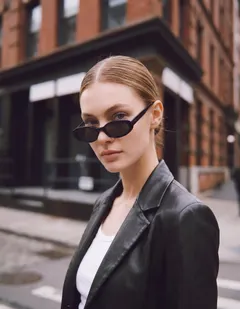
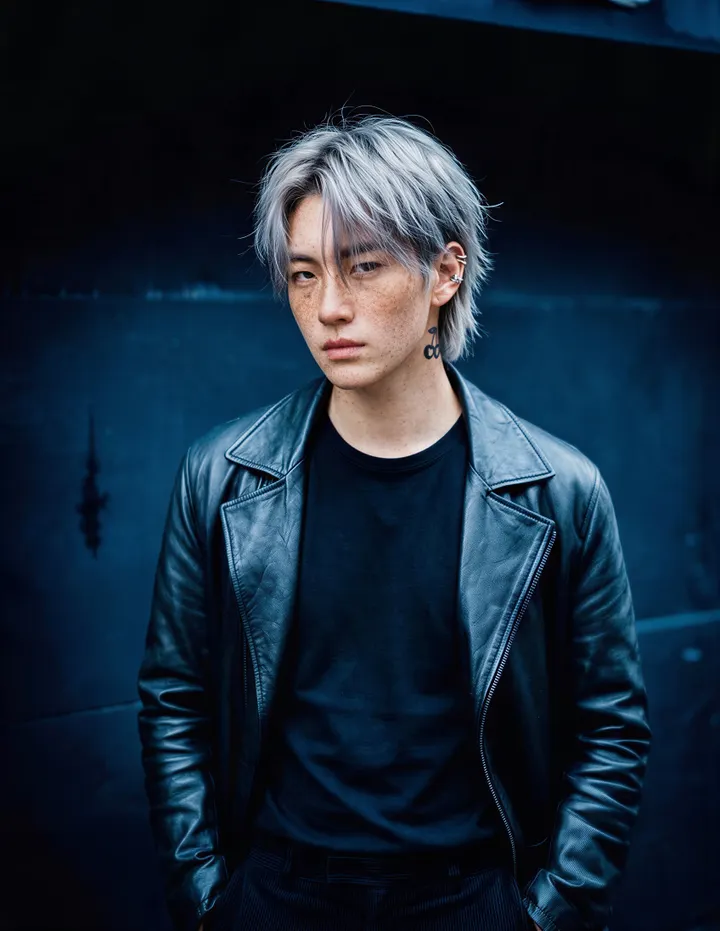
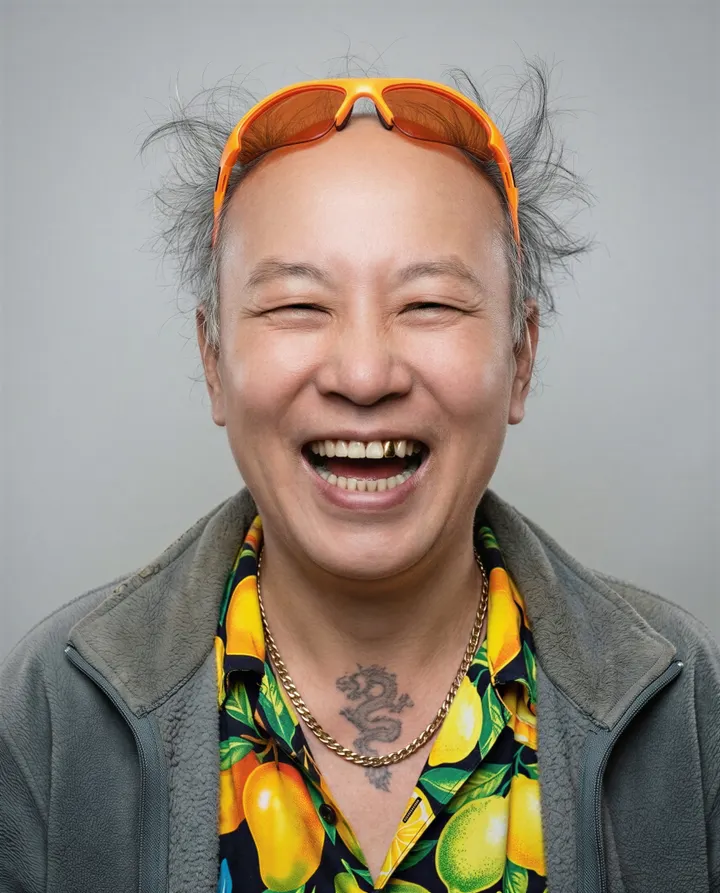
Mage examples
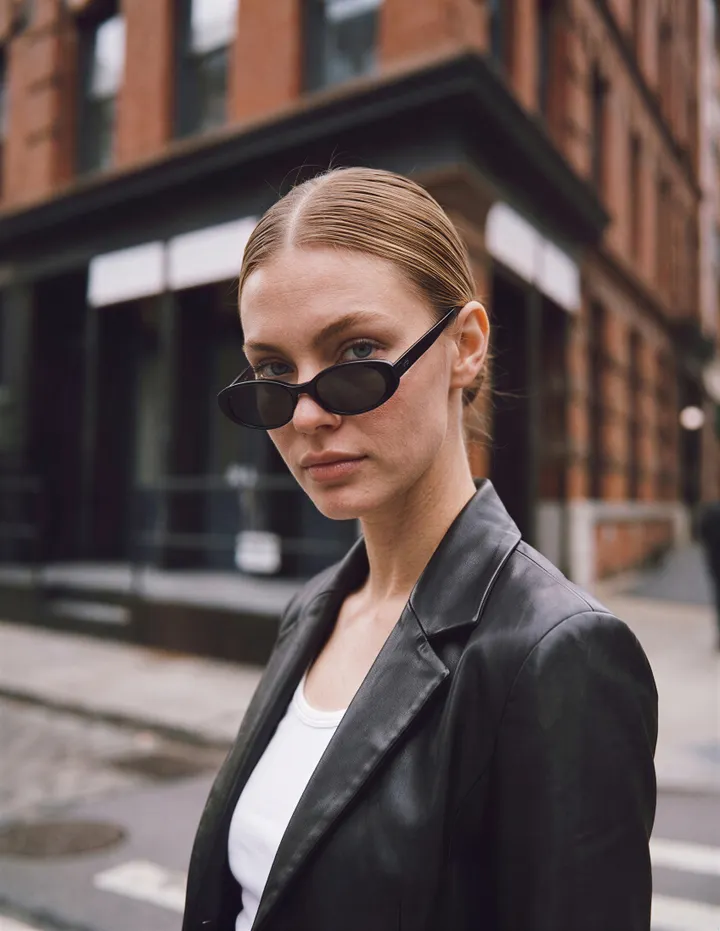
Made with Skin Enhancer
Real runs of Skin Enhancer. Open one in the app, swap in your own photo, and generate.
How it works
How to use Skin Enhancer
Add a portrait, pick a skin mode, and get real texture back where the skin came out airbrushed.
Add a portrait
Upload a JPEG or PNG up to 30 MB, drop it on the page, or pick one of your creations.
Choose a mode
Pick Realistic Skin, Soft Skin, Imperfect Skin, or Imperfect Skin with freckles. Set the strength under Advanced and the output to 2K or 4K.
Enhance
The price in Gems shows on the Enhance button. Press it, and the result lands in History, ready to download, save, share, or remix.
What you need
- A portrait, JPEG or PNG up to 30 MB
For the best result
- Use a portrait where the face is large and in focus.
- Realistic Skin at low strength stays closest to the original.
- Try Imperfect Skin for pores and small marks that read as real.
Ideas
What people make with Skin Enhancer
Fix airbrushed generations
Give AI portraits pores and texture so they read as photos.
Retouch portraits
Smooth skin with Soft Skin and keep the rest of the photo as it is.
Character close-ups
Add freckles and natural detail to a character portrait.
The basics
Why portraits come out airbrushed, and how to fix it
Many portraits come out with skin that looks too perfect: no pores, no fine lines, and the same even sheen from forehead to chin. Generated images do this often, and so do photos that went through a beauty filter or strong noise reduction. The face can be right in every other way and still read as plastic, because skin texture is one of the first things people look at when they decide whether a picture is real.
The Skin Enhancer works on that one problem. It reads the skin in your portrait and rebuilds its surface: pores, fine lines, small changes in color, and the way light catches them. The person keeps their face, expression, hair, and makeup, and the framing, background, and colors of the photo stay as they were. Only the skin changes.
It also works the other way. Soft Skin smooths texture for a gentle retouch, the way a portrait photographer would before a print, without the blurred, waxy look of a beauty filter. Pick the mode for the look you want, set how strongly it applies, and choose a 2K or 4K output.
Tips and techniques
Which skin mode to choose
Realistic Skin is the general fix. It adds the kind of texture a camera records on skin at portrait distance: pores, fine lines, and soft highlights. Start here with an AI portrait that looks too smooth, or a photo that lost its detail to compression.
Soft Skin is for retouching. It evens out texture and small blemishes and keeps the skin from looking flat. Imperfect Skin goes further than Realistic Skin, with small marks, uneven tone, and visible pores, for close-ups and editorial portraits where perfect skin would look wrong. Imperfect Skin with freckles also adds a natural spread of freckles.
- Realistic Skin: AI portraits that look too smooth.
- Soft Skin: a gentle retouch for a profile photo or a print.
- Imperfect Skin: close-ups and characters that should look lived in.
Tips and techniques
Setting the strength
Each mode has three strengths under Advanced: Low, Medium, and High. Low changes the least and is the safest first try on a portrait you already like. Medium is a clear change that still follows the original skin. High rebuilds the texture fully and suits images where the skin has almost no detail left.
If a result looks overdone, run the original again at a lower strength instead of enhancing the result a second time. Each run starts from the image you give it, so a second pass at High on an enhanced portrait can make the texture too strong.
Tips and techniques
Getting the best result from your portrait
The enhancer needs to see skin to work on it. Portraits where the face fills a good part of the frame and is in focus give the clearest results. In a full-body shot or a group photo the faces are small, there is less skin to rebuild, and the change is harder to see.
Order matters when you combine edits. Fix the face, the outfit, or the background first, then enhance the skin, and upscale last with the Image Enhancer if you need a larger file. If the eyes or hands came out wrong, fix them first with Refine.
- Use the largest version of the image you have.
- Skip heavy filters and strong compression before you upload.
- Compare the result with the slider at full size, around the eyes and mouth.
Tips and techniques
Where natural skin makes the difference
Headshots and profile pictures look more trustworthy with real texture. Portraits made with an AI portrait generator or an AI headshot generator often gain from a pass at Low or Medium strength before you use them.
Characters you reuse gain too. Enhance a portrait before you save it as a character, and the character starts from natural skin in every image and video you make with it. For an old or damaged photo, start with AI photo restoration, then finish the face with Soft Skin or Realistic Skin.
Tips and techniques
Skin Enhancer or Image Enhancer?
Image Enhancer upscales a whole image and adds fine detail everywhere: hair, fabric, background, and skin alike. The Skin Enhancer works on the skin of a portrait, with modes made for texture and retouching. Use the Skin Enhancer to fix how skin looks, and the Image Enhancer to make a finished image larger.
They work well together. Enhance the skin first, at 2K or 4K, then upscale the result with the Image Enhancer when you need a larger file for print.
A little more clarity
Frequently asked questions
What does the Skin Enhancer do?
Which modes can I choose?
What can I upload, and how big is the result?
Which model does it use?
How much does it cost?
Are my photos private?
Will it change the face?
Which mode looks the most natural?
Does it work on photos as well as AI images?
Does it work on group photos?

Make your own with Skin Enhancer
Open the app, add your photo, and see the price before you generate. Everything you make stays in your History.
Open Skin Enhancer