
Free to start · From one product photo
AI Product Video Generator
Start from the photo you already have and make it move: a slow turn on a plinth, a pour, a reveal from shadow, a packshot to end on. Every clip starts from your product as you photographed it.
No installation. No credit card. Private by default.
- 2–30 sLemon clip length
- 29Reference images on Cherry 2 Pro
- 6Clips joined in Storyboard
- $0Free to start
The basics
What is an AI product video generator?
An AI product video generator turns a still of something you sell into a short moving clip: the product turning on a plinth, liquid pouring, steam rising, a box opening, light sweeping across a label. Sellers use these clips in ads, on product pages and in social posts, and most already have the photo the clip needs.
On Mage you choose how the model uses your photo. Lemon can start on your exact photo as the first frame and end on a second image, so the clip opens or closes on the product as photographed. Cherry 2 Pro takes the photo as a reference and composes a new, more cinematic shot around it, with sound, up to 30 seconds at 1080p. Kiwi and Blueberry 2 are simpler options for short clips and frame-to-frame moves.
This page is about moving footage. For still studio and lifestyle shots, the product photo generator is the sister page, and its output makes the best starting frame for a video. When the product needs a person talking about it on camera, that is a UGC video, which has its own guide.
A little more possibility
Why sellers make product videos on Mage
Starts on your exact photo
Lemon uses your photo as the first frame, so the clip opens on the product exactly as you shot it.
Ends on a packshot
Give Lemon a last frame too, and the clip travels from a lifestyle scene to a clean end card.
Cinematic shots from references
Cherry 2 Pro builds a new shot around the product from up to 29 reference images, with generated sound.
Your product in footage you have
Magejutsu swaps a product into an existing clip and keeps its motion, cuts and sound.
A full spot from short clips
Join up to six clips in Storyboard and export one MP4 with their sound.
Sharper finals
Video Enhancer upscales a clip of up to 10 seconds to 720p or 1080p.
From idea to creation
How do you make a product video from a photo?
It takes three steps, and it is free to start.
Start from a clean frame
Use a sharp product photo, or make a styled still in the product photo generator first, at the aspect ratio the video needs.
Choose how the photo is used
Open Lemon from this page to start on the exact photo, or switch to Cherry 2 Pro to use it as a reference for a new shot.
Describe one motion
Name what moves and how the camera moves: a slow orbit, a push-in, a pour. Keep it to one action per clip.
Join and finish
Line clips up in Storyboard, sharpen the keepers in Video Enhancer, and download the MP4.
Tips and techniques
First frame or reference: how exact must the product be?
Video models use a photo in one of two ways, and for products the choice matters more than anywhere else. A first-frame model starts the clip on your exact image and moves from there, so the label, the color and the shape are right at least at the start. Lemon, Kiwi and Blueberry 2 work this way, and Lemon and Blueberry 2 can also take a last frame, so the clip ends on a second exact image.
A reference model reads the product from your photos and renders it inside a new shot. Cherry 2 Pro works this way: it takes up to 29 reference images, so you can add a second angle of the product, the packaging and a location, and it generates sound with the picture. The shot is more cinematic, but the product is redrawn, so check the label in motion, not just in one frame.
A practical rule: use a first frame when the clip has to match the photo on your product page, and a reference when you want a new scene the photo never showed. On Lemon, one clip uses frames or reference images, not both.
- First frame for an exact match, reference for a new scene.
- Use Lemon’s last frame to end on a packshot.
- Add a second product angle as a reference on Cherry 2 Pro.
- Check the label while the product moves, not in a still.
Tips and techniques
Product motions that work
Small, physical motions look the most convincing: a slow full turn on a plinth, a push-in toward the label, light sweeping across glass, a cap twisting off, coffee pouring into a cup, steam rising from a bowl, a jacket settling on a hanger. Describe the motion first and the camera second, and keep to one of each per clip.
Big transformations are harder. A product that changes shape, text that has to move with it, or hands doing fine work can warp. When you want hands, keep them simple, holding or turning the product, and when you want a dramatic effect such as a splash, let it happen around the product rather than to it.
Length is the main price lever. Find the motion at a short length and 480p, then render the keeper at 720p or 1080p. Most single product shots work at 5 to 8 seconds; Lemon takes any whole second from 2 to 30, and Cherry 2 Pro takes 4, 5, 8, 10, 15, 20, 25 or 30 seconds.
Sound sells the moment: a fizz, a click, a pour. Lemon generates audio with the clip unless you turn it off, at the same price either way, and Cherry 2 Pro generates sound with the picture. Describe the sound in the prompt, or turn Lemon’s audio off and score the finished spot yourself.
- One motion and one camera move per clip.
- Let effects happen around the product, not to it.
- Draft at 480p and a short length.
- Write the sound into the prompt.
Tips and techniques
From clips to a product spot
A 15 to 30 second spot is usually four shots: a hero shot of the product, a detail close-up, the product in use, and a packshot to end on. Make each as its own clip from the same photos, then line them up in Storyboard, which joins up to six clips into one MP4 with their sound. Keep the aspect ratio the same across the set: 9:16 for Reels and TikTok, 1:1 for feeds, 16:9 for a product page or YouTube.
When you already have footage you have the rights to, a brand film or a creator video, put your product into it instead. Magejutsu replaces one object from a reference image and keeps the rest of the shot, its cuts and its sound as filmed, and Video Editor applies a single instruction across a 4 to 30 second clip. Finish the keepers in Video Enhancer, which upscales clips of up to 10 seconds to 1080p.
For the stills that feed these clips, the AI product photo generator covers studio and lifestyle shots. When a person should present the product on camera, the AI UGC video generator covers scripts and creators, and the AI ad generator covers turning finished clips and stills into test variants.
Tips and techniques
The limits to know before you publish
The model redraws the product in every frame it invents, so fine print, ingredient lists and barcodes can blur or shift as the product moves. Anything a customer must read, or that a regulation requires on the label, belongs in a real photo or in text you add in your editor.
Liquids, glass and hands are where clips most often go wrong: a pour that changes direction, a reflection that jumps, a finger too many. Keep those shots short, and watch every clip at full speed with sound before it goes live. When a take misses, change one thing in the prompt and run it again rather than rewriting the whole brief.
The right model for the job
The best models for product video
Pick by how the model should use your photo: as the exact first frame, or as a reference for a new shot.
Lemon
Starts on your exact photo and can end on a second one, 2 to 30 seconds at up to 1080p, with optional audio at the same price. Short 480p clips are unlimited from Pro.
Cherry 2 Pro
Reference-driven: a new shot around your product from up to 29 images, with sound, up to 30 seconds at 1080p. The most expensive video model, for finals.
Kiwi
Short clips from a single start image with nothing else to set up, at 5 or 10 seconds and up to 1080p.
Blueberry 2
Fills the motion between a first and a last frame, with audio, at 720p or 1080p.
Guava 2 Pro
Not a video model: the photoreal still to start from, with up to three product references.
Try these prompts
Product video prompts to start from
Attach your product photo as Lemon’s first frame, or as a reference on Cherry 2 Pro, and adapt one of these.
Turntable
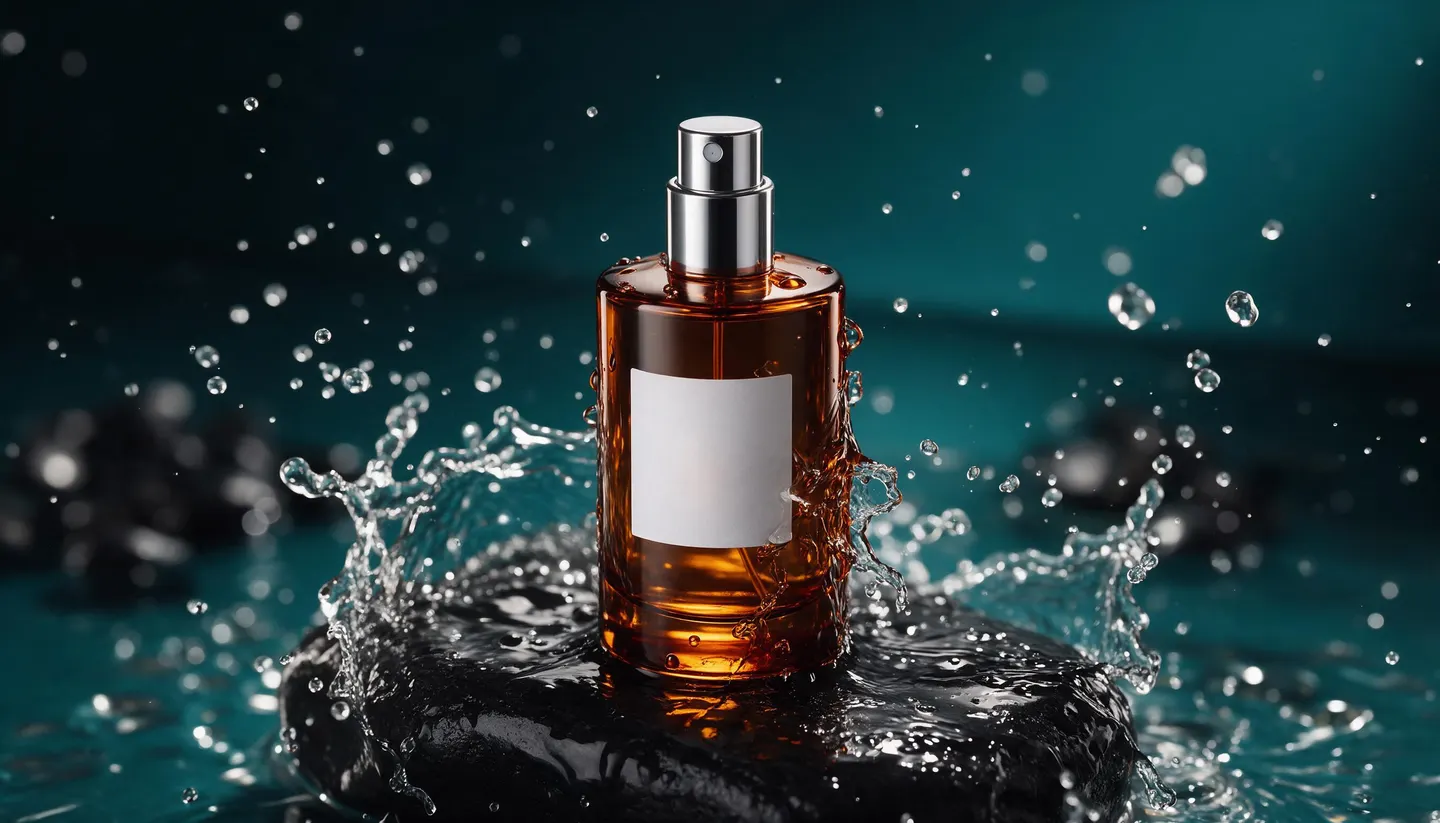
The perfume bottle turns slowly through a full rotation on a black stone plinth. Static camera, soft key light from the left, a thin rim light catching the edge of the glass. Quiet room tone, a faint chime at the end.
Pour
Cold brew pours from the bottle into a glass of ice in slow motion, the ice shifting. Slow push-in toward the glass, morning light from a window. The sound of the pour and the ice clinking.
Reveal from shadow
The sneaker sits in darkness, then a slow sweep of light moves across it from left to right, revealing the texture of the knit. The camera holds, then pushes in gently toward the logo. A low synth hum.
In use
A hand picks up the ceramic mug from the table and lifts it out of frame, steam rising. Shallow depth of field, warm kitchen light, a slight handheld feel. A soft clink as it leaves the table.
Lifestyle to end card, on Lemon
First frame: the backpack on a mountain trail at golden hour. Last frame: the same backpack on a plain white background. The camera pulls back as the trail gives way to the clean studio shot.
Room to experiment
Mage vs a product video shoot
A crew and a set still make sense for a launch film. For product pages, ads and seasonal posts in between, animating the photos you have is faster, and you can try ten motions before you choose one.
A video shoot
- Book a studio, a crew and props
- A handful of setups per day
- A reshoot for every new background
- Editing billed by the hour
Mage
- One product photo to start
- As many takes as the shot needs
- New scenes from the same photo
- Clips joined and exported in Storyboard
Follow your imagination
Who uses an AI product video generator?
Product pages
A short turntable or loop beside the photos, made from the same shots.
Paid social
Vertical clips for Reels and TikTok, with the product on screen from the first frame.
Launches
Teasers built from a render or a sample photo before stock arrives.
Seasonal refreshes
The same product in a holiday or summer scene without a new shoot.
Start small. Dream big.
Is the AI product video generator free?
Mage is free to start: new members get 300 Gems, and every video model runs on Gems. Unlimited video starts on Pro, on the models and settings each plan lists.
Free
$0
One-time 300 Gems for new members. No watermark.
Pro
$30/mo
Unlimited short Lemon clips at 480p and the other video models Pro covers, unlimited Guava and Mango for stills, 1,500 monthly Gems.
Max
$200/mo
Adds unlimited Cherry 2 Pro at 4 seconds and 480p, longer Lemon clips and 15,000 monthly Gems.
A little more clarity
Frequently asked questions
How do I make a product video from a photo?
What is the best AI for product videos?
Will the AI change my product?
Can product videos have sound?
How long can a product video be?
What is the difference between a product photo generator and a product video generator?
Can I put my product into an existing video?
Is the AI product video generator free?

Ready to make your product move?
Free to start, private by design. Have fun creating!
Animate your product with LemonRelated generators & guides
Mage is for adults, 18+ only. Nothing illegal is allowed; any content involving minors or non-consensual depictions of real people is strictly prohibited.