
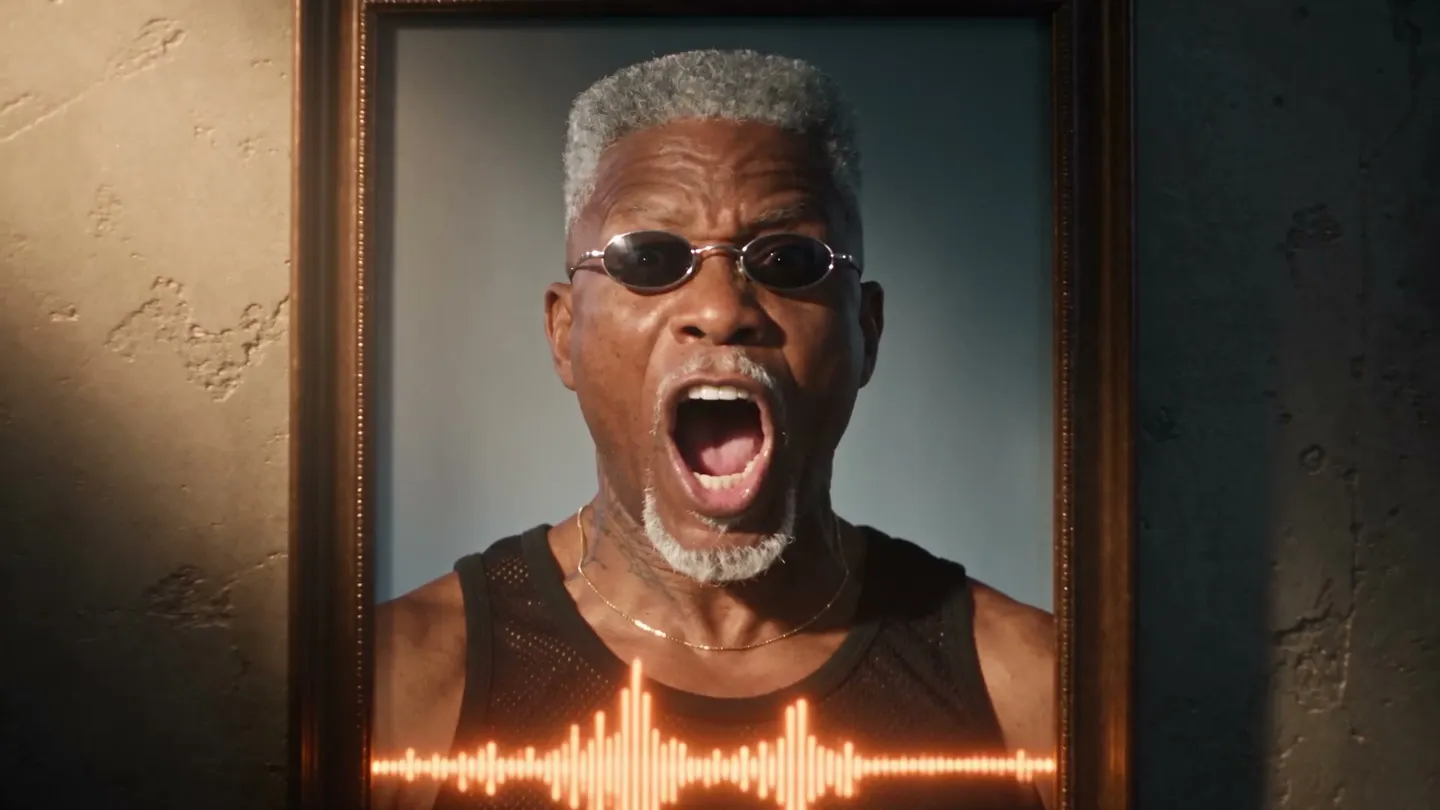
Lipsync · Photo to talking video
Make any photo speak
Add a subject and an audio clip, and get a video of them speaking it with natural expressions.
Add your own photo or start from an example. The price in Gems shows before you generate.
Mage examples
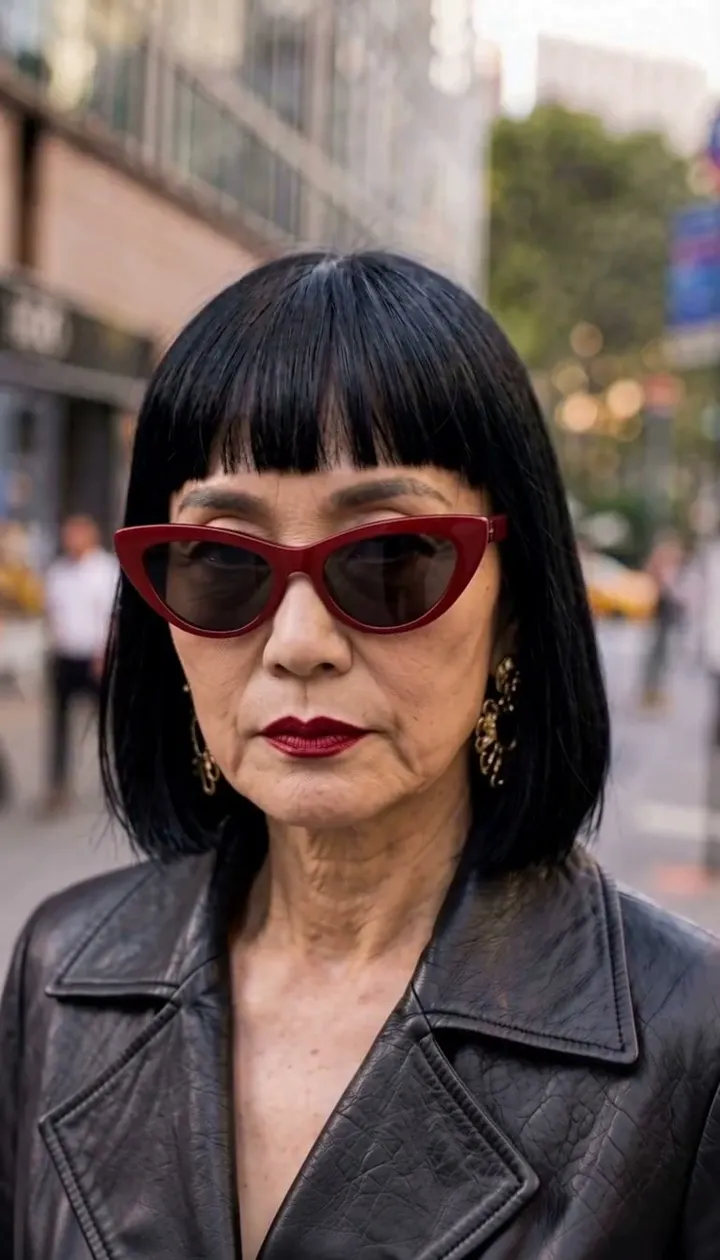
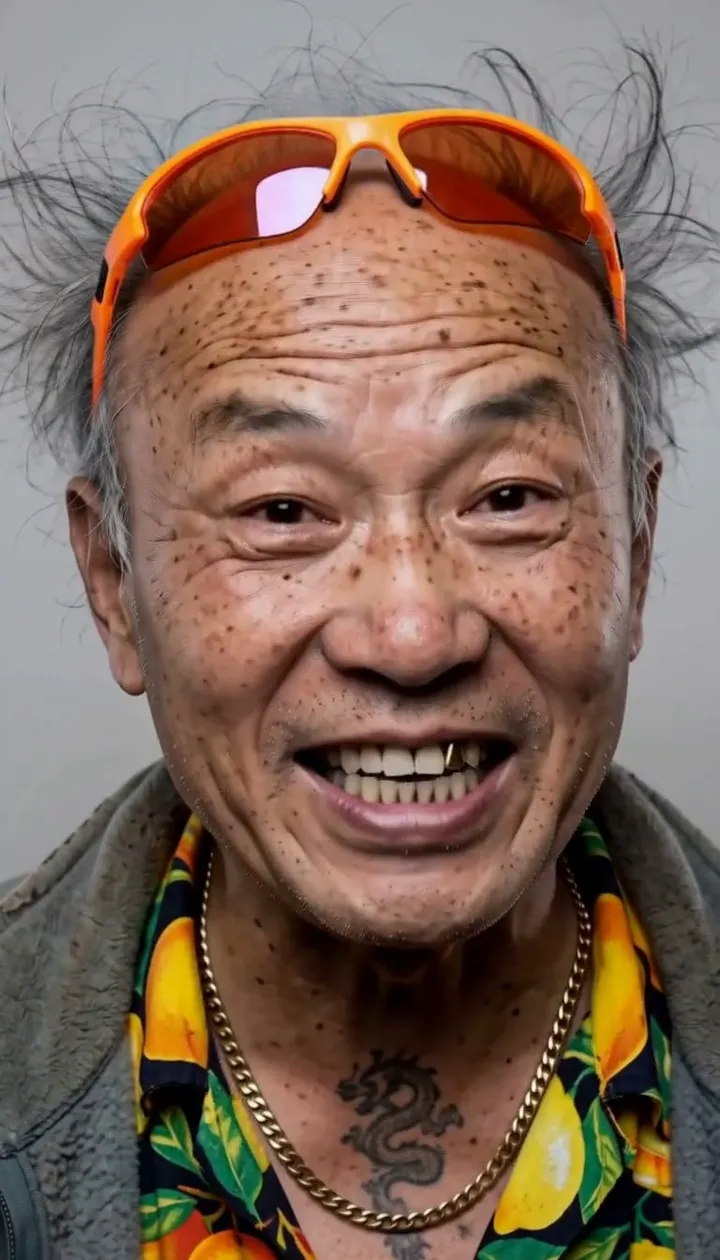
Made with Lipsync
Real runs of Lipsync. Open one in the app, swap in your own photo, and generate.
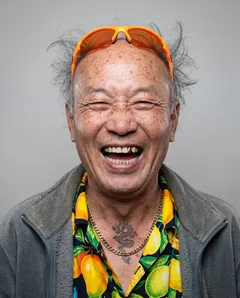
How it works
How to use Lipsync
Add a subject and an audio clip, and get a video of them speaking it with natural expressions.
Add the subject
Upload an image, pick one of your creations, or choose a saved character.
Add the audio
Upload an MP3 or WAV, pick a creation or a saved sound, or paste an audio or social link. The first 15 seconds are used.
Generate
Plum is the default; change the model and settings, or describe a new background or mood, if you like. The price in Gems shows on the Generate button, and the video lands in History.
What you need
- A subject image
- An audio clip up to 15 seconds
For the best result
- Use a clear, front-facing image with the mouth visible.
- Clean speech with little background noise syncs best.
- Saved characters keep their identity on Plum, Lemon, and Cherry; Blueberry animates the image as it is.
Ideas
What people make with Lipsync
Talking characters
Give a saved character a voice for a story or a channel.
Messages and explainers
Turn a portrait and a recording into a short spoken clip.
Other languages
Make the same subject speak a line in another language.
The basics
What is AI lip sync?
AI lip sync turns a still image and an audio clip into a video of the subject speaking or singing that audio. The model listens to the sound, works out the mouth shape each syllable needs, and animates the face to match, with the small head movements and expressions that make speech look real instead of a mouth flapping on a photo.
Mage's Lipsync app does this from one picture. Upload a photo or choose a saved character, add a voice line, a song or a narration of up to 15 seconds, and pick a video model. The subject keeps the look, framing, lighting and setting of your image while the camera holds steady on them. You can add a short scene direction, such as a new background or a mood, and Mage applies it after its own lip sync instruction.
It is built for creators who already have the audio: a voiceover for a product clip, a dubbed line in another language, a podcast quote, a verse of a song. If you still need the voice itself, make it first with Seed Audio and bring it over. If the person should only speak, Lipsync is the tool. If they should perform, with camera moves and dancing, the Music Video app is the better fit.
A little more possibility
Why creators choose Mage for lip sync
One image, one clip
No video shoot and no face rigging. A single photo or saved character plus your audio is the whole input.
Nine models to choose from
Plum is the default, with Plum Max, Lemon, four Cherry models, Blueberry and Blueberry 2 a click away.
Works with saved characters
Pick a character from your library and the same face speaks in every clip you make.
Optional scene direction
Add one line for a new background, an outfit or a mood, and it is applied around the lip sync.
Private by default
Your clips stay in your account until you choose to post one. Sharing is always opt-in.
No watermark
Download the MP4 as it came out, with a commercial license on every paid plan.
Tips and techniques
How to get clean, believable lip sync
The audio decides most of the result. A dry recording with one voice, no music bed and no room echo gives the model clear syllables to follow. Background music and crosstalk blur the consonants that mouth shapes are built from, so trim the clip to the line you need and cut the silence from the start, since the face waits while nothing is said.
The image decides the rest. A face that fills a good part of the frame, looks roughly toward the camera and has the mouth unobstructed gives the model room to work. Hands over the mouth, hard side profiles and very small faces in a wide shot are the usual reasons a clip looks off. If you are starting from a generated portrait, make it with the mouth closed or relaxed, so the first frames do not begin mid-word.
- Trim the audio to the exact line, 15 seconds at most
- Use one clear voice without a music bed
- Choose a front-facing photo with the mouth visible
- Keep scene directions short: a place, an outfit or a mood
- Try a second model before rewriting anything
Tips and techniques
Longer than 15 seconds? Work in segments
Each Lipsync run takes up to 15 seconds of audio. For a full voiceover or a longer song, split the audio at natural pauses into pieces of 15 seconds or less and sync each piece against the same photo or saved character. A saved character keeps the face identical from one segment to the next, which is what makes the cuts invisible.
When the segments are ready, line them up in Storyboard, which puts up to six saved clips in order and exports them, with their sound, as one MP4. Starting from a blank portrait instead? The AI talking photo guide covers writing the voice line as well as animating the face.
Tips and techniques
Lip sync for dubbing, narration and songs
Lip sync is a practical way to dub a short clip. Record or generate the line in the new language, keep the delivery close to the original pacing, and run it against a still of a speaker you have permission to use. Because the mouth is animated from the new audio, the lips follow the translated words rather than the original ones.
For a recurring narrator or a character who speaks across a series, build the face once with the AI character generator, then add moving shots between the talking ones with AI image to video. For a sung performance with camera moves, the AI music video generator is built for exactly that.
The right model for the job
Which model is best for lip sync?
Every model below runs inside the Lipsync app. Plum is the default; switch when the shot asks for something else.
Plum Max
The faster Plum, at 480P or 768P, for everyday talking clips and quick drafts. Plum itself, the app default, renders up to 2K.
Lemon
Quality and price balanced, from 480p to 1080p. A good pick when you want a sharper face without the flagship's cost.
Cherry 2 Pro
Mage's flagship video model, for final-quality clips up to 1080p. It costs the most per clip, so draft on a cheaper model first.
Blueberry 2
Syncs from the image alone at 720p or 1080p. It ignores a saved character's identity, so give it the exact photo you want animated.
Try these prompts
Scene directions to try
Lipsync leads with its own instruction. These optional lines set the scene around it.
Podcast clip
In a warm podcast studio with a microphone on a boom arm, soft lamp light behind.
Product voiceover
Standing in a bright kitchen, holding a cup of coffee, friendly and relaxed.
Dubbed line
Same framing as the photo, calm and serious delivery, evening light through a window.
Song verse
On a small stage under a single warm spotlight, eyes closed on the long notes.
Room to experiment
How Mage compares for AI lip sync
A typical lip sync tool puts one model behind one button. Mage puts several video models behind the same app, so a clip that looks stiff on one can be tried on another without leaving the page or uploading anything again.
Mainstream tools
- One model, one interpretation of the face
- The voice made in a separate tool
- A new upload for every clip
Mage
- Nine video models in one Lipsync app
- Voices from Seed Audio in the same account
- Saved characters keep the same face across clips
- Unlimited short clips on the plans that cover them
A little more clarity
Frequently asked questions
What does Lipsync do?
What do I need?
How long can the audio be?
Which models can I use?
How much does it cost?
Can I use any face or voice?
What is AI lip sync?
Can I lip sync a song?
Which model should I use?
Where does the voice come from?
Is AI lip sync free?
Whose face can I use?

Make your own with Lipsync
Open the app, add your photo, and see the price before you generate. Everything you make stays in your History.
Open Lipsync