
Outfit Swap · Virtual try-on
New outfit, same person
Add a photo and an image of the outfit, and get the same person in the new clothes, shoes, and accessories.
Add your own photo or start from an example. The price in Gems shows before you generate.
Before and after
See what Outfit Swap does
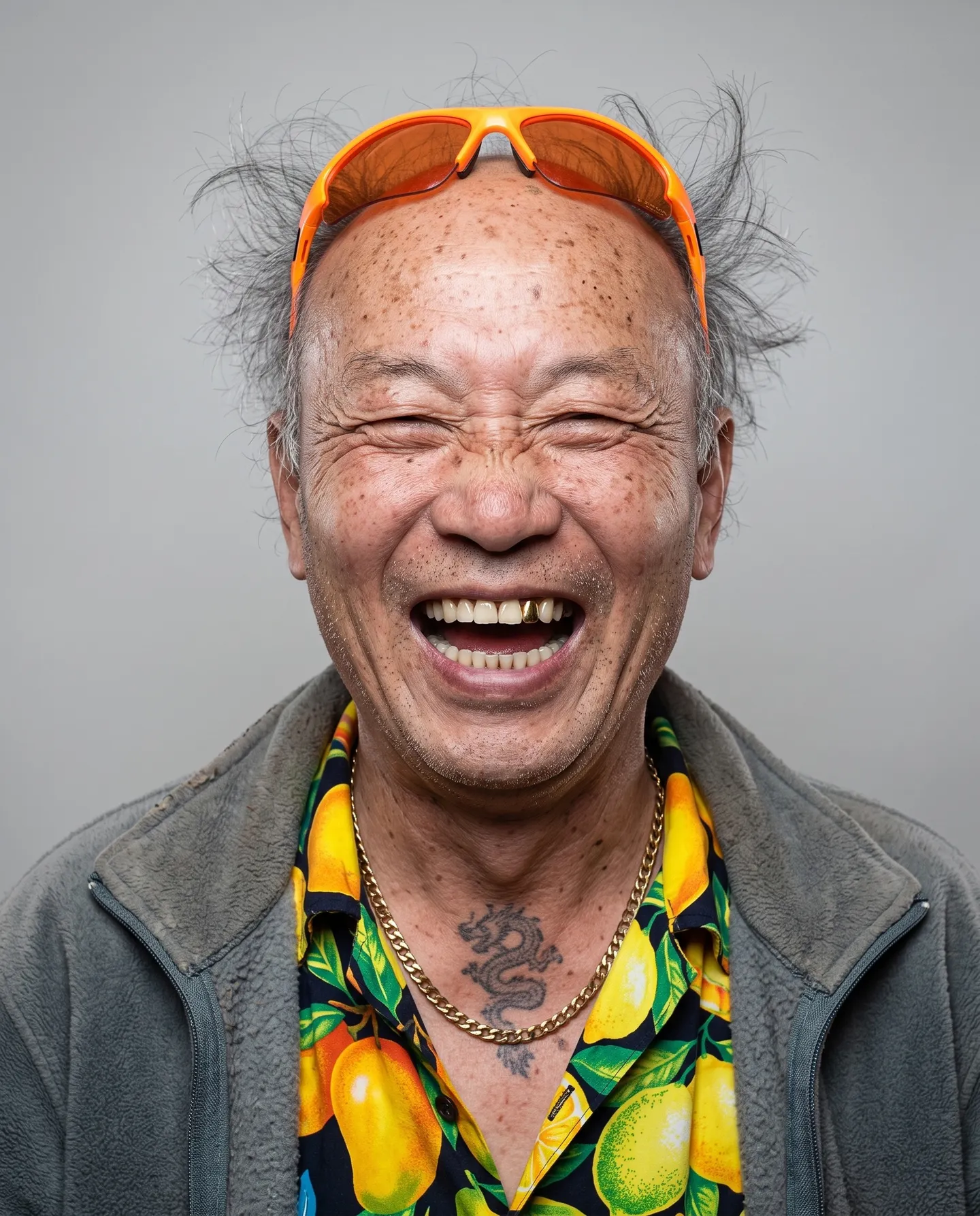
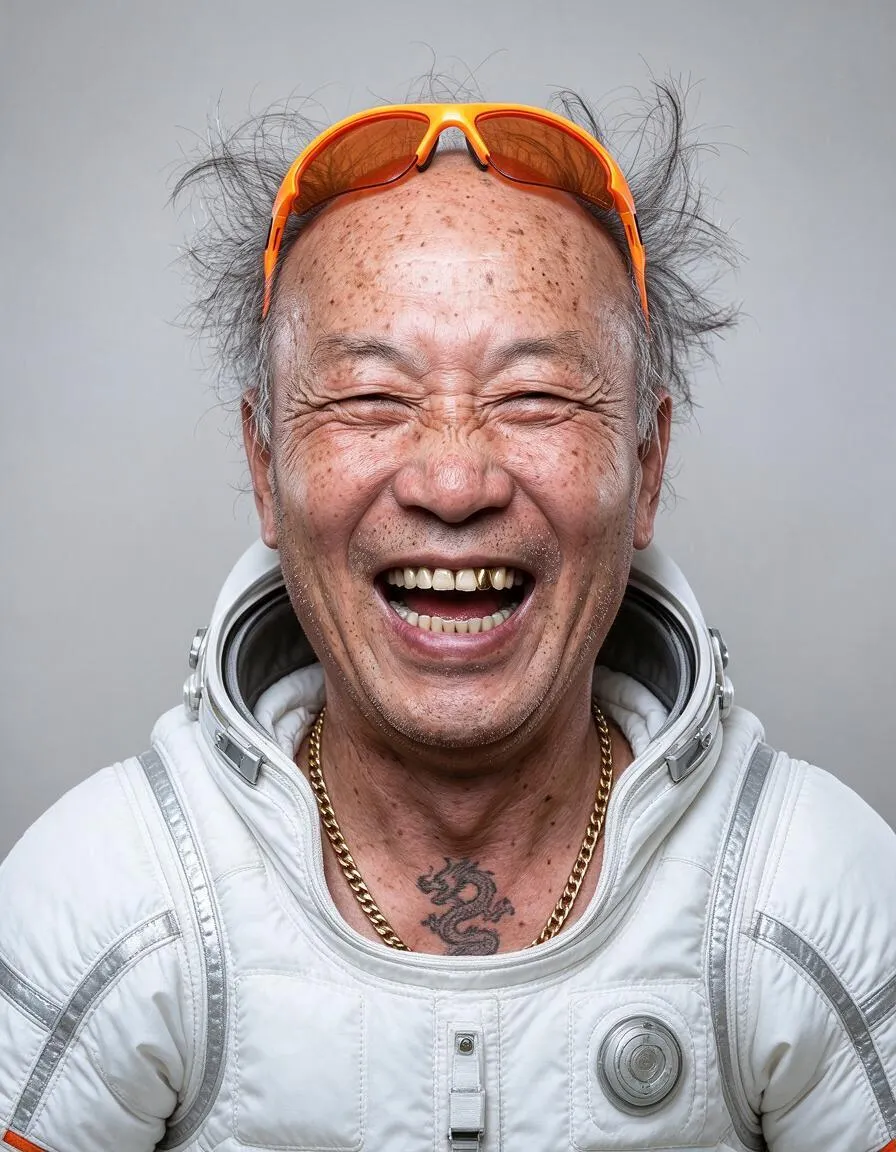
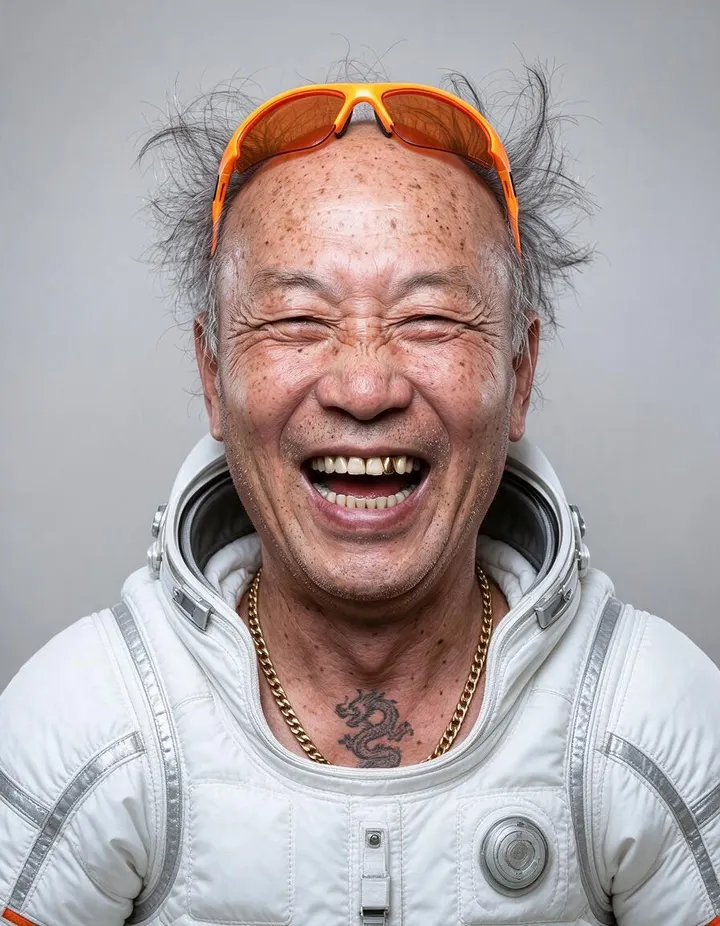
A laughing uncle suits up in a white astronaut suit. Drag the handle to compare the original with the result.
Mage examples
Made with Outfit Swap
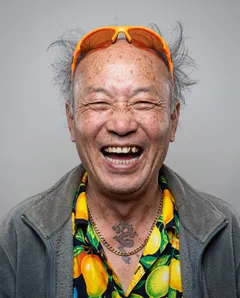
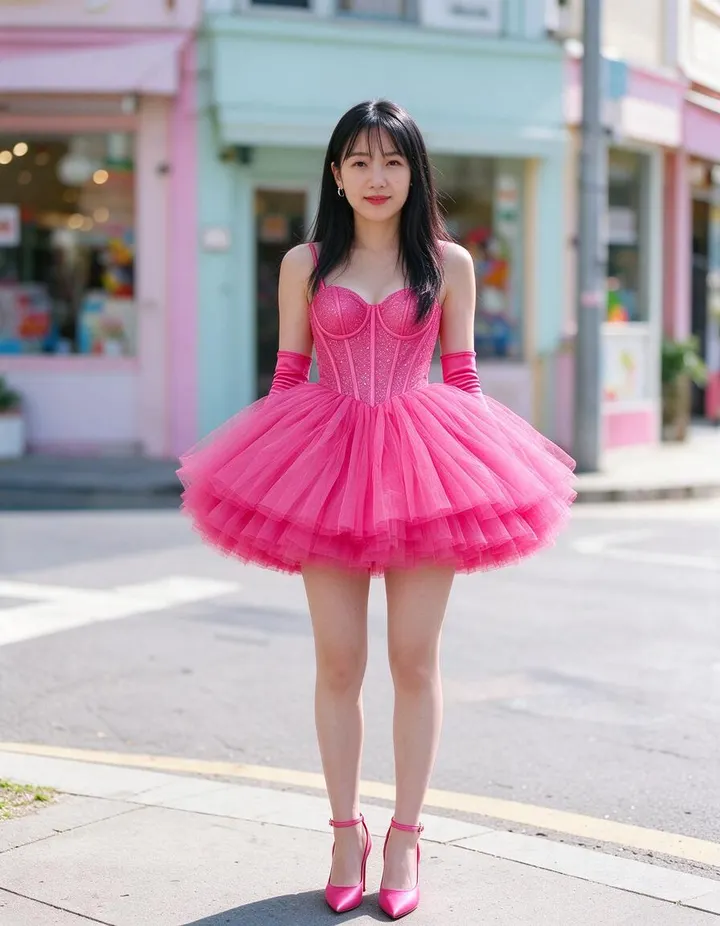
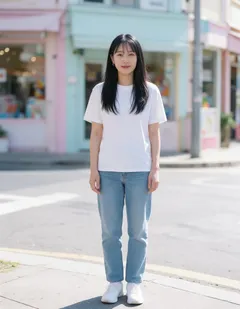
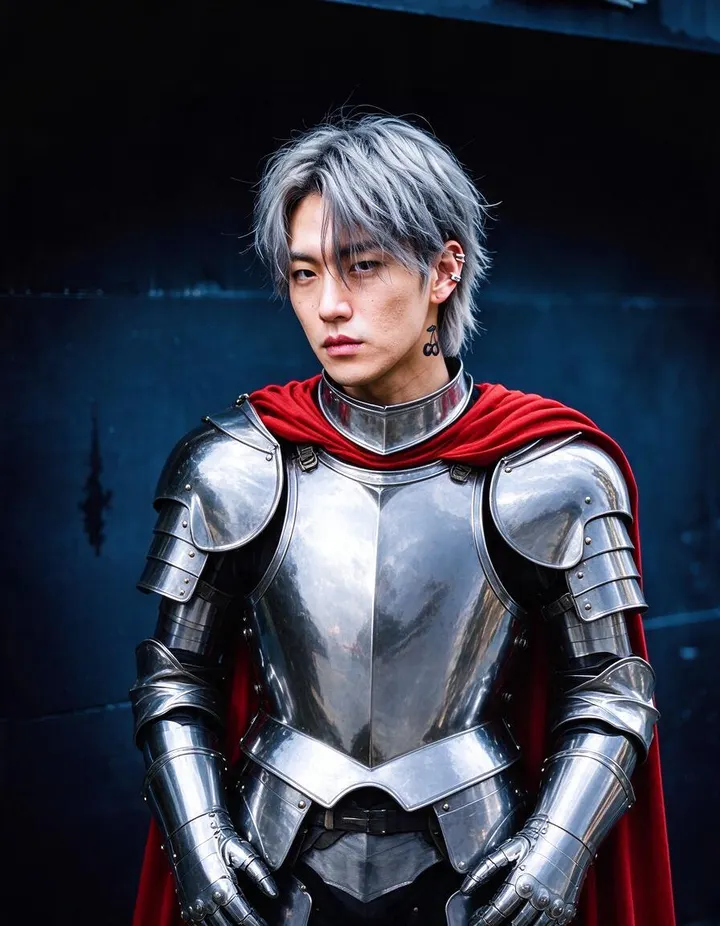
Real runs of Outfit Swap. Open one in the app, swap in your own photo, and generate.
How it works
How to use Outfit Swap
Add a photo and an image of the outfit, and get the same person in the new clothes, shoes, and accessories.
Add two images
In Base Image, add the photo of the person. In Reference Outfit, add the outfit. Upload, pick a creation, or choose a saved character.
Pick a model
Mango 3 Turbo is the default. Change the model or resolution if you like; the price in Gems shows on the Swap button.
Swap
Press Swap. The result lands in History, ready to download, save, share, or remix.
What you need
- The photo of the person
- An image of the outfit
For the best result
- Show the whole outfit in the reference, shoes and accessories included.
- Pick a base photo where the clothes you want to replace are fully visible.
- Run the same swap on another model and keep the version you like best.
Ideas
What people make with Outfit Swap
Try on clothes
See an outfit on yourself before you buy it.
Style a character
Dress a saved character in a new look while the face stays the same.
Lookbooks
Build a set of looks around one photo of a person.
The basics
How AI outfit swap works
Outfit Swap takes two images: a photo of a person and an image of an outfit. It dresses the person in that outfit, with the shoes, bags, hats, and jewelry the outfit image shows, and keeps everything else from the original photo: the face, the hair, the body, the pose, the light, and the background. The result keeps the shape of the photo.
Because the outfit comes from a picture, you never have to describe it. The model reads the cut, color, fabric, and pattern from the reference and fits them to the pose of the person in the base photo. That makes it better than a written prompt for one specific piece: a dress from a product page, a jacket from a street photo, or a costume you designed earlier.
It works like a virtual try-on: see how clothes look on a person before you buy them, shoot them, or draw them. To change clothes from a description instead of a picture, try the AI clothes changer.
Tips and techniques
Choosing the base photo
The base photo decides the pose, the framing, and the light. Pick one where the clothes you want to replace are fully visible: a full-body shot for a full outfit, a waist-up shot for a top or a jacket. Arms crossed over the body, a bag held in front, or another person overlapping the subject give the model less to work with.
Simple poses swap most cleanly: standing, walking, or sitting upright. Clear, even light helps too, since the new clothes have to take on the light of the photo to look like they belong in it.
- Full body for a full outfit, waist up for a top.
- Hands and arms away from the clothes you want to replace.
- One person in the frame.
Tips and techniques
Choosing the outfit image
The outfit image is the reference for what the person will wear. Show the whole look in one image: top, bottom, shoes, and accessories. A product photo on a plain background, a flat lay, or a photo of someone else wearing the outfit all work. The clearer the details, the more faithfully the pattern, the logo, and the texture come through.
To change a single item, use an image that shows only that item. An image of a full outfit tends to change the full look.
Tips and techniques
Styling characters and building lookbooks
Saved characters work in both slots. Put a character in Base Image to dress them in a new look while their face stays the same, or use one as the outfit reference to borrow their costume. To make a new character first, use the Character Builder: Attributes.
For a lookbook, keep one base photo and run a swap for each outfit. Every result lands in History, so you can compare the looks side by side and keep the ones that work. Running the same swap on another model from the Model menu gives you a second take on the fit.
Tips and techniques
Beyond a single photo
To recast a person in a video, costume included, Video Character Swap replaces the whole character in every frame. To replace the whole person in a photo rather than their clothes, use Character Swap. To design a new outfit from a description, try the AI outfit generator.
Use photos of people who agreed to it, and outfits you have the rights to show. Your uploads and results stay private to your account unless you post them.
Tips and techniques
Outfit Swap for shops, stylists, and creators
Clothing shops can show one garment on several models without a new shoot, or a new collection on the models they already work with, with their permission. Use product photos on a plain background as the outfit images, so the cut and the fabric come through clearly.
Stylists can show a client several looks on the client's own photo and decide together. Creators can keep one look across a series of posts, or try a new style on themselves before they buy anything.
For a character, keep a wardrobe: run swaps with an outfit for each part of a story, such as a uniform for work and a coat for winter, and keep the results you will use again.
A little more clarity
Frequently asked questions
What is Outfit Swap?
What do I need to upload?
Does it change anything besides the clothes?
Which models can I use?
How much does an outfit swap cost?
Can I use photos of other people?
Does it swap shoes and accessories too?
Can I swap just one piece of clothing?
Can the outfit image be a product photo?
Can I use a saved character?
What if the outfit does not fit well?

Make your own with Outfit Swap
Open the app, add your photo, and see the price before you generate. Everything you make stays in your History.
Open Outfit Swap