
Prompting guide
How to prompt MOSS-Image
MOSS-Image prompt guide: how to prompt MOSS-Image with long captions, exact English and Chinese text, layout prompts, and copyable prompt examples.
Quick start
Your first great MOSS-Image prompt
Everything a beginner needs in one minute: what to know first, the rules that matter most, a template to fill in, and prompts to copy.
What to know first
MOSS-Image is built for long, detailed prompts: it reads a whole paragraph and follows it closely, so a one-line prompt wastes it. Describe the picture in plain sentences: the subject and what it does, the setting, the camera, the medium, the light, the materials, and the colors. Put any words that should appear in the image in double quotes. It makes images from text alone, so there is nothing to upload, and the size and shape are settings.
The rules that matter most
Describe everything
Subject and action, setting, camera and framing, medium, light, materials, and palette. Whatever you leave out, MOSS-Image decides for you, so a full paragraph beats a short phrase.
Quote the exact words
Put text in double quotes, exactly as it should read, with its place and look: a chalkboard sign by the door that reads "FRESH COFFEE $3" in white hand-lettered capitals.
Write the prompt in English
English gives the best results. Keep any text to render in its own language inside the quotes, such as a Chinese shop sign in an English description.
Use the negative prompt for what keeps appearing
A short list such as "worst quality, bad anatomy, watermark, jpeg artifact" cleans up most images. The main prompt describes only what you want.
Leave Prompt Enhance off
It adds random words to the end of your prompt. A detailed MOSS-Image prompt is better as you wrote it.
Fill in this template
Replace each part in square brackets with your own idea, and leave out a part you do not need.
[Subject doing what] in [setting]. [Other details, each in its place]. [Any text, in double quotes, and where it appears]. [Medium], [camera and framing]. [Light and its source]. [Palette and mood].A street cook in a red apron tosses noodles in a smoking wok at a crowded night market stall. Steam rises past paper lanterns strung overhead; on the left, a line of customers waits under a striped awning. A hand-painted wooden sign above the stall reads "LATE NIGHT NOODLES" in bold yellow letters. Photo, eye level, 35mm, shallow depth of field. Warm light from the lanterns and a cold blue glow from the street behind. Amber and teal palette, busy and cheerful.[Subject doing what]Who or what the image is about, with the action: a street cook in a red apron tosses noodles in a smoking wok.[setting]Where and when: a crowded night market stall.[Other details, each in its place]Everything else in the frame, placed in words: on the left, overhead, in the foreground.[Any text, in double quotes, and where it appears]The exact words and how they look: a hand-painted sign above the stall reads "LATE NIGHT NOODLES". Leave it out for no text.[Medium]What kind of image it is: photo, 35mm film photograph, watercolor illustration, flat vector poster.[camera and framing]Where we look from: eye level, a wide shot, a close-up from slightly below.[Light and its source]What lights the scene: warm light from paper lanterns overhead.[Palette and mood]The main colors and the feeling: amber and teal, busy and cheerful.
Prompts to start from
A sign in a real scene
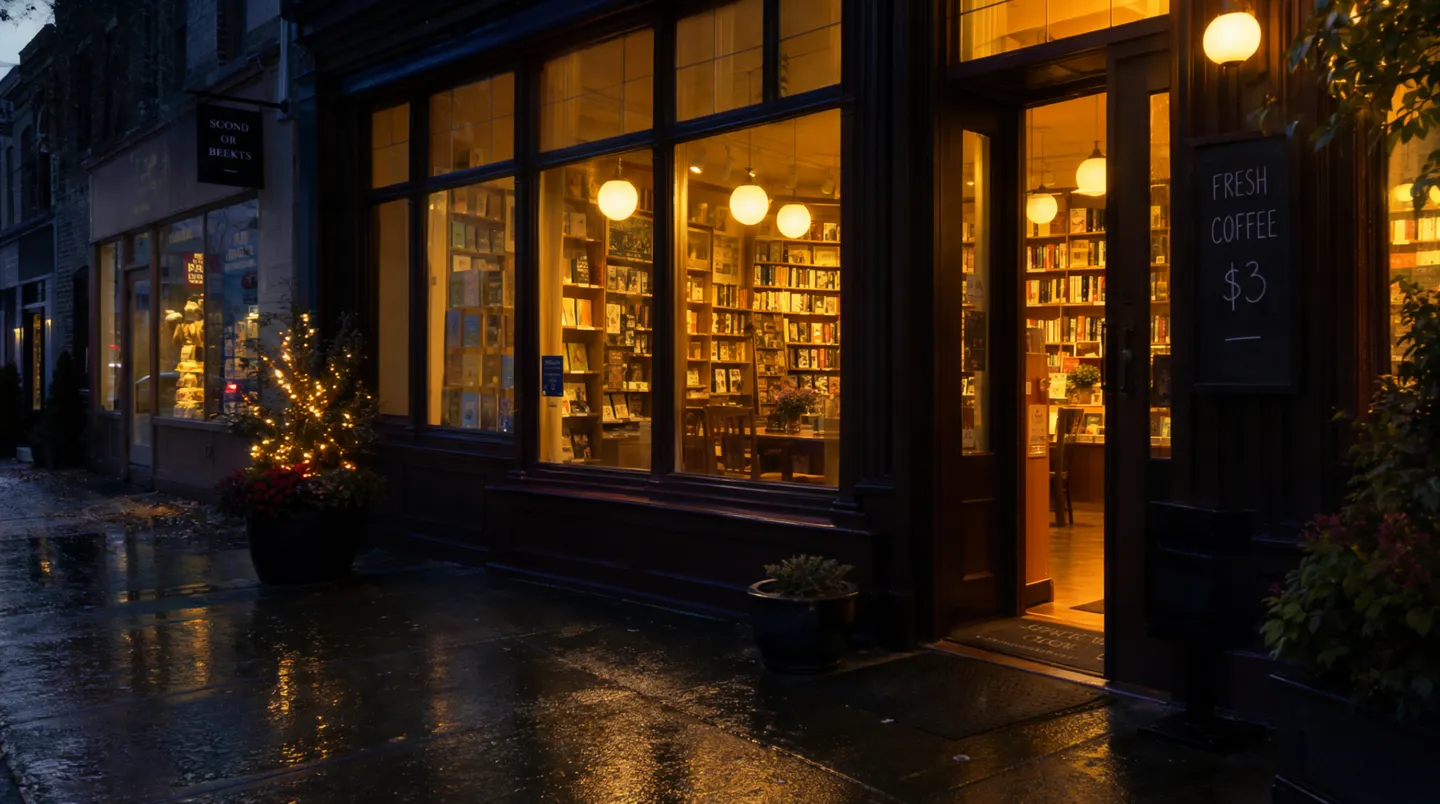
A cozy bookstore cafe at night seen from the rainy street, warm light spilling from tall windows onto wet cobblestones. By the door stands a chalkboard sign that reads "FRESH COFFEE $3" in white hand-lettered capitals. Inside, shelves of books and a few readers at small wooden tables. Photo, eye level, 35mm, soft reflections in the puddles, muted teal street against amber interior light.Why it works: One paragraph covers the whole scene, the sign's words are quoted exactly with their look, and the camera, light, and palette are named. A 3:2 aspect ratio suits it.
Handwritten Chinese, broken where you want
A wide view of a refrigerator beside a kitchen counter with a fruit bowl. A small yellow sticky note on the refrigerator door is handwritten in Chinese:
"记得买牛奶和鸡蛋!
牛奶两盒,鸡蛋一打。
顺便带一袋面包。"
Why it works: The description is in English and the note stays in Chinese, with a real line break wherever a line of handwriting should end. The note reads: "Remember to buy milk and eggs! Two cartons of milk, a dozen eggs. Pick up a bag of bread too."
A detailed portrait
An elderly lighthouse keeper in a heavy cable-knit wool sweater stands at the top of a spiral iron staircase, holding a brass oil lamp at chest height. Behind him, the great glass lens of the lighthouse glows gold; through the round, salt-stained windows, storm clouds and white-capped waves roll in at dusk. Weathered face, short gray beard, calm eyes looking just past the camera. 35mm film photograph, medium shot from slightly below, shallow depth of field. Warm lamplight on his face against the cold blue dusk outside. Muted palette of brass, navy, and slate.Why it works: Each part of the picture gets its own facts, and two lights of different colors set the mood by contrast instead of mood words.
Anime art from tags
best quality, highres, 1girl, solo, long blue hair, twin tails, futuristic stage outfit, holding a microphone, stage lights, cheering crowd in the background, dynamic angleWhy it works: MOSS-Image also reads anime-style tags, quality first, then the character, then everything else. Use tags for anime art and sentences for everything else.
Advanced
Advanced MOSS-Image prompting
Techniques for more control once the basics work.
Structure: a caption, tags, or a layout
MOSS-Image reads three kinds of prompt. A caption, the default, is cohesive prose about everything you can see: subject and action, appearance, setting, camera and framing, medium, light, materials, palette, and mood, with where things are said in words. Tags are comma-separated, anime-style keywords. A layout is a JSON prompt that puts each block of text and each object in its own box, covered below.
Prose and structure can be combined, and a detailed image does not need a layout. Reach for one only when placement must be exact: a poster, a menu, several panels, or objects that must sit in set places.
- Keep what you asked for and fill only the gaps: if you want a watercolor, add the light, framing, and palette of a watercolor, not words that pull it toward a photo.
- Write tags in the order the model learned them: quality, score, meta, year, character, series, artist, then general tags such as 1girl, blue hair, or stage lights.
- Write an artist tag without the @ in front of it. Mage reads @ followed by letters as a saved handle, and a handle you have not saved stops the generation before anything is charged.
- Do not stack quality tags on a caption. "Masterpiece, 8k, ultra detailed" adds nothing that a plain description of the light, the lens, and the materials does not do better.
Text in the image
Text is a headline strength of MOSS-Image, in English and in Chinese. Quote the words exactly, in their own language, keeping their capitals, punctuation, and line breaks, and keep them apart from what you say about them: a sign that reads "OPEN", not "write open on the sign in a fun way".
MOSS-Image breaks long text into lines by itself, and not always where you would. Put a real line break in the prompt wherever a line should end, as in the sticky-note example above.
- Say how the text looks and where it sits: "in large looping chalk script across the top", "in small clean capitals along the bottom edge".
- Always write the real words, never a placeholder like "headline here": the model draws whatever is in the quotes.
- For several blocks of text in fixed places, such as a poster with a title, a date, and a venue, use a layout prompt.
A chalkboard menu with lines you control
A black chalkboard menu hanging on a white brick wall in a small cafe, hand-lettered in white and yellow chalk. At the top, the title "TODAY" in large looping script. Below it, three lines in neat capitals, one under the other:
"ESPRESSO 3.00
FLAT WHITE 4.50
CHAI LATTE 4.75"
A small chalk drawing of a steaming cup sits in the lower right corner. Photo, straight on, soft daylight from a window on the left.
Why it works: The title and the three lines are quoted exactly and broken where they should break, and the drawing has its own corner, so the words do not crowd it.
Layout prompts: a box for every element
A layout prompt is an experimental JSON prompt. Its "summary" describes the whole image and its style; its "items" list each block of text and each object with a caption, the exact words for text, and a box. Paste it into the prompt as one line.
Boxes are pixel coordinates measured from the center of the image, written as top, left, bottom, right. Draw each box first the usual way, from its top-left corner (x1, y1) to its bottom-right corner (x2, y2), on an image W pixels wide and H pixels high. Then subtract half the height from each y and half the width from each x, and write them in the order y1, x1, y2, x2. On a 1024 by 1024 square, a title from x 128 to 896 and from y 96 to 224 becomes [-416, -384, -288, 384].
The boxes must match the image you generate: the 1:1 aspect ratio at 1K resolution is 1024 by 1024 pixels. For another shape, generate one image at that aspect ratio and resolution first, check its width and height, and draw your boxes for that size.
- Keep the layout as your source: to move the title or change a word, edit that one item and generate again.
- Use a text item for every block of words, with the real words in its "text" field, and an object item for each thing that needs a place.
- Turn Prompt Enhance off and leave the Prompt Filter empty: both add words to the prompt, and a layout must arrive exactly as written.
- Boxes drawn for one aspect ratio or resolution land in the wrong places at another. Generate at the size you drew for.
A travel poster, placed box by box
{"summary": {"meta": ["poster"], "canvas": "single", "caption": "A minimalist travel poster with a cream background, a blue mountain illustration, and the title EXPLORE at the top."}, "items": [{"label": "text", "caption": "Large dark-blue uppercase title centered at the top.", "text": "EXPLORE", "bbox": [-416, -384, -288, 384]}, {"label": "object", "caption": "A flat blue mountain illustration in the lower center.", "bbox": [-192, -288, 384, 288]}], "bbox_coord_space": "abs_centralized", "bbox_format": "yxyx"}Why it works: The summary sets the whole poster, the title has its exact word and its box at the top, and the mountain has its own box below. The boxes are drawn for 1024 by 1024, so set the aspect ratio to 1:1 and the resolution to 1K.
Keeping a character the same
MOSS-Image takes no uploads, Characters, or References: everything comes from the words. To keep a person the same across a set, write one fixed description of them (age, build, face, hair, clothing) and paste it word for word into every prompt, changing only the sentences about the scene. Fix the Seed too.
To match a picture you already have, or a saved Character, use a model that takes references, such as Mango.
Style, light, and LoRAs
Name the medium precisely: 35mm film photograph, editorial studio portrait, watercolor illustration, flat vector poster, anime key visual. Then describe the light by its source and color ("warm lamplight on his face against the cold blue dusk outside") rather than with mood words.
For a style the base model does not have, add a community MOSS-Image LoRA under Model. It starts at a strength of 0.5; raise it toward 1 if the style barely shows, and lower it if the style takes over the subject.
- If a LoRA's page lists trigger words, put them in the prompt.
- Materials make a picture read as real: salt-stained glass, worn brass, wet cobblestones, cable-knit wool.
Steps, Guidance Scale, and the negative prompt
Steps and Guidance Scale start at the model's own recipe, 50 steps at a guidance of 3, and that is the best place for them. Fewer steps run faster but lose detail. Raise Guidance Scale toward 4 to 6 only when a short prompt comes out loose; a long, detailed prompt needs no more than 3.
The negative prompt is empty by default. When something keeps appearing that you do not want, start with "worst quality, bad anatomy, watermark, jpeg artifact" and add to it. At a Guidance Scale of 1 the negative prompt does nothing, so the app hides it.
- With the same Seed and settings, the same prompt makes the same image. Change one sentence at a time to see what each one does.
Common mistakes
Avoid this, do this instead
Avoid: A short prompt.
coffee shop at night, rain, neon signInstead: A full caption: MOSS-Image is built for long ones.
A small corner coffee shop at night seen from across a rainy street. A pink neon sign in the window reads "OPEN LATE" in looping script; inside, a barista wipes the counter under a row of hanging bulbs. Photo, eye level, 35mm, rain streaks catching the neon, deep blue street against warm pink and amber light.Avoid: Quality tags stacked on a sentence prompt: "masterpiece, 8k, ultra detailed".
Instead: A plain description of the light, the camera, and the materials.
Avoid: Placeholder text: "a poster with a headline".
A concert poster with a headline and the date.Instead: The real words in quotes.
A concert poster with the headline "SUMMER NIGHTS" in tall white letters across the top and "AUGUST 14" in small capitals along the bottom.Avoid: Line breaks left to the model.
Instead: A real line break in the prompt wherever a line of text should end.
Avoid: An @ in front of an artist tag.
Instead: The artist name without the @, or the style described in words.
Avoid: Layout boxes drawn for one size, generated at another.
Instead: The aspect ratio and resolution the boxes were drawn for.
Avoid: Prompt Enhance turned on.
Instead: Prompt Enhance off: it appends random words to a prompt you wrote with care.
FAQ
MOSS-Image prompting questions
How long should a MOSS-Image prompt be?
Can MOSS-Image do text?
Does MOSS-Image support negative prompts?
How do I keep a character consistent in MOSS-Image?
What is a MOSS-Image layout prompt?
Should I write MOSS-Image prompts in Chinese?
Should I change Steps or Guidance Scale?
Prompting guide
More prompting guides
How to prompt Anima
How to prompt Anima on Mage: Danbooru tag order, rating tags, strong weights, escaped parentheses, and Anima prompt examples for characters and scenes.
How to prompt Chroma
Chroma prompt guide: how to prompt Chroma with one caption-style paragraph, use its negative prompt, tune steps and guidance, and copy Chroma prompt examples.
How to prompt Flux 2
Flux 2 prompt guide: how to prompt Flux 2 Dev with subject-first word order, JSON prompts, exact hex colors, and multi-image edits, with examples.
How to prompt GPT Image 2
GPT Image 2 prompt guide: how to prompt GPT Image 2.5 Flare and Sunburst for exact text, precise edits, and consistent characters, with examples.
How to prompt Grok Image
Grok Imagine prompt guide: how to prompt Grok Image with xAI's subject-first order, a check-then-edit loop, and copyable photo prompt examples.
How to prompt Guava
How to prompt Guava, Mage's photorealism model: a quick start, a fill-in template, and expert tips for portraits, skin, light, lenses, edits, and text.

Make your first image with MOSS-Image
New accounts get 300 free Gems, enough to try MOSS-Image. No install, no credit card.
Try MOSS-Image