
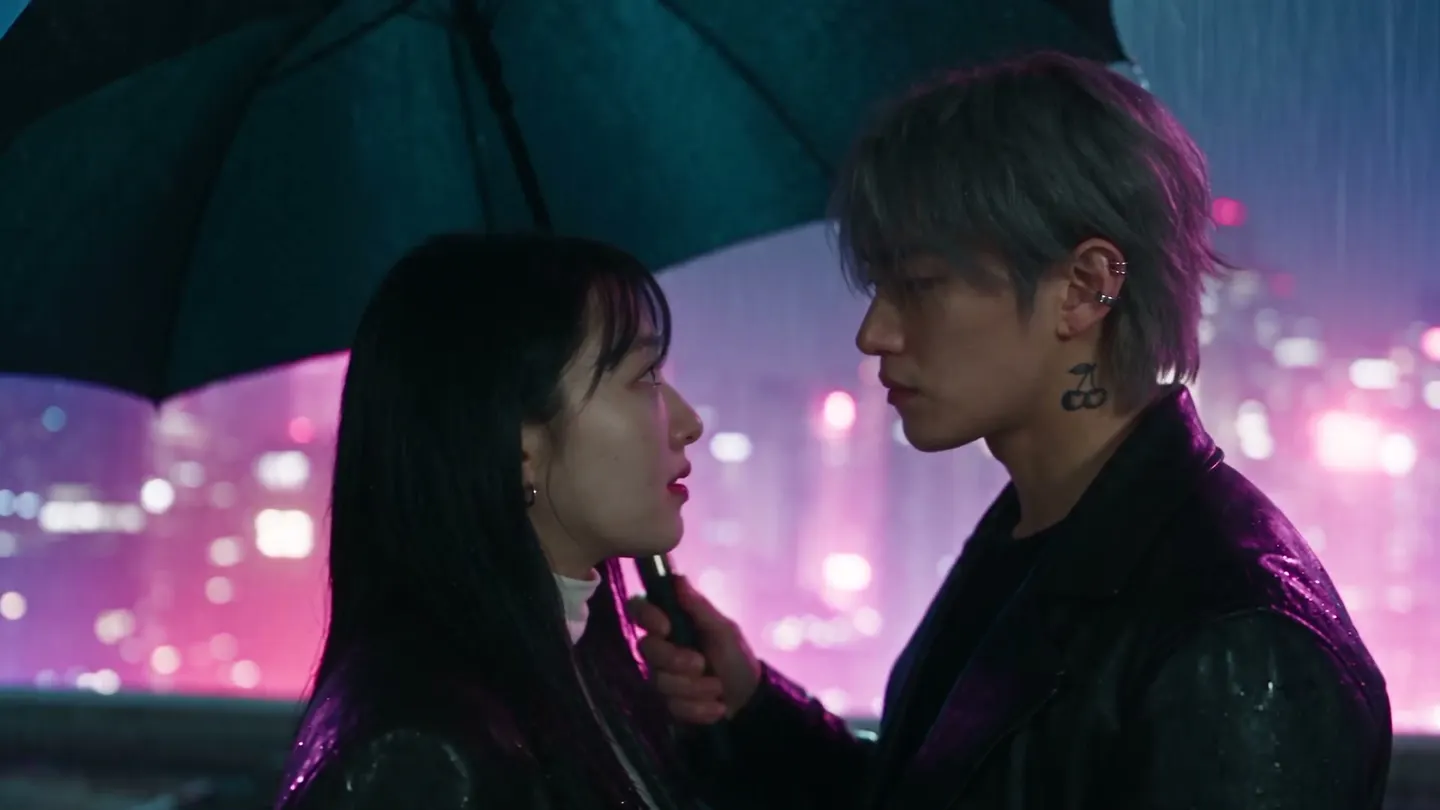
Scene Builder · Two-character video
Two characters, one scene
Add two characters, pick a scene or write your own, and get a short video of them together.
Add your own photo or start from an example. The price in Gems shows before you generate.
Mage examples
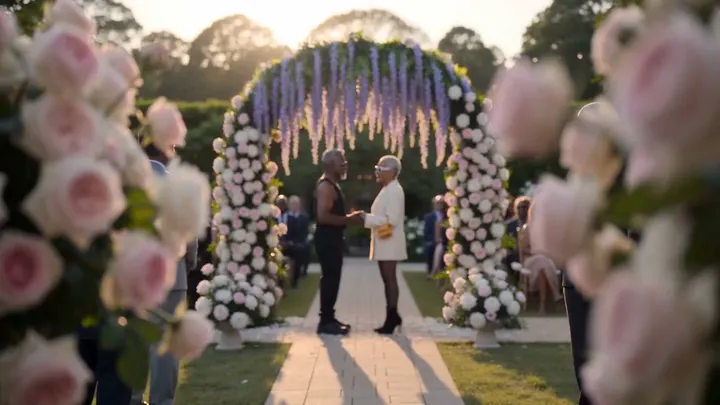
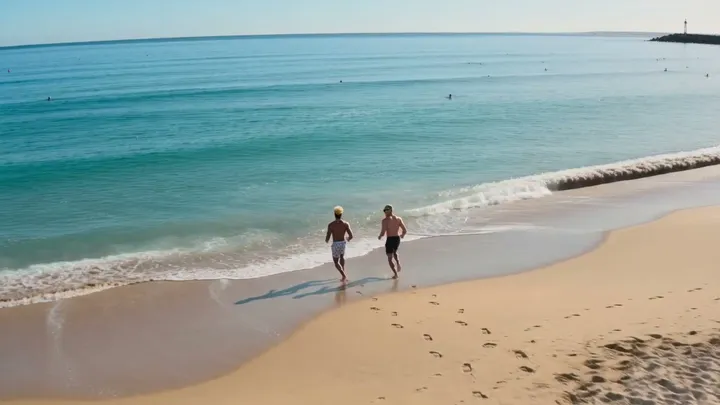
Made with Scene Builder
Real runs of Scene Builder. Open one in the app, swap in your own photo, and generate.
How it works
How to use Scene Builder
Add two characters, pick a scene or write your own, and get a short video of them together.
Add two characters
Fill Character 1 and Character 2 with an upload, one of your creations, or a saved character.
Set the scene
Pick a preset such as Dinner Date, Wedding, or Dance Battle, or press Custom and write a short idea to expand into a full prompt. Edit the prompt as you like.
Generate
Choose the model, resolution, length, and aspect ratio; the price in Gems shows on the Generate button. The video lands in History, ready to download, save, share, or remix.
What you need
- The first character
- The second character
- A scene preset or prompt
For the best result
- Use clear, full-body images so both characters keep their look in every shot.
- Saved characters appear in the prompt by their @handle, so their identity carries through.
- Press Add to Scene on a finished clip to put it on your storyboard.
Ideas
What people make with Scene Builder
Short stories
Put two characters in a scene with a beginning and an end.
Couples and friends
Show two characters on a date, at a wedding, or on a quiet morning at home.
Rivalries
Stage a boxing match or a dance battle between two characters.
The basics
Make a two-character video from two pictures
Getting two specific characters into the same video is one of the hardest things to do with a prompt alone. Faces drift, one character takes on the look of the other, or one of them disappears. Scene Builder is built for it: you give it one image of each character and a scene, and it generates a short video with both of them in it, each keeping their own look.
The scene can be a preset or your own idea. The presets cover moments people often want two characters to share: Dinner Date, Wedding, Kissing, Morning Together, Late Night Drive, Beach Episode, Dance Battle, Boxing Match, and Mafia Meeting. Each one writes a full prompt that you can read and edit. Press Custom to write a short idea instead, and Scene Builder expands it into a full prompt.
Cherry is the default model, and you can switch to Cherry Pro, Cherry 2 Pro, Raspberry, or Lemon. Depending on the model, a scene runs from 2 to 30 seconds at 480p to 1080p, in the aspect ratio you choose.
Tips and techniques
Choosing character images
Each character comes from one image: an upload, one of your creations, or a saved character. Clear, full-body images work best, because they show the face, the build, and the outfit the video has to keep. Even light and a simple background help the model tell the character apart from the scene.
Saved characters are the most reliable choice: they appear in the prompt by their @handle, so their identity carries through the whole scene. When two characters look alike, choose images with clearly different outfits or hair so the video keeps them apart.
- Full body, with the face clearly visible.
- One person per image.
- Different outfits or hair when the two look alike.
Tips and techniques
Writing a custom scene
A custom idea can be one line, such as "they share an umbrella in the rain and laugh". Scene Builder turns it into a full prompt with the setting, the action, and the camera. Read it before you generate, and edit anything that does not match what you had in mind.
Good scenes have one clear action with a beginning and an end. Say what each character does, where they are, and how the moment ends. Keep it to what fits in the length you picked: a few seconds holds one moment, while a longer clip can hold a short exchange.
Tips and techniques
Choosing the model, length, and format
Each model has its own look and its own range of lengths and resolutions. The settings show the options for the model you pick, and the price in Gems on the Generate button updates as you change them. Make a short, low-resolution draft first, then the final version at the length and resolution you need.
Pick the aspect ratio for where the video will go: vertical for stories and short-video apps, wide for YouTube and film, square for feeds.
Tips and techniques
From one scene to a story
Press Add to Scene on a finished clip to put it on your storyboard, then build a longer story one scene at a time with the same two characters. The AI storyboard generator covers planning the shots.
Need the characters first? Make them with Character Builder: Attributes. For one moment of affection between two people, the AI hug video generator is a quicker route, and to bring a single picture to life, use the AI image to video generator. Use photos of real people only with their permission.
Tips and techniques
Ideas for scenes
Couples and friends get the most from the presets: a dinner date, a morning at home, a late night drive, or a day at the beach. Rivalries suit Dance Battle and Boxing Match, and Mafia Meeting gives two characters a tense, cinematic scene.
Custom scenes open up everything else: two chefs in a cooking contest, two astronauts on a spacewalk, two knights at a tournament, or a detective questioning a suspect. Give the scene a clear setting and a clear action, and let the characters do the rest.
To make your characters perform a song, use Music Video; to make one portrait speak an audio clip, use Lipsync.
A little more clarity
Frequently asked questions
What is Scene Builder?
What do I need?
How long can a scene be?
Which models can I use?
How much does a scene cost?
Are my videos private?
Can I edit the preset prompt?
What does Custom do?
How do I keep both characters looking right?
Which aspect ratio should I pick?
Can I turn scenes into a longer story?

Make your own with Scene Builder
Open the app, add your photo, and see the price before you generate. Everything you make stays in your History.
Open Scene Builder