
Image Enhancer · Upscale to 6K
Upscale any image
Add an image, pick 2K, 4K, or 6K, and get a larger version with new fine detail.
Add your own photo or start from an example. The price in Gems shows before you generate.
Before and after
See what Image Enhancer does
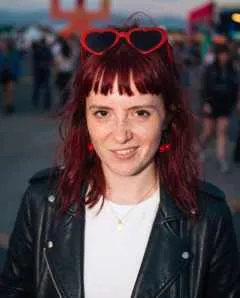
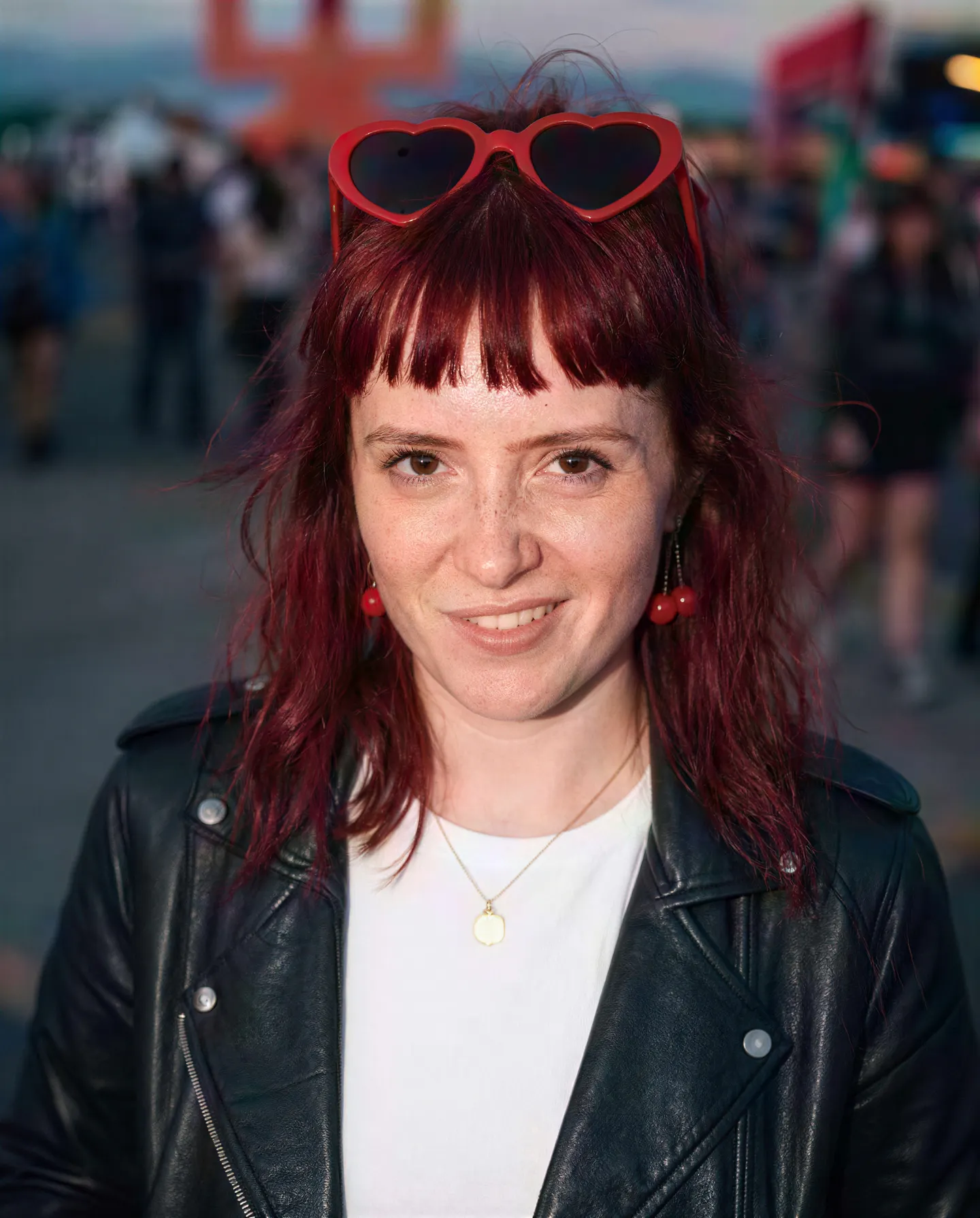
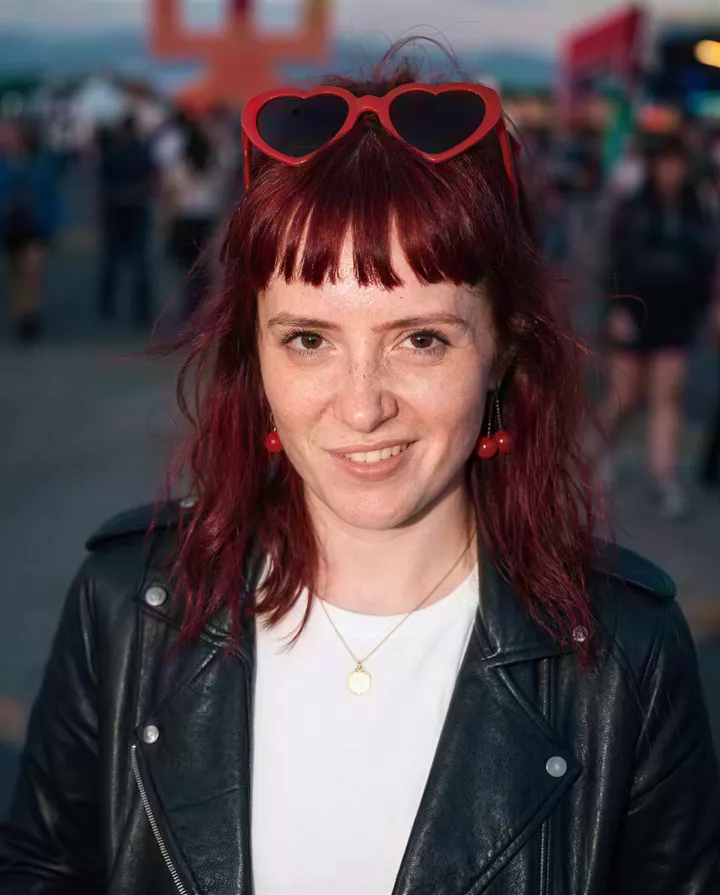
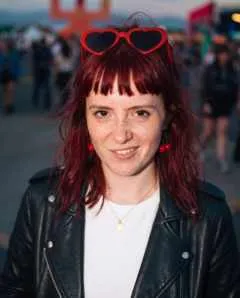
A tiny, blurry festival snapshot comes back sharp at 2K, freckles and all. Drag the handle to compare the original with the result.
Mage examples
Made with Image Enhancer
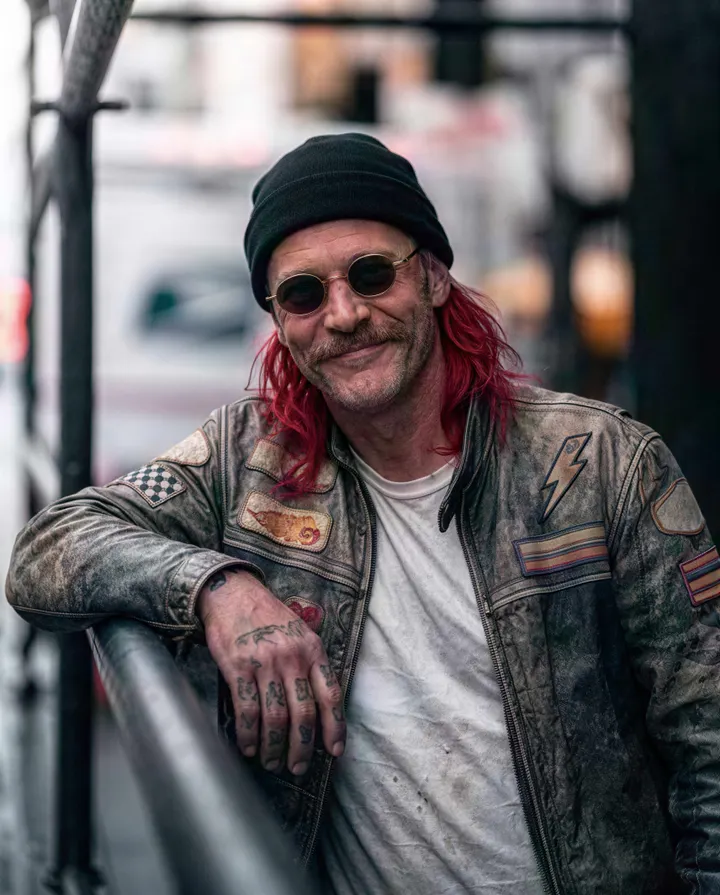
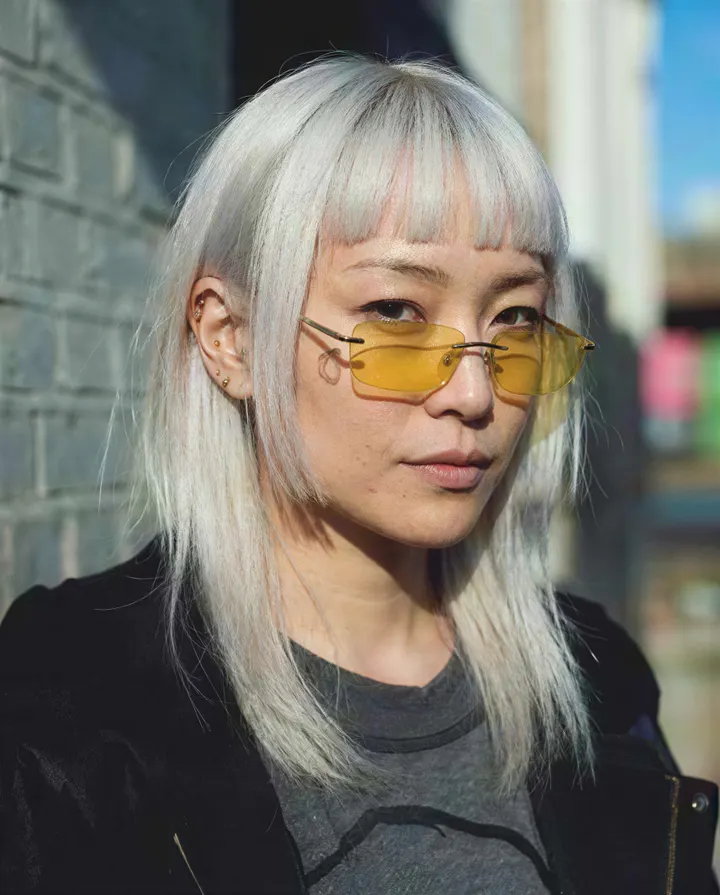
Real runs of Image Enhancer. Open one in the app, swap in your own photo, and generate.
How it works
How to use Image Enhancer
Add an image, pick 2K, 4K, or 6K, and get a larger version with new fine detail.
Add an image
Upload a JPEG or PNG up to 30 MB, drop it on the page, or pick one of your creations.
Pick the output size
Choose 2K, 4K, or 6K. The price in Gems shows on the Enhance button before you run it.
Enhance
Press Enhance and give it a few minutes. The result lands in History, ready to download, save, share, or remix.
What you need
- An image, JPEG or PNG up to 30 MB
For the best result
- Upscale last, after every other edit is done.
- Start at 2K to check the result, then run 4K or 6K for print or large screens.
- Drag the slider over faces, text, and fine edges to compare them with the original.
Ideas
What people make with Image Enhancer
Print and posters
Take a generation from screen size to a file that holds up in print.
Small or old photos
Enlarge a low-resolution photo and bring back texture and clean edges.
Finish a creation
Give your best image a final pass before you post or share it.
Product shots
Sharpen product photos so every detail reads clearly at full size.
The basics
What is an AI image upscaler?
An AI image upscaler enlarges a picture and fills in the detail a plain resize can't. Stretch a small photo in an editor and you get the same blur at a bigger size. An AI upscaler predicts the texture that should be there, the strands of hair, the weave of fabric, the edges of leaves, and draws it at the new resolution.
On Mage that job belongs to Image Enhancer. Upload one JPEG or PNG of up to 30MB, choose 2K, 4K or 6K, and it upscales and refines the image in one pass. It works on photos and AI images alike, which makes it the last step for anything you made on Mage and want to print, crop or show full screen.
Two more tools sit beside it. Skin Enhancer restores natural skin texture in portraits that came out waxy or over-smoothed, at 2K or 4K. Refine makes focused fixes with presets such as Fix Eyes, Fix Hands and Add Detail, or with your own instruction. Use them before upscaling, so the enhancer enlarges the corrected image.
A little more possibility
Why creators upscale with Mage
2K, 4K or 6K output
Pick the size you need: 2K for screens and posts, 4K for large displays, 6K for prints and heavy crops.
Detail, not just pixels
The enhancer refines texture as it upscales, so edges and fine detail come out crisp instead of stretched.
Portrait-aware tools
Skin Enhancer brings back pores and natural texture with Realistic, Soft and Imperfect modes, and freckles if you want them.
Fix before you enlarge
Refine's Fix Eyes, Fix Hands and Add Detail presets repair a flaw so the upscale doesn't magnify it.
Unlimited on paid plans
Enhance is unlimited at 2K on Pro, 4K on Pro Plus and 6K on Max, and runs on Gems on any plan.
Private, no watermark
Uploads and results stay in your account, and nothing you download carries a watermark.
Tips and techniques
Choosing between 2K, 4K and 6K
Pick the resolution for where the image will end up, not the biggest number. A 2K image is roughly 2,000 pixels on its long side, plenty for social posts, websites and phone screens. 4K covers large monitors, TVs and presentations. 6K is for prints, posters and images you plan to crop hard, where every extra pixel turns into usable detail.
Bigger outputs take longer to make and to download, and on a paid plan they sit on different tiers: Enhance runs unlimited at 2K on Pro, 4K on Pro Plus and 6K on Max. Every size is also available with Gems on any plan, so you can try 6K once without changing plans.
- 2K for social posts and the web.
- 4K for large screens and slides.
- 6K for print and heavy crops.
- Upscale last, after edits and fixes.
- Start from the best source you have; a sharper input gives a sharper output.
Tips and techniques
Fix first, upscale last
An upscaler enlarges everything, mistakes included. A sixth finger or a smudged eye becomes a bigger, sharper sixth finger. So make repairs at the original size: run Refine with Fix Hands or Fix Eyes, or mask the problem in Inpaint and describe the fix, then send the corrected image to Image Enhancer.
Portraits deserve one more pass. AI portraits often come out airbrushed, and upscaling makes the plastic look more obvious. Skin Enhancer restores realistic texture first, at a strength of Low, Medium or High. For faded or damaged photos, follow the full workflow in the AI photo restoration guide.
Tips and techniques
Upscale later, or generate big from the start
If you are creating a new image rather than rescuing an old one, you can often skip the upscale. Mango 3S generates at up to 3K, and Mango 2 and Nano Banana 2.1 at up to 4K, so a poster or a wallpaper can come out of the generator at full size. Upscaling is then for going further, to 6K, or for images from a model that stops at 2K.
Video has its own tool. To sharpen a clip instead of a still, use Video Enhancer, which upscales videos of up to 10 seconds to 720p or 1080p. The AI video enhancer guide covers it.
The right model for the job
Generate at high resolution from the start
Image Enhancer upscales anything you give it. When you are making a new image, these models can deliver a large file straight from the generator.
Mango 3S
Mango output at 2K or 3K, with characters and references, for big images that keep a consistent face.
Mango 2
The Mango that reaches 4K, for stills that need to be large from the first render.
Nano Banana 2.1
Google's model at 1K, 2K or 4K, with up to 14 reference images. Google's safety filter applies, and 4K runs on Gems.
Guava 2 Pro
Mage's photoreal model for portraits with close-up skin, fabric and hair texture, at up to 2K, which upscales cleanly afterwards.
Room to experiment
Plain resize vs AI upscaling
A plain resize spreads the same pixels over a bigger area, so the image gets larger and softer at once. An AI upscaler redraws texture at the new size. Mage puts it next to the tools that fix an image before it is enlarged.
Mainstream tools
- Resize: bigger, but blurrier
- One fixed enlargement factor
- Flaws enlarged along with everything else
Mage
- Upscale to 2K, 4K or 6K with refined detail
- Skin Enhancer and Refine before the upscale
- Pick images you made on Mage, no download and re-upload
A little more clarity
Frequently asked questions
What does the Image Enhancer do?
What can I upload?
How big can the result be, and how long does it take?
Which model does it use?
How much does it cost?
Are my images private?
How do I upscale an image with AI?
What is the largest size I can upscale to?
Can I upscale AI-generated images?
Will upscaling fix blurry faces or bad hands?
Is the upscaler free, and is there a watermark?
Can I upscale videos too?
Are my uploads private?

Make your own with Image Enhancer
Open the app, add your photo, and see the price before you generate. Everything you make stays in your History.
Open Image Enhancer