
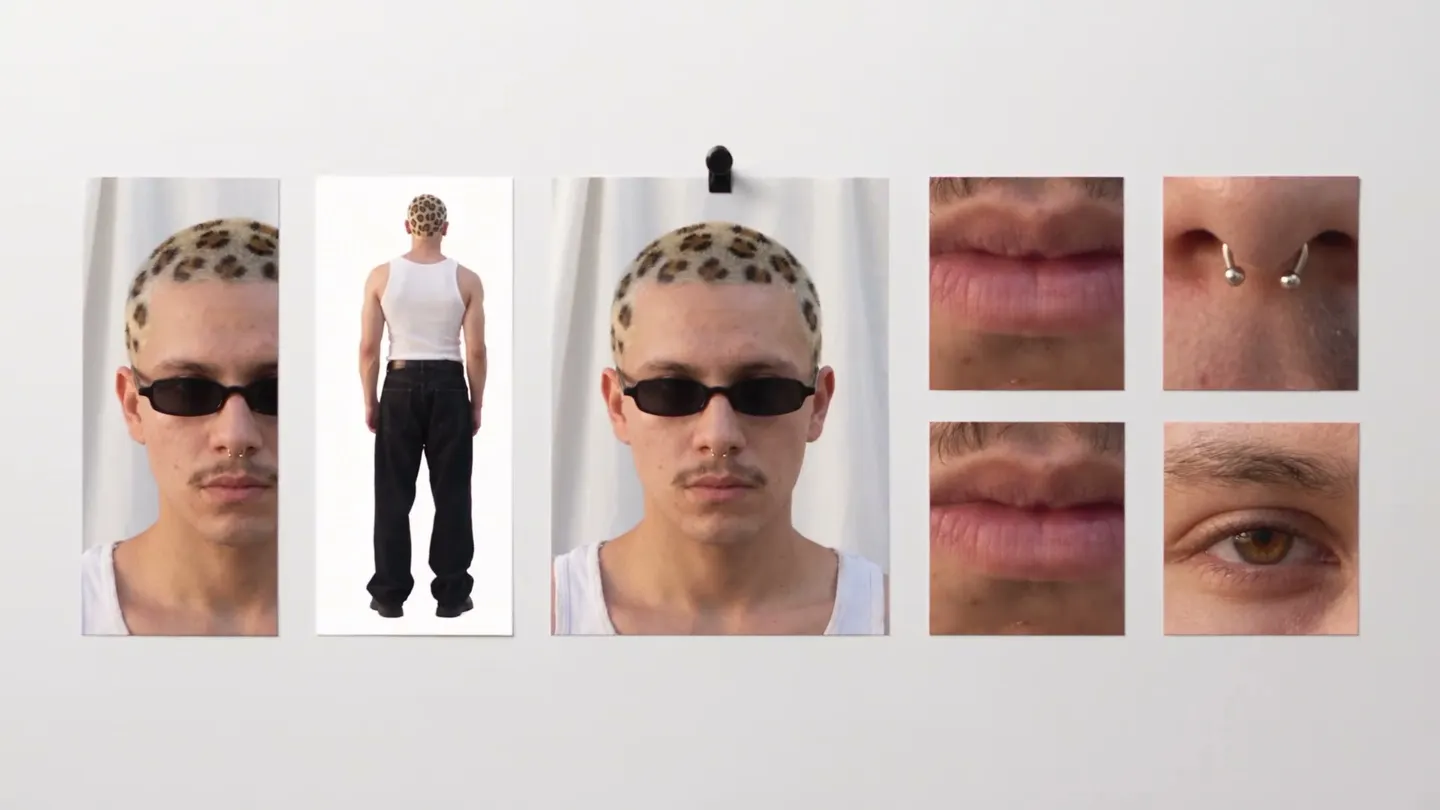
Character Sheet · Character reference
One image, full sheet
Add one image of a character and get a reference sheet with their face, four full-body views, and close-up details.
Add your own photo or start from an example. The price in Gems shows before you generate.
Before and after
See what Character Sheet does
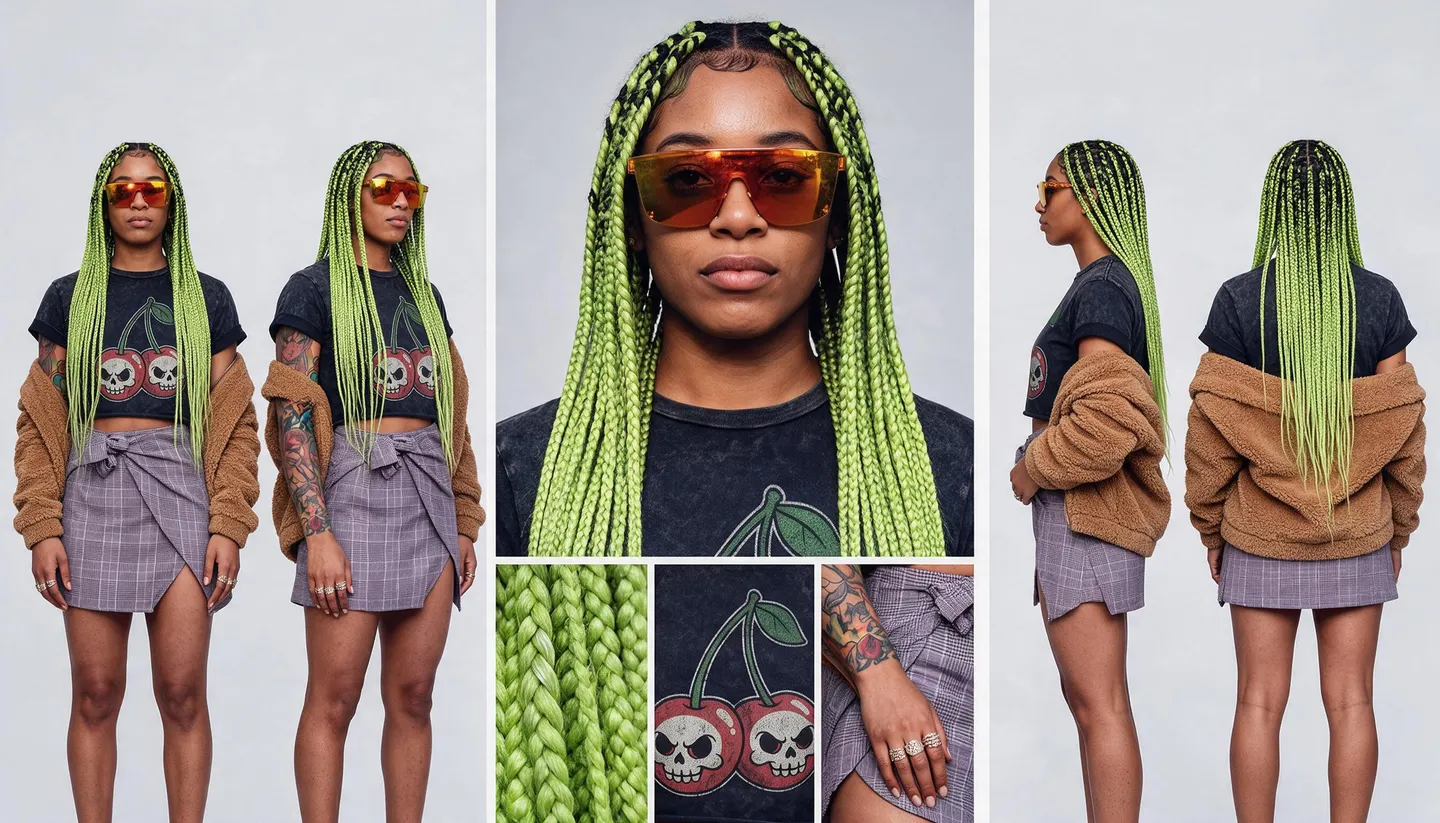
One street photo becomes a full turnaround sheet with braid, tee and tattoo details. Drag the handle to compare the original with the result.

Mage examples
Made with Character Sheet
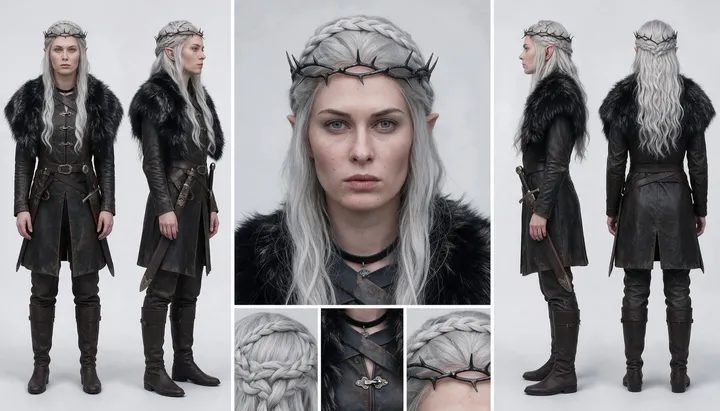
Real runs of Character Sheet. Open one in the app, swap in your own photo, and generate.



How it works
How to use Character Sheet
Add one image of a character and get a reference sheet with their face, four full-body views, and close-up details.
Add a character image
Upload a JPEG or PNG up to 30 MB, drop it on the page, or pick one of your creations.
Add details, if you like
Under Details, list accessories, clothing, or features to add, such as a silver circlet or a long red cape.
Make the sheet
The price in Gems shows on the Make Sheet button. The sheet lands in History; press Create Character to save it, or download, share, or remix it.
What you need
- An image of the character
For the best result
- Use a full-body image so the outfit and build carry into every view.
- A photo gives a sheet of photos, and an illustration gives an illustrated sheet.
- Save the sheet as a character to keep the same look across generations.
Ideas
What people make with Character Sheet
Consistent characters
Give a character one reference that holds every angle.
Comics and games
Get turnaround views to draw or model from.
Costume design
Add accessories and outfit details and see them in every view.
The basics
What a character sheet is for
Artists, animators, and game studios use character sheets, also called model sheets or turnarounds, to keep a character the same from one drawing to the next. One page shows the character from every side, with close-ups of the details that are easy to get wrong. Character Sheet makes one from a single image.
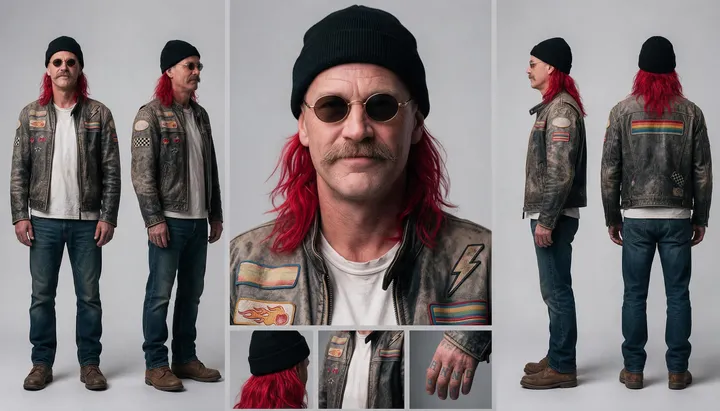
Add an image of your character, and it lays out a wide 16:9 sheet: a large face close-up, full-body front, three-quarter, side profile, and back views, and close-ups of the hair, the outfit, and the most distinctive detail, such as a tattoo, a patch, or a piece of jewelry. Every panel shows the same character in the same outfit, in the style of the image you added.
Save the sheet as a character, and it becomes the reference for your later generations. Because it shows the character from every side, it gives the model more to work from than a single portrait does.
Tips and techniques
Choosing the image
A full-body image in a simple pose gives the best sheet, because it shows the outfit, the shoes, and the build that every view has to repeat. A portrait works too, but then the sheet has to invent everything below the shoulders.
The style of the image carries into the sheet. A photo gives a sheet of photos, a 3D render a sheet of renders, and an illustration an illustrated sheet. Pick the style you want every later image of the character to have.
Tips and techniques
Adding details
The Details field adds things the image does not show yet, or makes sure they appear: a silver circlet, a long red cape, a scar across the cheek, fingerless gloves. List them as short phrases separated by commas, and the sheet puts them in every view where they would be visible.
Use Details to design, not only to describe. Try a costume idea on a sheet before you commit to it in a story, and make a second sheet with other details to compare.
- Short phrases: "a silver circlet, a long red cape".
- Name colors and materials.
- Leave Details empty to keep the character exactly as shown.
Tips and techniques
Using the sheet
Press Create Character on the sheet to save it with an @handle, then mention that handle in a prompt or pick it in apps such as Scene Builder and Video Character Swap. The views give the model the back and sides of the character as well as the front.
Artists can also draw or model straight from the views. For comics, keep the sheet beside your panels, and see the AI comic generator for making the pages.
- Save the best sheet as a character.
- Mention its @handle in your prompts.
- Pick it in any app that takes a character.
Tips and techniques
Where the character comes from
Any image works: a photo, one of your creations, or a character you designed with Character Builder: Attributes or Character Builder: Muse. For one new view rather than a full sheet, Angles turns a single image to a new camera position. For more ideas, see the AI character generator.
Mango 3 is the default model, and the sheet comes out at 2K unless you choose otherwise. Use images of real people only with their permission.
Tips and techniques
Getting a consistent sheet
A sheet is only useful when every panel shows the same character, so give the app an image that leaves little to guess. Clear light, a plain background, and an outfit fully in view all help. Busy patterns and small accessories are the hardest details to repeat in every view, so check them first on the result.
If one view comes out wrong, make the sheet again: each run is a new take, and a second sheet often gets right the view the first one missed. Name a detail under Details when the sheet keeps leaving it out.
For a character you will use often, make a few sheets and save the best one. It is the reference every later image and video of the character starts from.
A little more clarity
Frequently asked questions
What is a character sheet?
What do I need to upload?
What size is the sheet?
Which models can I use?
How much does a sheet cost?
Are my images private?
Can I use an illustration or a 3D render?
Does it work with an image of just the face?
Can I add accessories that are not in the image?
What is the difference between Character Sheet and Angles?
Why save the sheet as a character?
How do I keep a character the same across a story?

Make your own with Character Sheet
Open the app, add your photo, and see the price before you generate. Everything you make stays in your History.
Open Character Sheet