
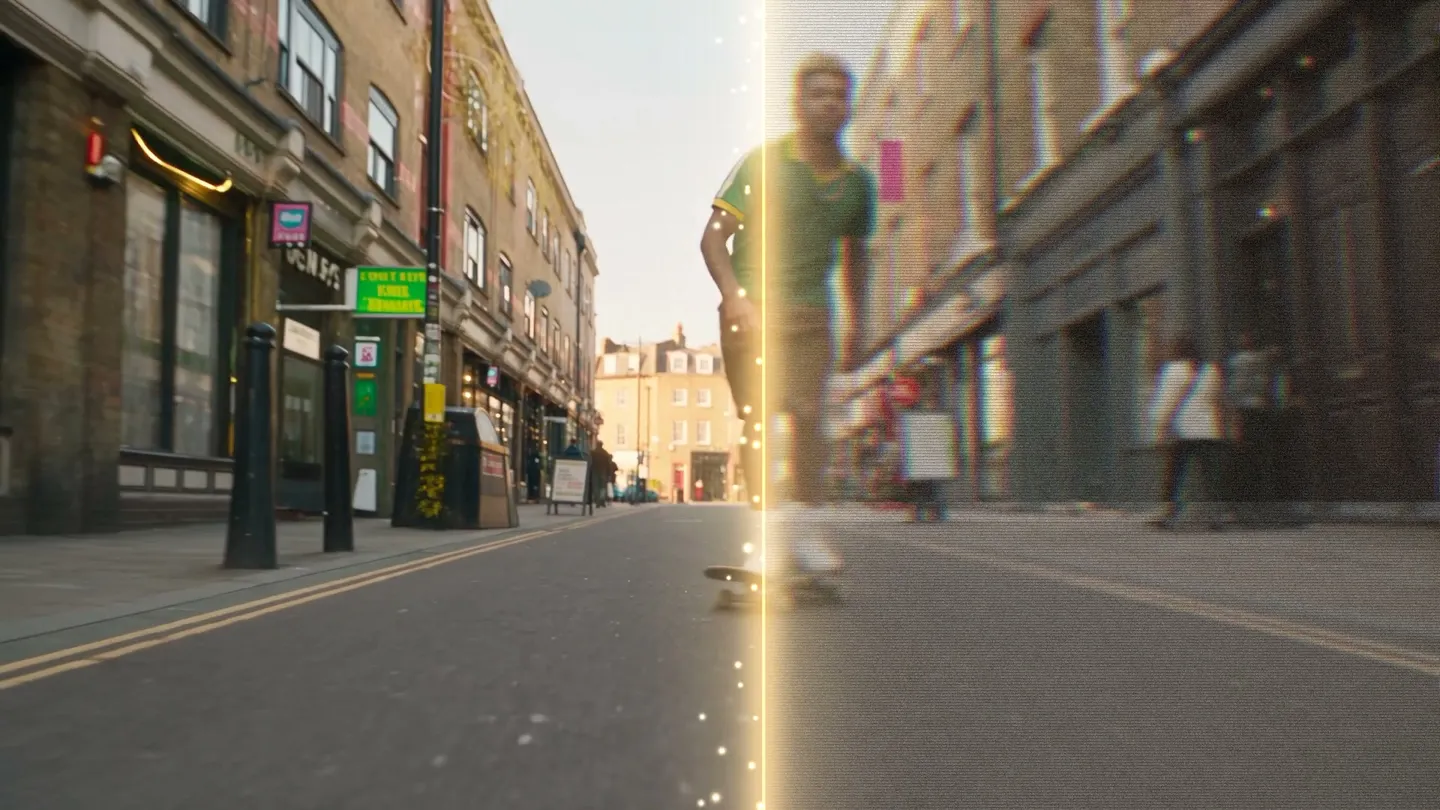
Video Enhancer · Upscale to 1080p
Sharpen any video
Add a clip up to 10 seconds, pick 720p or 1080p, and get a sharper version with new detail in every frame.
Add your own photo or start from an example. The price in Gems shows before you generate.
How it works
How to use Video Enhancer
Add a clip up to 10 seconds, pick 720p or 1080p, and get a sharper version with new detail in every frame.
Add a video
Upload an MP4, MOV, or WebM up to 10 seconds and 30 MB, or pick one of your video creations.
Pick the output resolution
Choose 720p or 1080p. The price in Gems shows on the Enhance button before you run it.
Enhance
Press Enhance and give it a few minutes. The result lands in History, ready to download, save, share, or remix.
What you need
- A video up to 10 seconds and 30 MB
For the best result
- Trim the clip to the part you need before you upload it.
- Use 720p for a quick check and 1080p for the final version.
- Enhance last, after every other edit, right before you post.
Ideas
What people make with Video Enhancer
Generated clips
Lift a 480p or 720p generation to a sharper 1080p.
Phone footage
Clean up soft or compressed clips before you share them.
Social posts
Give short videos crisp detail for full-screen feeds.
The basics
What is an AI video enhancer?
An AI video enhancer takes a finished clip and rebuilds it at higher quality. The model works frame by frame, raising the resolution, sharpening soft detail, and clearing the noise and compression artifacts that make footage look cheap. You hand it a clip and get a cleaner one back, with no timeline and no keyframes.
On Mage the enhancer sits next to the tools that made the clip, so you don't export anything first. Upload your own footage or pick one of your own creations, and the Video Enhancer upscales it up to 1080p and adds new detail. It takes clips up to 30MB and 10 seconds long.
A little more possibility
Why creators choose Mage for video enhancement
Up to 1080p
Upscales your clip up to 1080p and adds new detail, so a soft render comes back sharp enough to post.
Sharper, cleaner frames
Sharper detail and denoised frames, which is usually what makes a generated clip read as low quality.
Unlimited on Pro Plus and Max
Enhancement is unlimited at 720p on Pro Plus and at 1080p on Max, so you can run the same clip again at another setting and keep the better one. Other plans run it on Gems.
Runs in your browser
Nothing to install and no GPU to rent. Open a browser tab and the enhancer is there.
Private on every membership
Private Generations covers every paid tier, so an enhanced clip stays yours unless you publish it.
No watermark, commercial license
No watermark on Mage output, and a commercial license on every paid plan.
Tips and techniques
How to get the best result from an enhance pass
The enhancer rebuilds detail, so it does best with a clip that is soft rather than broken. A slightly blurry 480p generation or a compressed phone clip sharpens well. Footage with heavy motion blur, dropped frames or burned-in text gives the model less to work with, and fast, chaotic motion is where artifacts show first.
Trim before you upload. The enhancer takes clips up to 10 seconds and 30MB, so cut the strongest part of a longer video and enhance that. Then choose the output: 720p is plenty for most phone screens, and 1080p is the one for anything that will play full screen or be cropped later.
Compare before you keep. Watch the result at full size next to the original, and look closely at faces, hair and fine textures such as fabric or leaves. If something looks invented, try the other resolution or start from a cleaner copy of the clip.
- Upload the highest-quality copy you have, not a re-shared download.
- Keep the clip to 10 seconds or less and under 30MB.
- Pick 1080p for full-screen playback and 720p for phones.
- Check faces at full size before you publish.
Tips and techniques
Where enhancement fits in a video workflow
A common pattern is to draft cheap and finish sharp. Generate and iterate at a low resolution with the AI video generator or text to video, pick the take you like, then enhance only that one. The same goes for edits: change a clip in the AI video editor or swap a face with video face swap, then enhance the result.
For stills, use the image tools instead: the AI image upscaler takes photos to 2K, 4K or 6K, and AI photo restoration covers old and damaged pictures.
The right model for the job
Video models to pair with the enhancer
The enhancer works on any clip. These are the models whose drafts most often get a finishing pass.
Lemon
Fast drafts from 2 to 30 seconds with a first and a last frame; short 480p clips are unlimited from Pro, ready to enhance.
Melon
Mage's anime video model: draft at 540p, where short clips are unlimited from Pro, then enhance the keeper.
Cherry 2 Pro
Already reaches 1080p, so enhance only the 480p or 720p drafts you decide to keep.
Kiwi
Everyday clips from text or a start frame, in 5 or 10 seconds.
Room to experiment
How Mage compares for AI video enhancement
Enhancement is rarely one pass: you run it, you look, you run it again. Most desktop enhancers want a download and a paid license first, and the serious ones want a graphics card to match. On the browser side, most charge per run, so a second pass costs what the first one did. Mage makes enhancement unlimited on Pro Plus at 720p and on Max at 1080p, and every other plan runs it on Gems. It's the same account that generated the clip, so there's no export and re-upload loop in the middle.
Mainstream tools
- A download and a paid license before you start
- Usually metered per run, so retries cost again
- A separate tool from wherever the video was made
Mage
- Browser-based, with nothing to install
- Unlimited enhancement on Pro Plus and Max
- The same workspace that generated the clip
A little more clarity
Frequently asked questions
What does the Video Enhancer do?
What can I upload?
How long can my video be?
Which model does it use?
How much does it cost?
Are my videos private?
Can I enhance a clip I made somewhere else?
What is the best AI video enhancer?
Can you enhance video quality with AI?
Is there an online AI video enhancer?
What video can I upload?
Do I need to install anything?
Are my enhanced videos private?
Can I use enhanced video commercially?
Does Mage also generate video?

Make your own with Video Enhancer
Open the app, add your photo, and see the price before you generate. Everything you make stays in your History.
Open Video Enhancer